You have a site built with Elementor: a set of pages, a header and footer from Elementor Pro’s theme builder, a contact form and a palette of global colors and fonts. Rebuilding all of that by hand in another builder takes days. Uncoder’s importer does most of the work for you, and it leaves your Elementor data alone while it does.
Where the importer lives
Go to Uncoder → Library → Import & export and scroll to Import from Elementor. Only administrators see it. Import from Elementor is part of the free builder, on every plan.
The importer reads the designs straight from your WordPress database, so Elementor does not need to be active. It scans the site and lists every page, post and Elementor template that has an Elementor design, with its type, its status and an In Uncoder column that shows whether it has been converted yet. Click Rescan after you add or change Elementor designs.
If a content type shows Enable Uncoder for this post type first, turn that type on under Uncoder → Settings → General → Post types, then rescan.
Copies first, or replace in place
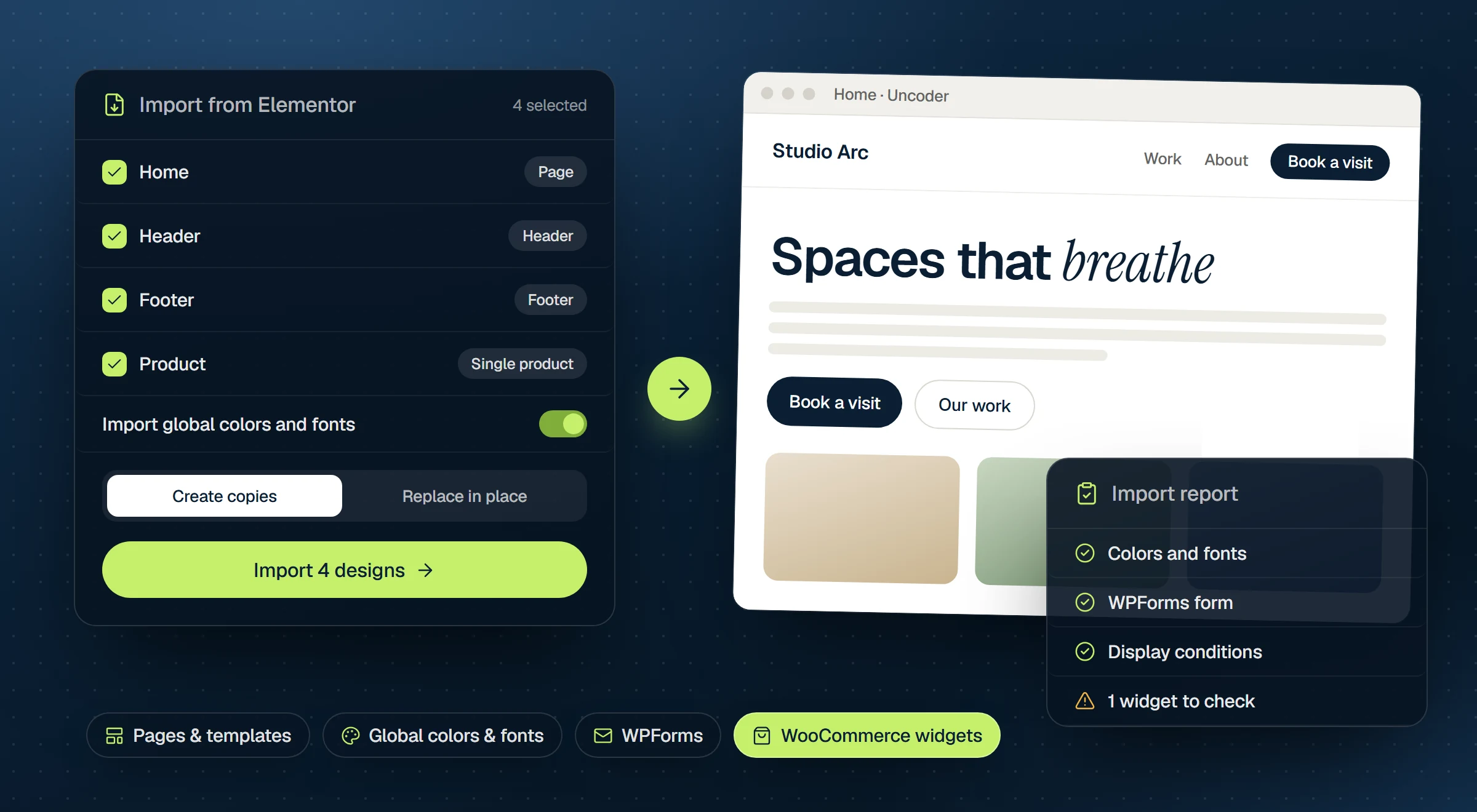
Tick what you want to convert, then choose a mode:
- Create copies (the default): each page becomes a new draft named “… (Uncoder)”. The original Elementor page stays live and unchanged. Compare the two, polish the copy, then swap it in when you are happy.
- Replace in place: the page itself switches to its Uncoder design, at the same address. Its Elementor data is kept. To go back, open the page in the WordPress editor and choose Switch back to the WordPress editor.
Templates always become new Uncoder templates, whichever mode you pick.
Pages keep their layout too: a page on Elementor’s Canvas template gets Uncoder Canvas (no header/footer), and Elementor Full Width becomes Uncoder Full Width.
What comes over
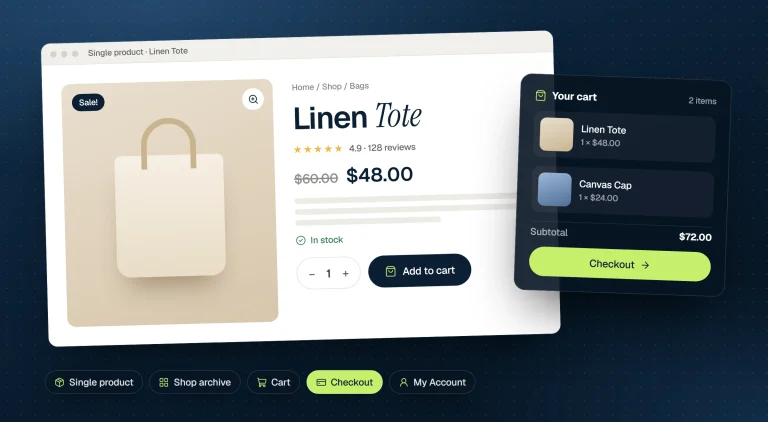
Layouts and widgets. Containers and the older section and column layout, and most Elementor and Elementor Pro widgets, from headings, buttons and icon boxes to tabs, forms, loop grids, nav menus, slides and the theme widgets such as Post Title and Post Content. Since Uncoder 0.1.5, Elementor Pro’s WooCommerce widgets convert as well.
Theme templates. Headers, footers, singles, archives, search results, 404 pages, popups and loop items become Uncoder templates of the same type. Sections, containers, pages and global widgets become saved sections. Elementor Pro’s display conditions come over with the theme templates, so a converted header shows where it showed before.
Global colors and fonts. With Also import the Elementor global colors & fonts on, Elementor’s Site Settings go into your Design System: the global colors and fonts, theme colors, button and form field styles, the container width and the site’s custom CSS. Uncoder saves a restore point first. Converted elements then use your Design System colors and text styles instead of fixed values, so changing a color later updates every converted page.
Custom fonts and site CSS. Fonts uploaded with Elementor Pro’s Custom Fonts become Uncoder custom fonts. Your site CSS is rewritten for the converted elements (for example, .elementor-button becomes .uncoder-btn), and Elementor’s global color and font variables keep working.
WPForms forms. A WPForms form in Elementor’s WPForms widget, or alone in a Shortcode widget, becomes an Uncoder form with its fields, labels, placeholders, required fields, button, first confirmation and first email notification. The page then no longer needs WPForms.
Template shortcodes. Once Elementor Pro is switched off, shows the saved section converted from that template. Convert the template first; until then, the shortcode shows nothing.
The importer also handles UiCore Framework themes and widgets from a few add-ons, such as Element Pack and UiCore Elements.
Read the report
Each converted item gets a result line with Edit and View links. A green check means everything was converted. A warning sign means something needs a look: click Details. You may see:
- Widgets that were not converted: widgets with no Uncoder equivalent, often from add-on plugins. Each one became an empty HTML widget named “Elementor: …” in the right place, so you can find it in the Layers panel and rebuild it.
- Settings to check: widget settings that could not be carried over exactly.
- Good to know: notes, such as fonts that are not in your Design System.
- Images still loaded from another site: upload these to your media library, or they break when that site goes away.
- Dropped while saving: invalid values that were left out.
What to check before you go live
The result is a close match, not a pixel-perfect copy. Run through this list:
- Every page in the editor and on a phone, before you publish it.
- The “Elementor: …” placeholders. Rebuild each one with Uncoder widgets.
- Template conditions in the Theme Builder. A template that was switched off in Elementor stays a draft, and a template without display conditions shows nowhere until you set them.
- Popups. Their triggers and layout are not converted. Set them in the popup settings.
- Forms. A Show Page confirmation is not converted, so set Redirect after success yourself. Only the first notification comes over; add the others in the form’s actions. A file upload field needs Allow file uploads in Spam protection. Address, Rating and payment fields are left out and listed under Settings to check.
- Leftover Elementor classes in your custom CSS. Classes with no single Uncoder equivalent stay as written.
A connected AI app can help with the cleanup:
The converted About page still loads two images from our old domain. Upload them to the media library and use the uploaded copies on the page.
Try it
Download Uncoder, open Uncoder → Library → Import & export and convert one page with Create copies. Compare it with the original before you convert the rest. The full reference is in the Import from Elementor docs, and template conditions explains how the converted headers and footers are placed.