

Section library
Copy a section. Paste it in your page.
Heroes, pricing tables, testimonials, footers and more. Free sections paste straight into the Uncoder editor in your own colours and fonts. Premium sections from the starter sites come with Pro and Agency.
All sections

Ticker, section #1129
Pro
Trusted By, section #1128
Pro
About, section #1127
Pro
Behind The Service, section #1126
Pro
Statistics, section #1125
Pro
Benefits, section #1124
Pro
Services, section #1123
Pro
How It Works, section #1122
Pro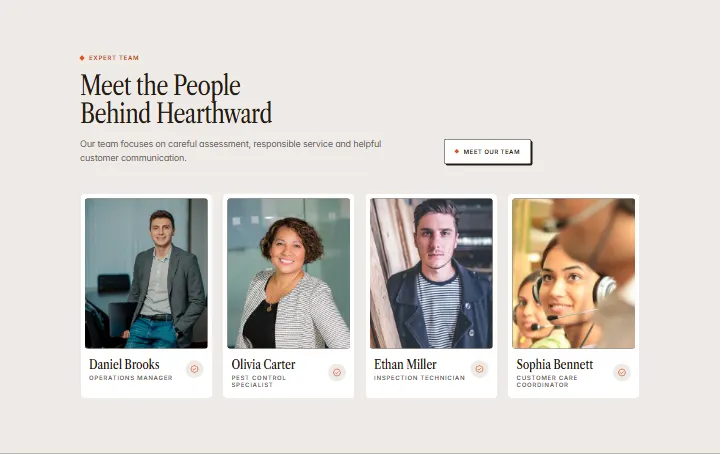
Team, section #1121
Pro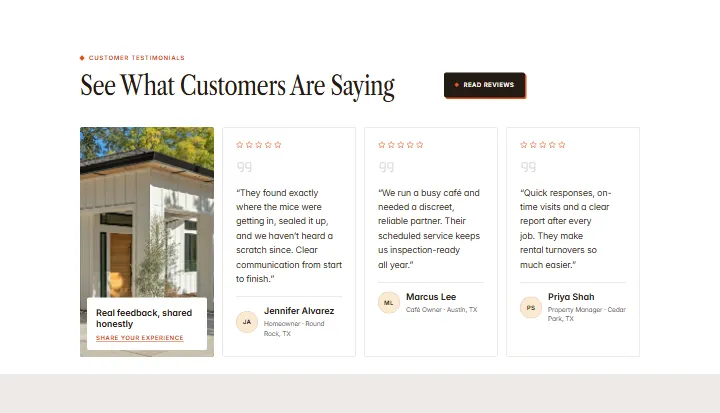
Testimonials, section #1120
Pro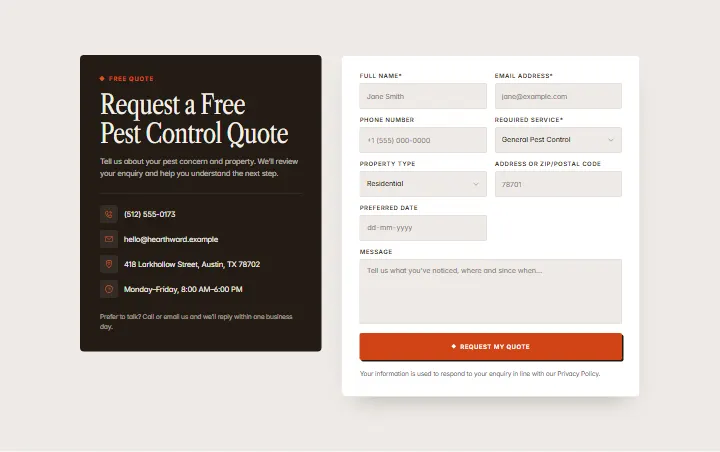
Quote Form, section #1119
Pro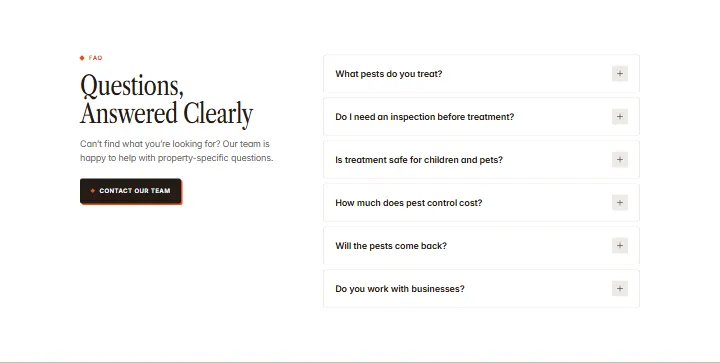
FAQ, section #1118
Pro
Call to action, section #1117
Pro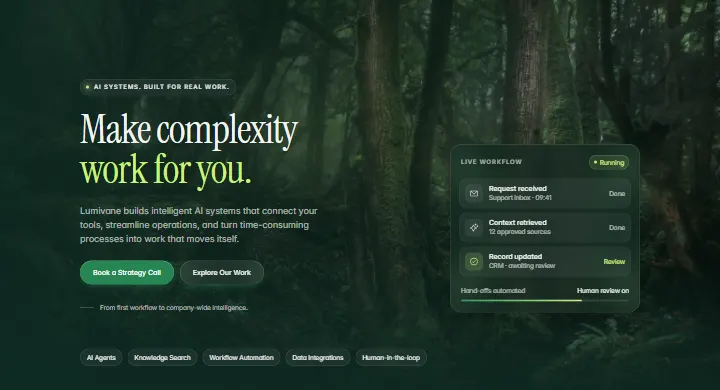
Hero, section #1116
Pro
Ticker, section #1115
Pro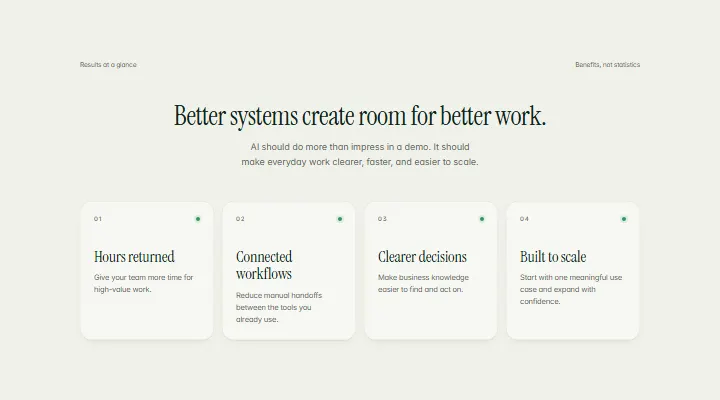
Benefits, section #1114
Pro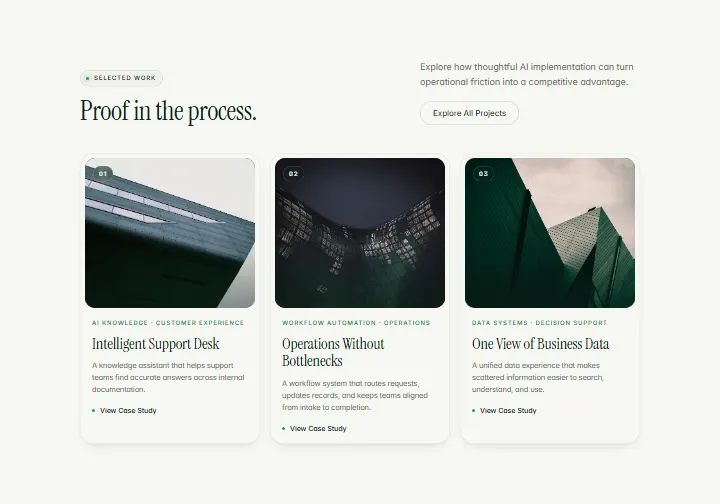
Selected Work, section #1113
Pro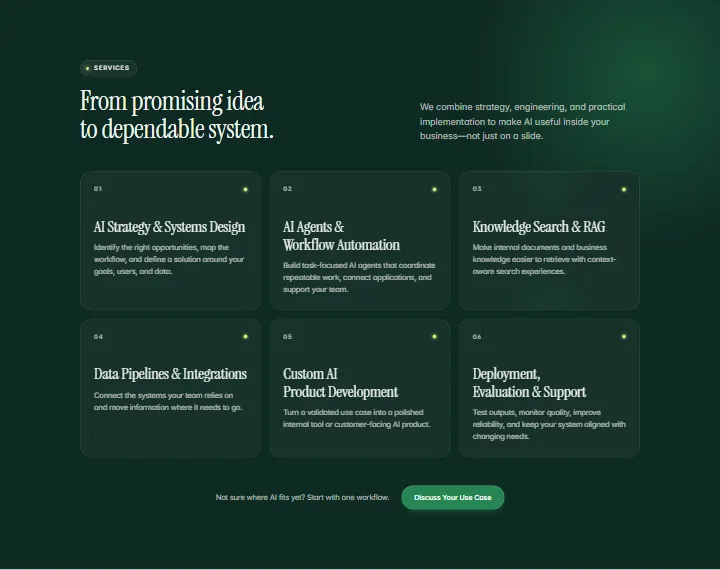
Services, section #1112
Pro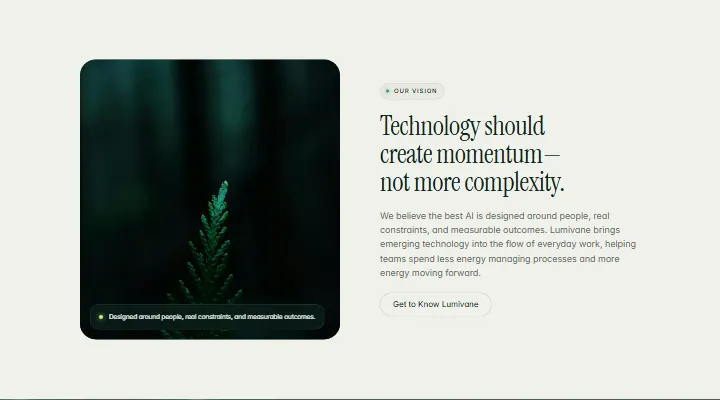
Our Vision, section #1111
Pro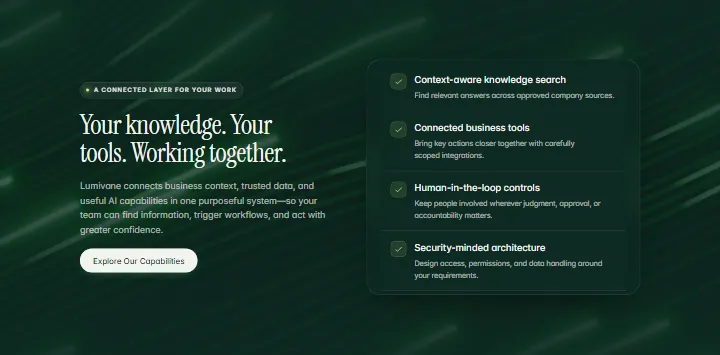
Connected Features, section #1110
Pro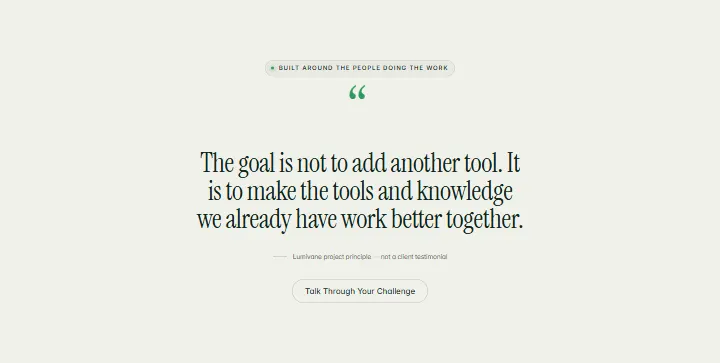
Quote, section #1109
Pro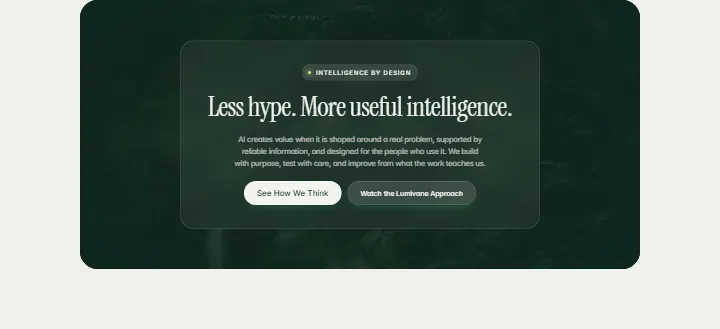
Banner, section #1108
Pro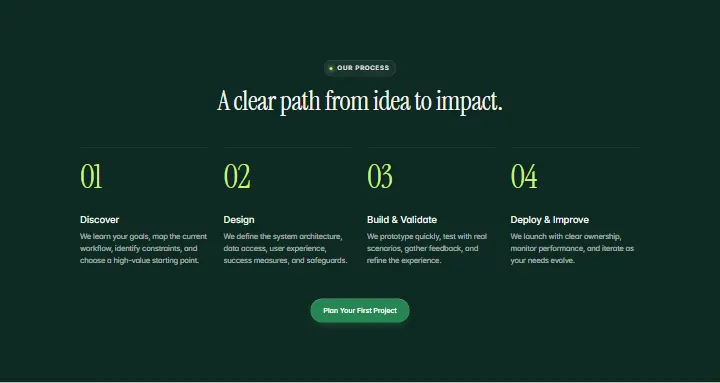
Our Process, section #1107
Pro
About, section #1106
Pro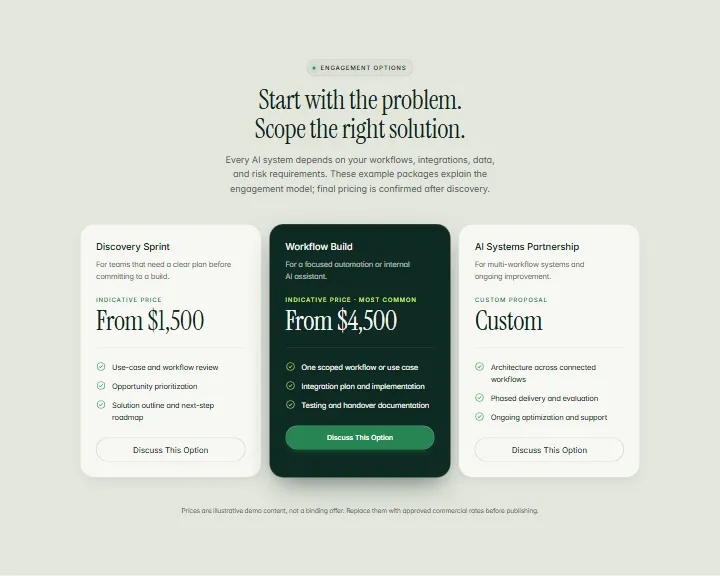
Pricing, section #1105
Pro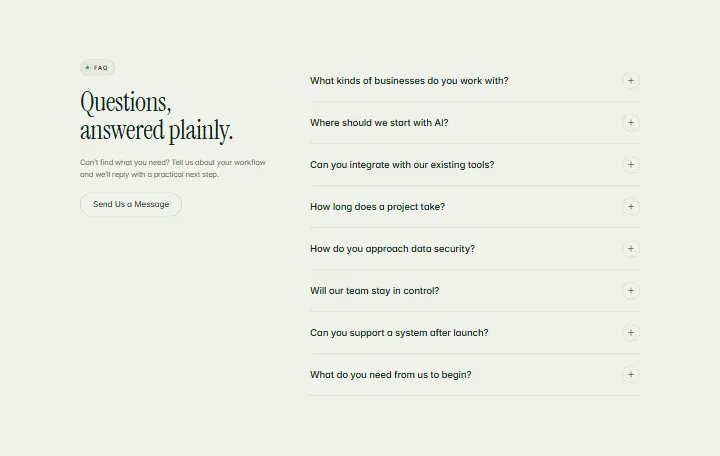
FAQ, section #1104
Pro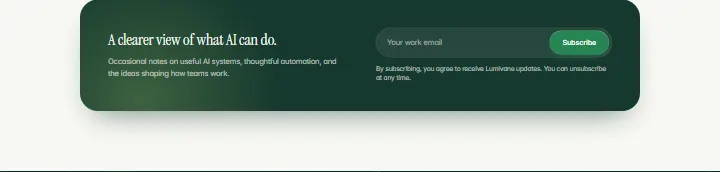
Newsletter, section #1103
Pro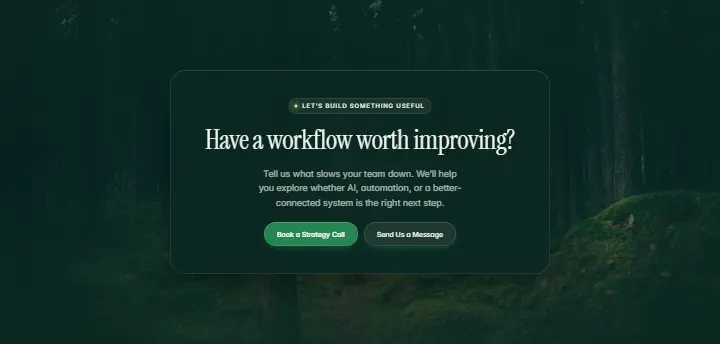
Call to action, section #1102
Pro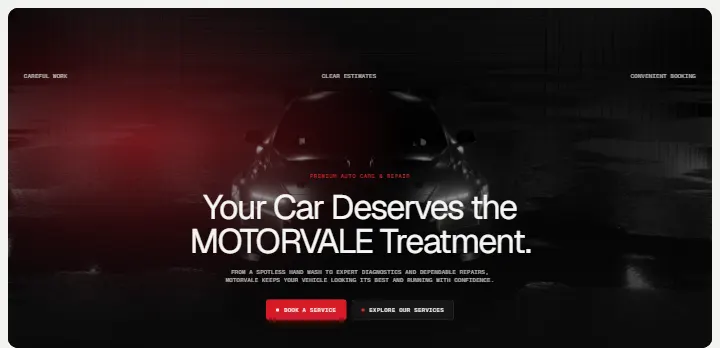
Hero, section #1101
Pro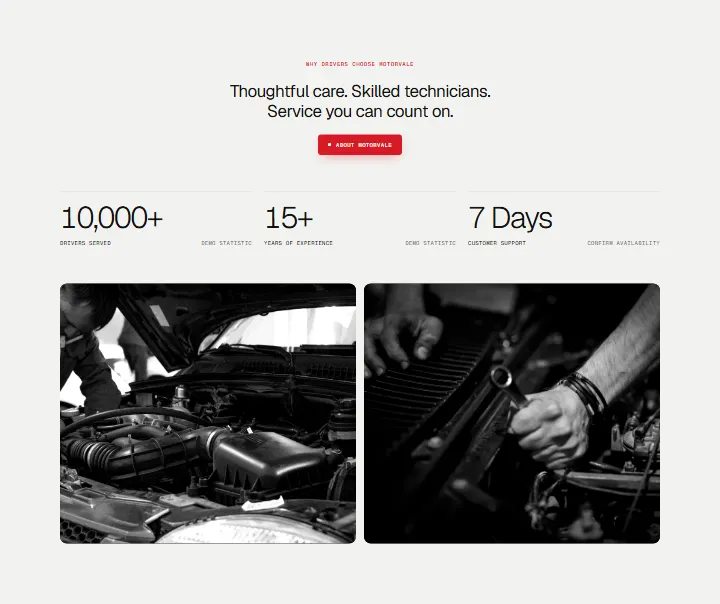
Why Drivers Choose Us, section #1100
Pro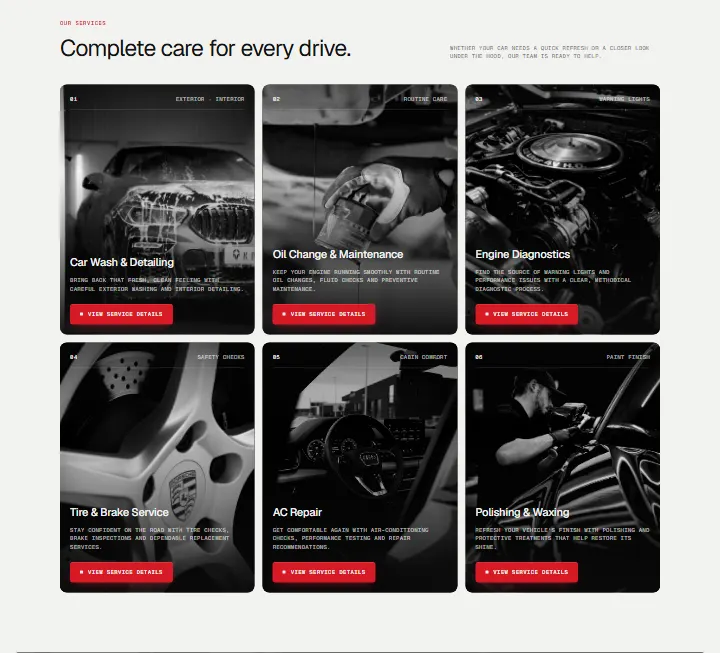
Services, section #1099
Pro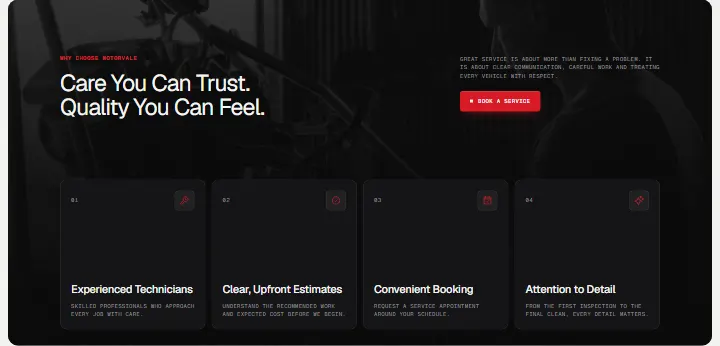
Why Choose Us, section #1098
Pro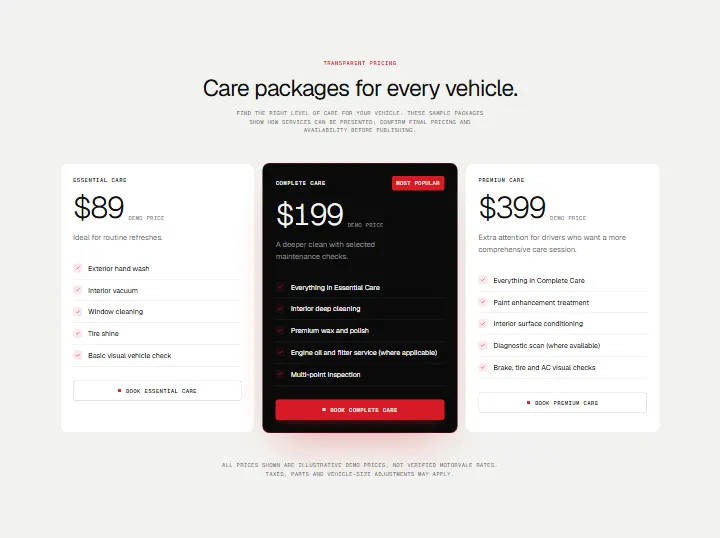
Care Packages, section #1097
Pro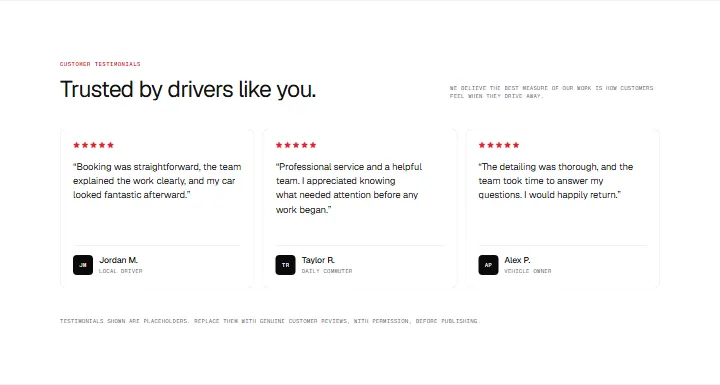
Testimonials, section #1096
Pro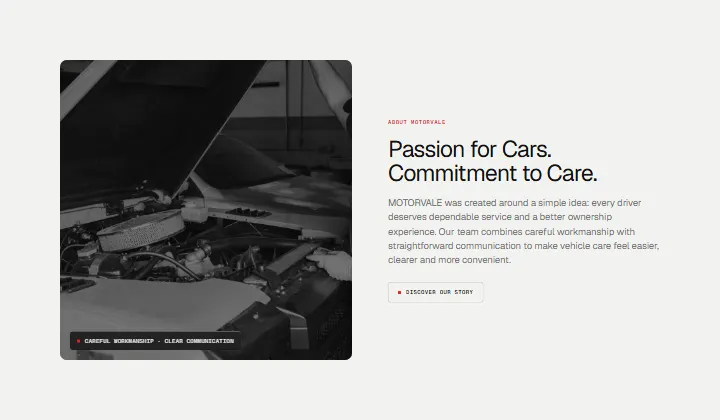
About, section #1095
Pro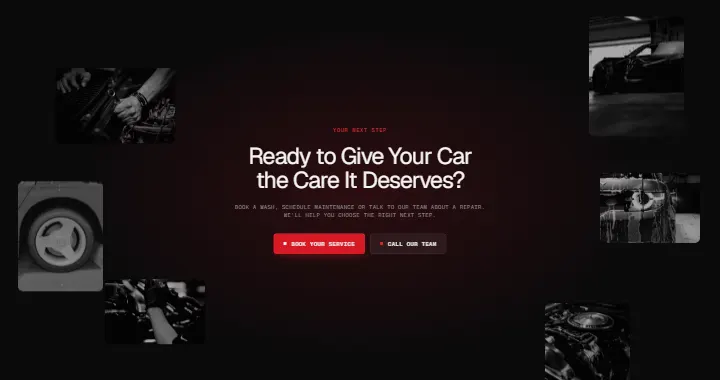
CTA, section #1094
Pro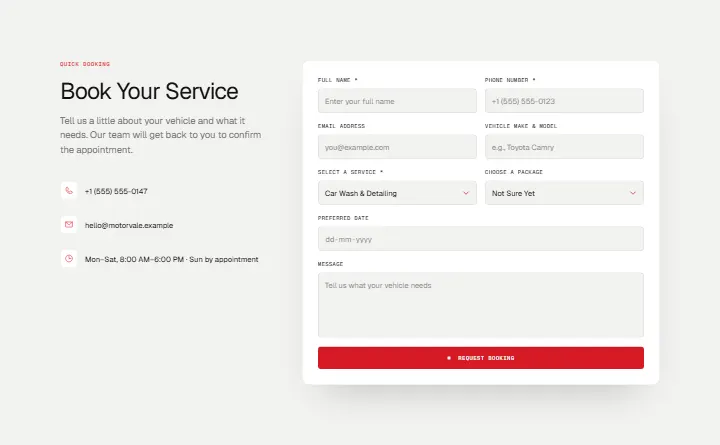
Booking Form, section #1093
Pro
Hero, section #1092
Pro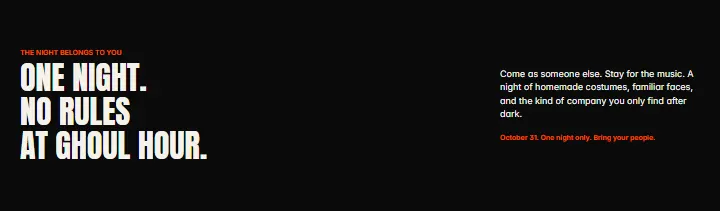
Description, section #1091
Pro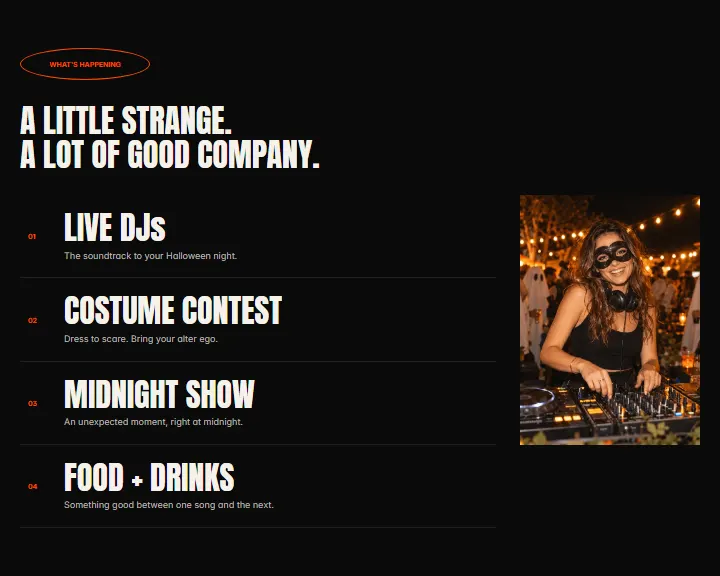
What's Happening, section #1090
Pro
Image, section #1089
Pro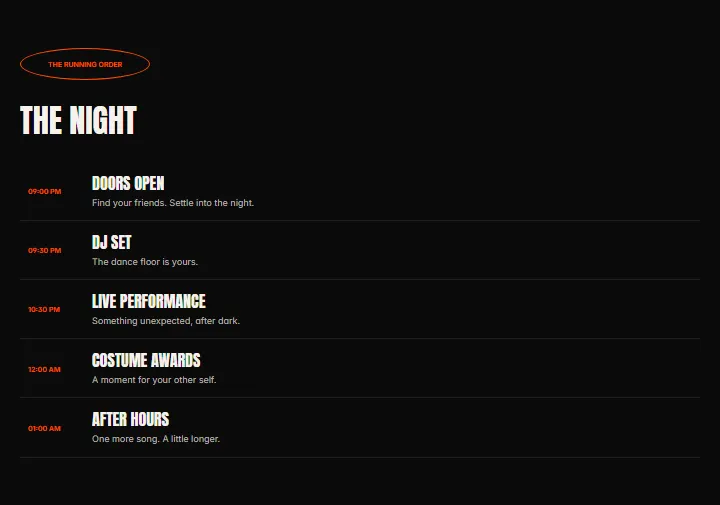
The Running Order, section #1088
Pro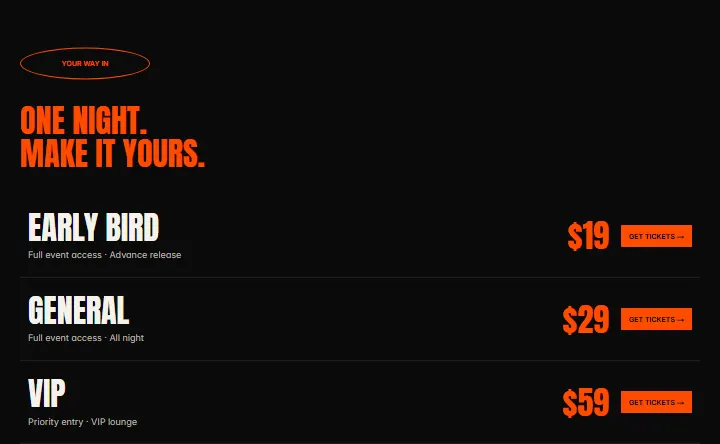
Your Way In, section #1087
Pro
Dress To Scare, section #1086
Pro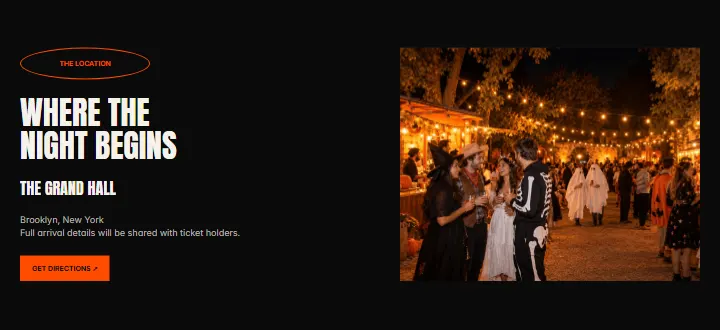
Location, section #1085
Pro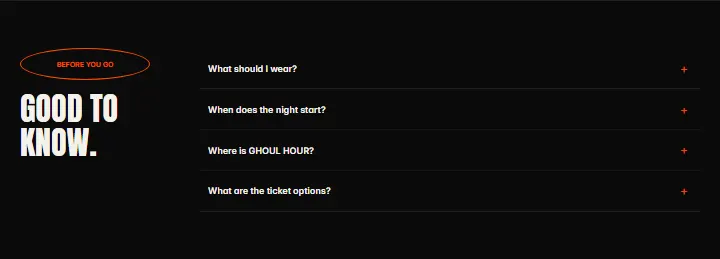
Good To Know, section #1084
Pro
CTA, section #1083
Pro
Hero, section #1082
Pro
About, section #1081
Pro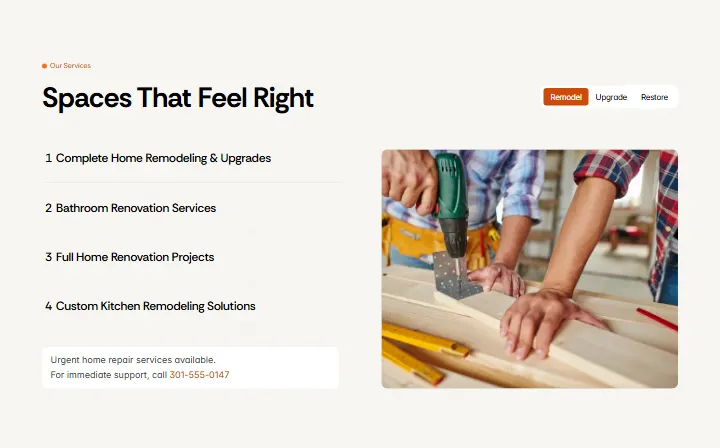
Services, section #1080
Pro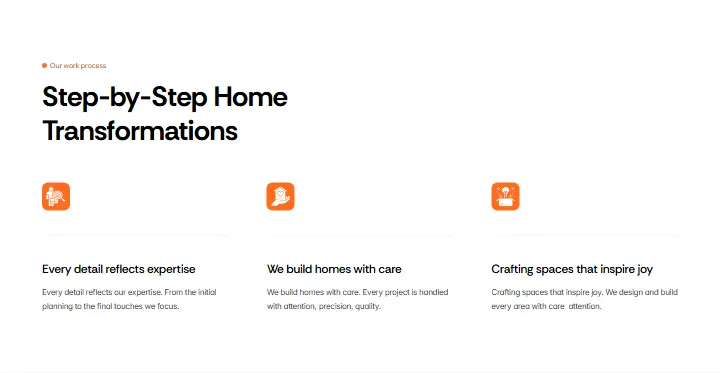
Work, section #1079
Pro
Why Choose Us, section #1078
Pro
Image, section #1077
Pro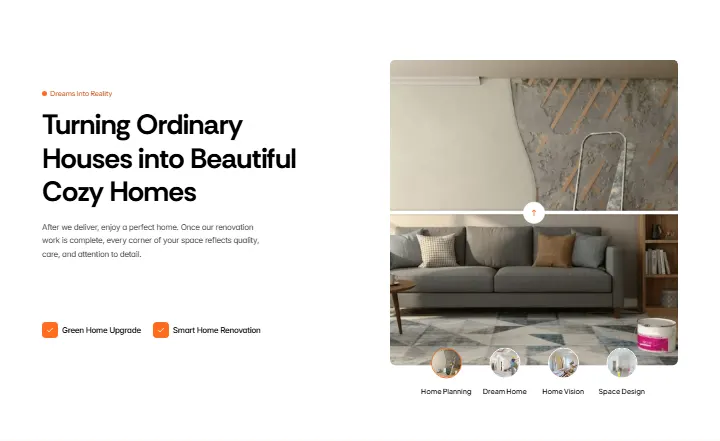
Features, section #1076
Pro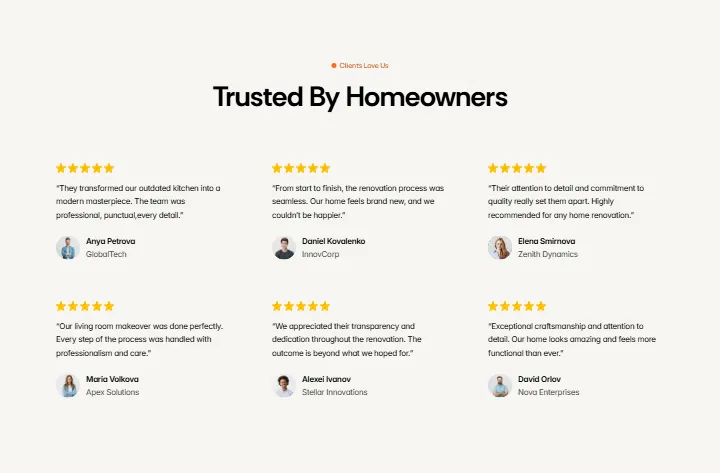
Testimonials, section #1075
Pro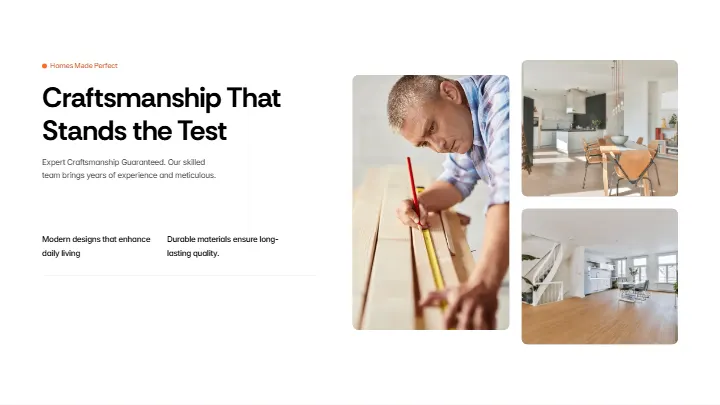
Benefits, section #1074
Pro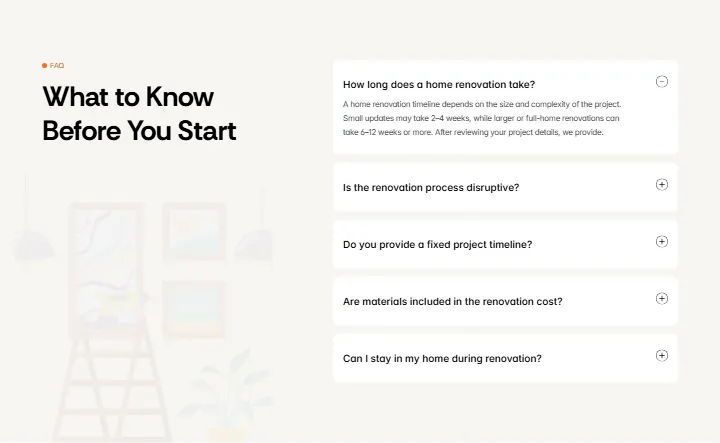
FAQ, section #1073
Pro
Hero, section #1072
Pro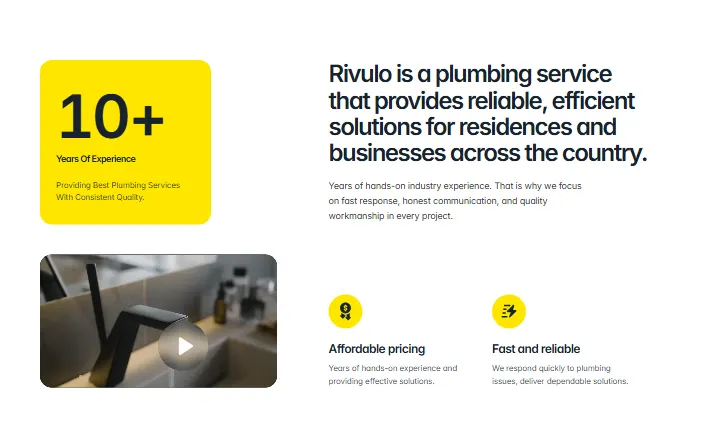
About, section #1071
Pro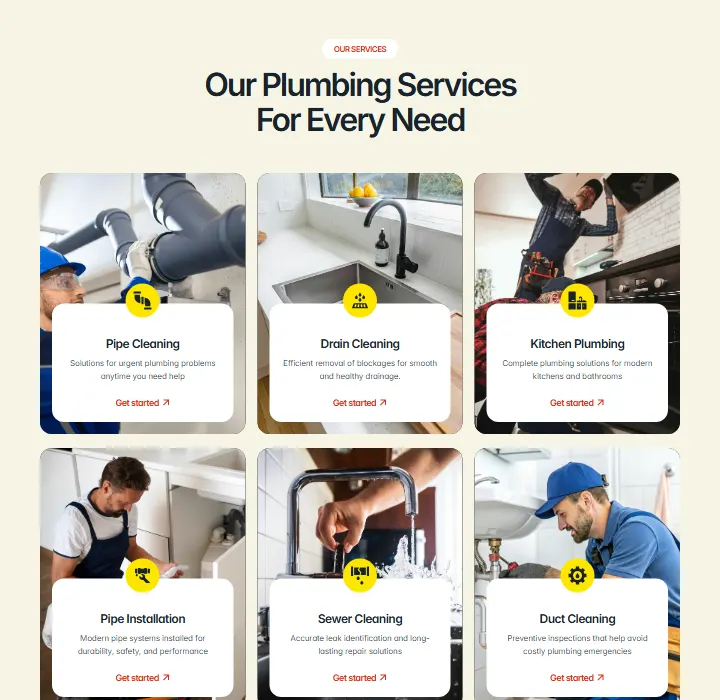
Services, section #1070
Pro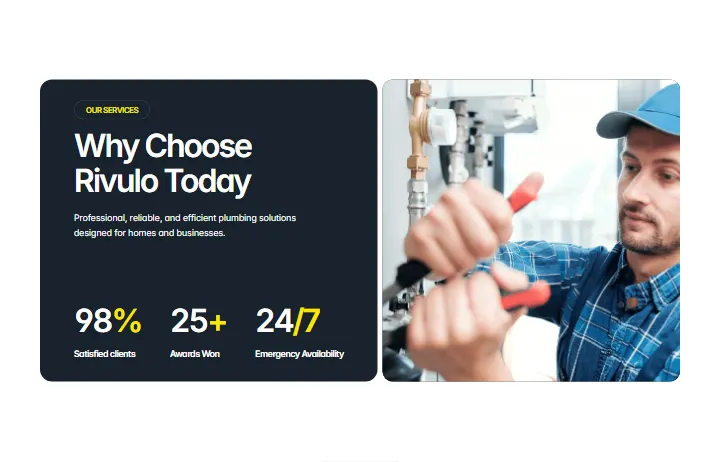
Key Benefits, section #1069
Pro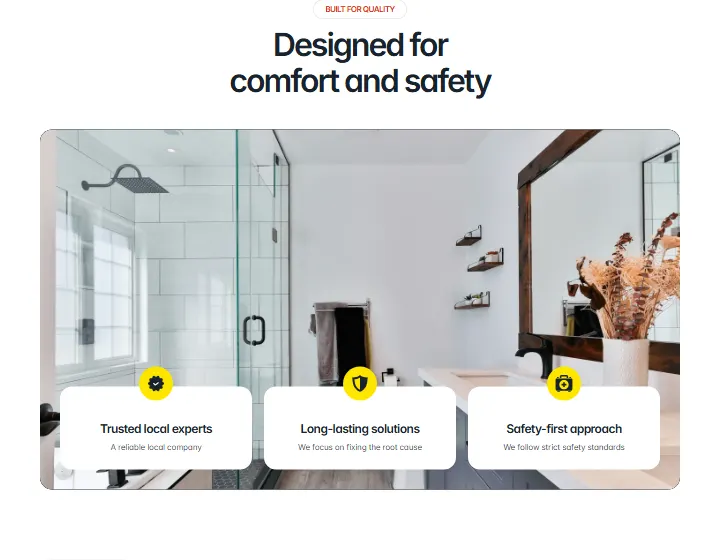
Built For Quality, section #1068
Pro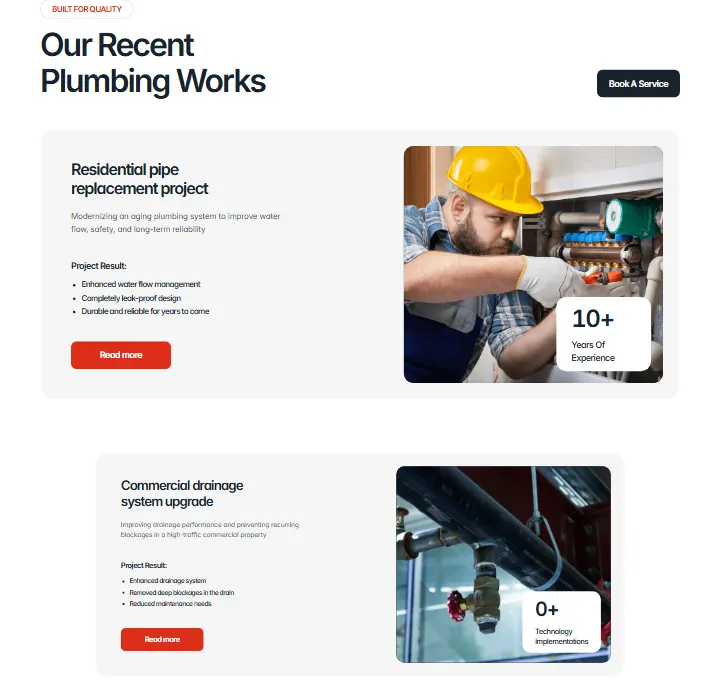
Projects, section #1067
Pro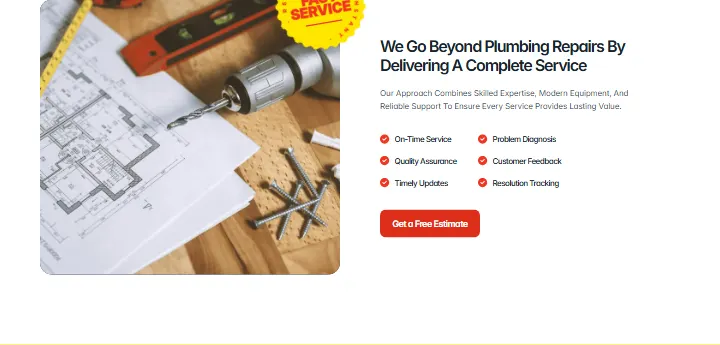
Feature, section #1066
Pro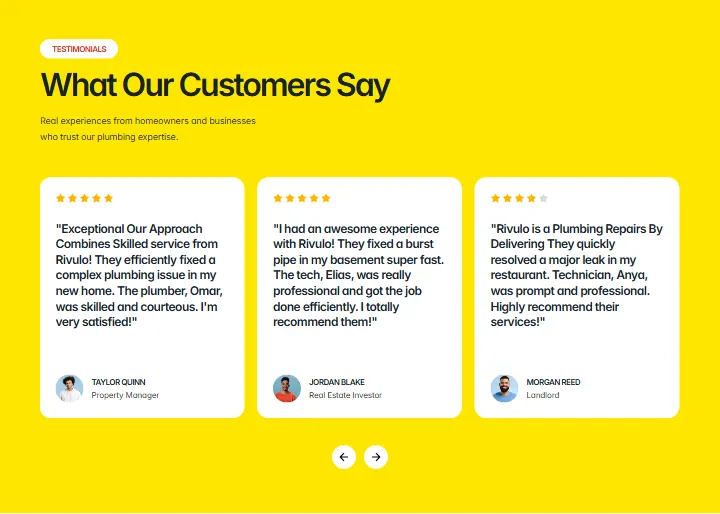
Testimonials, section #1065
Pro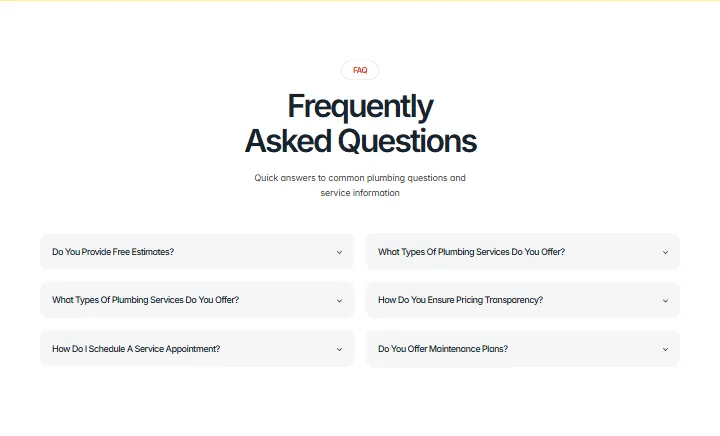
FAQ, section #1064
Pro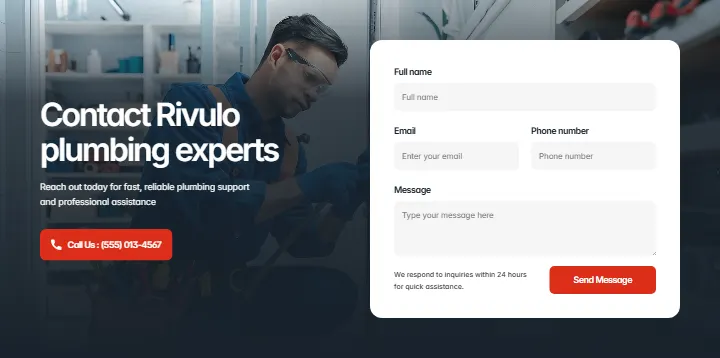
Contact, section #1063
Pro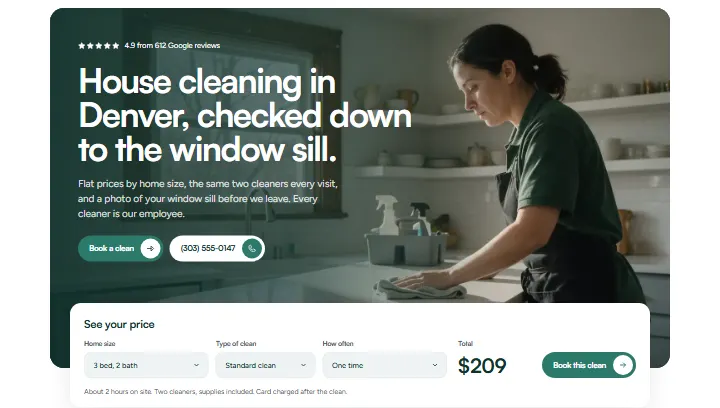
Intro, section #1062
Pro
Proof, section #1061
Pro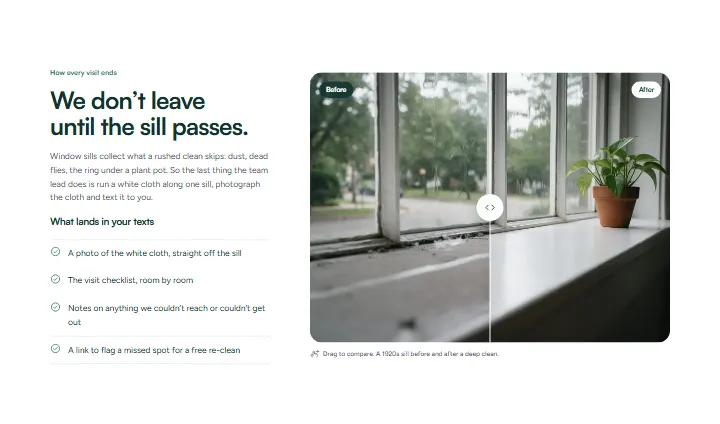
Sill Test, section #1060
Pro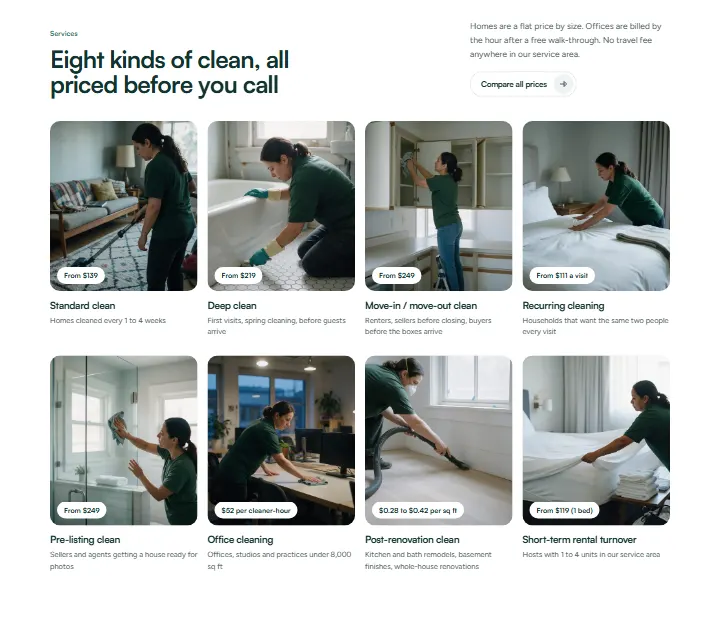
Services, section #1059
Pro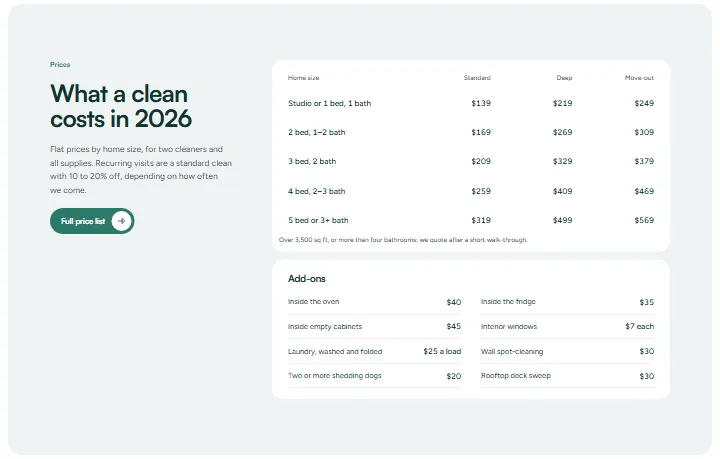
Prices, section #1058
Pro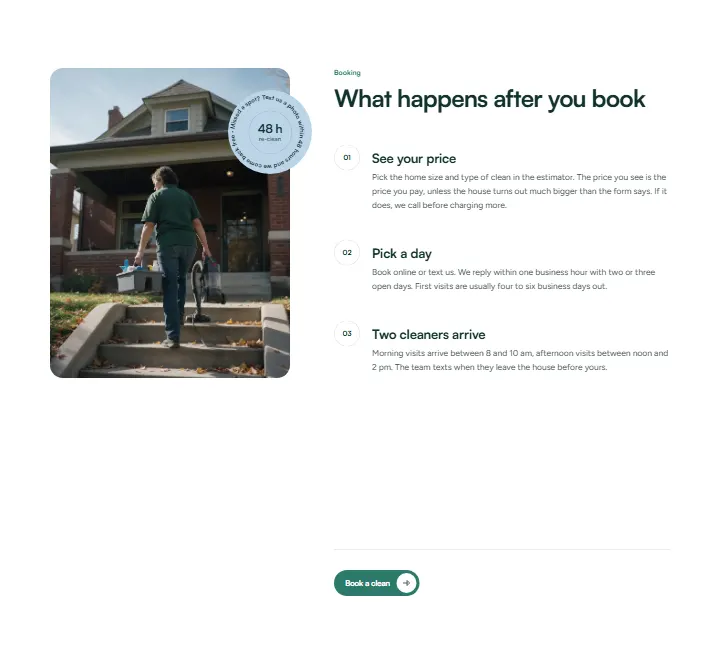
Process, section #1057
Pro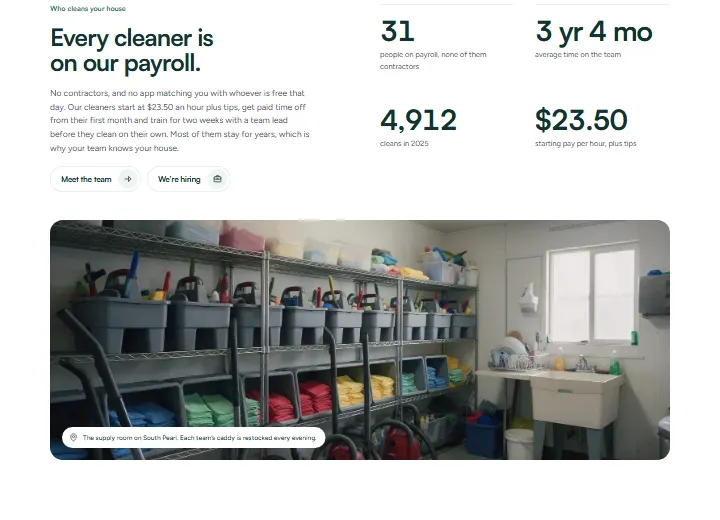
Team, section #1056
Pro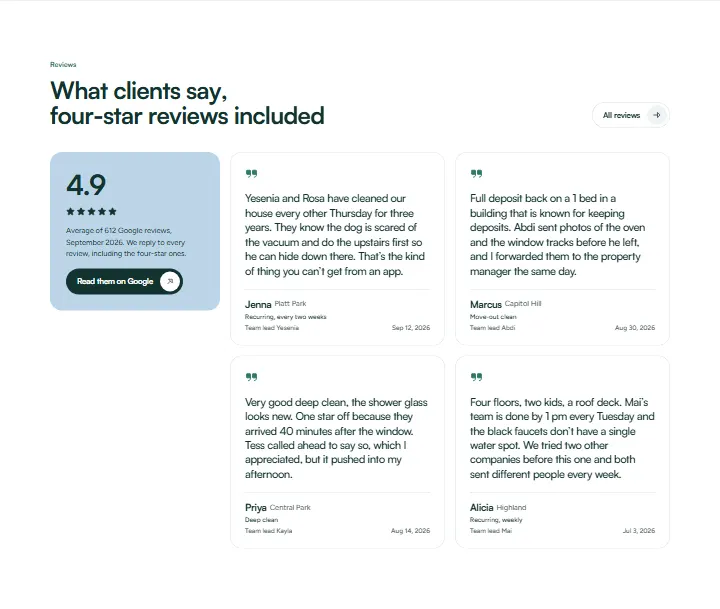
Reviews, section #1055
Pro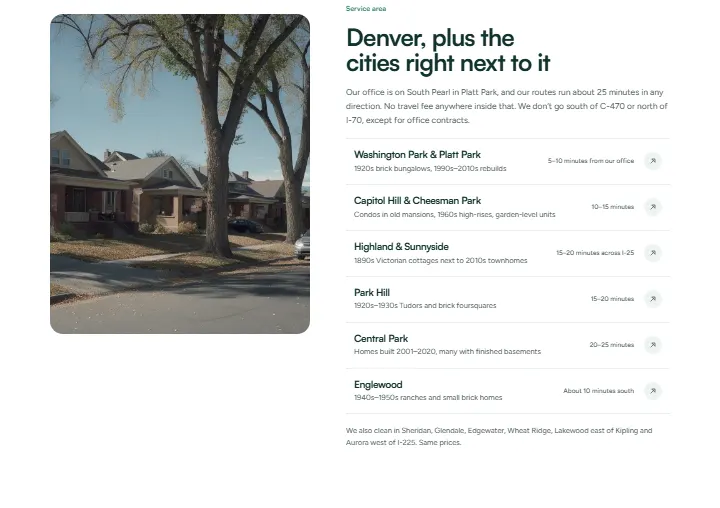
Areas, section #1054
Pro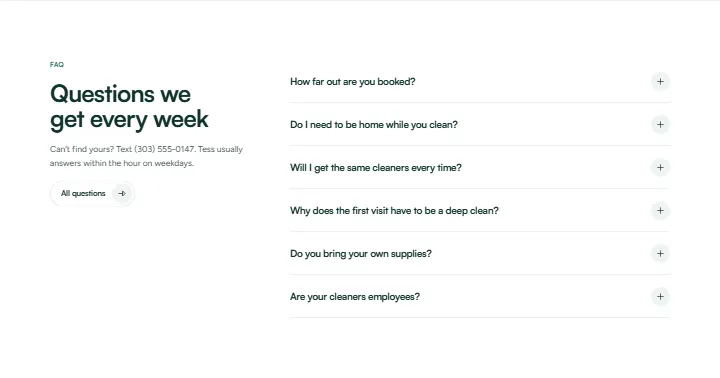
FAQ, section #1053
Pro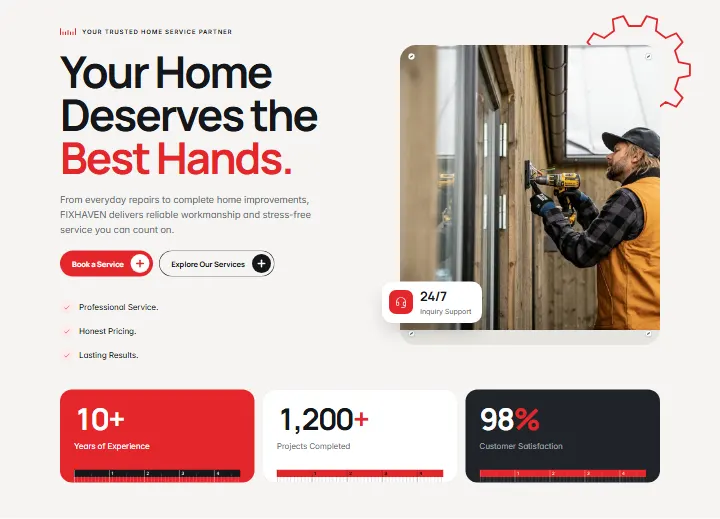
Opening, section #1052
Pro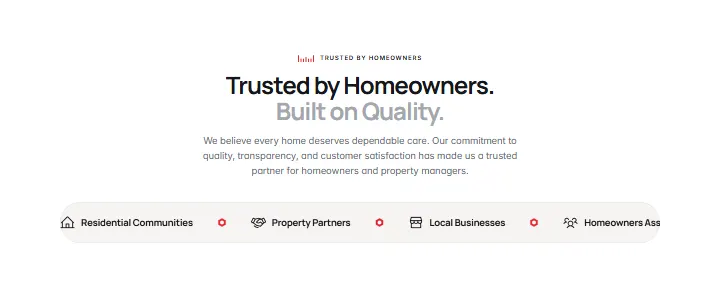
Trusted By Homeowners, section #1051
Pro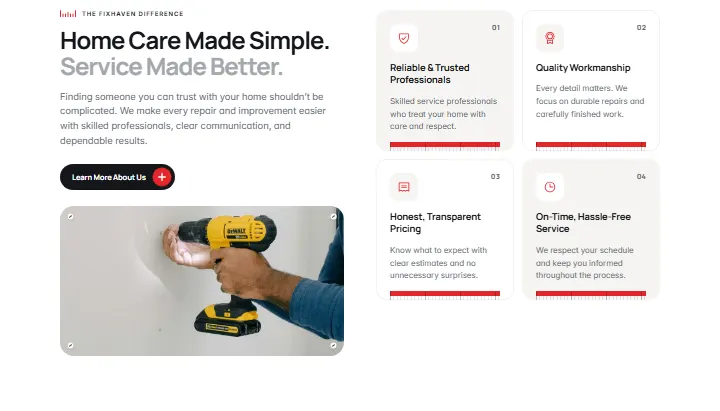
Why Choose FIXHAVEN, section #1050
Pro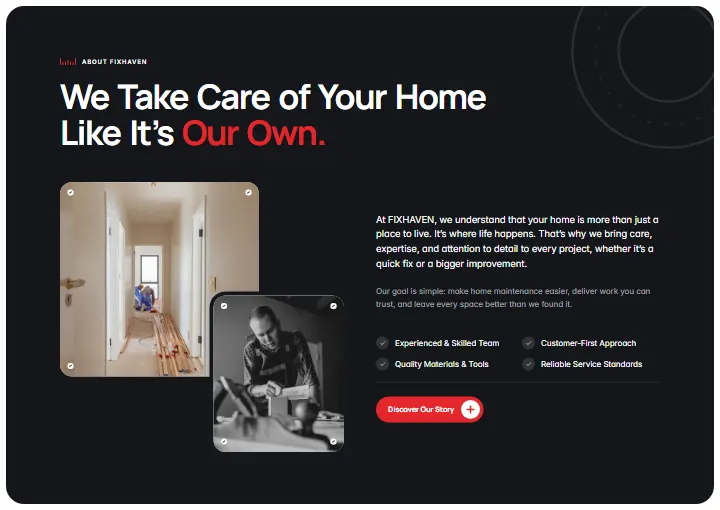
About FIXHAVEN, section #1049
Pro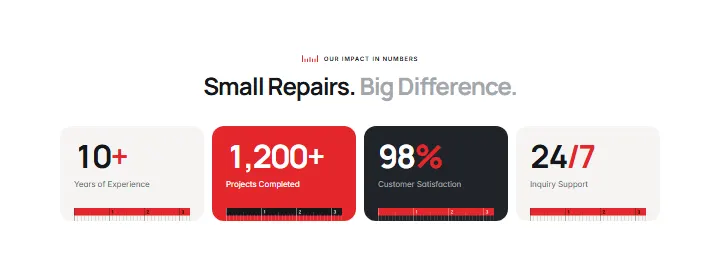
Company Statistics, section #1048
Pro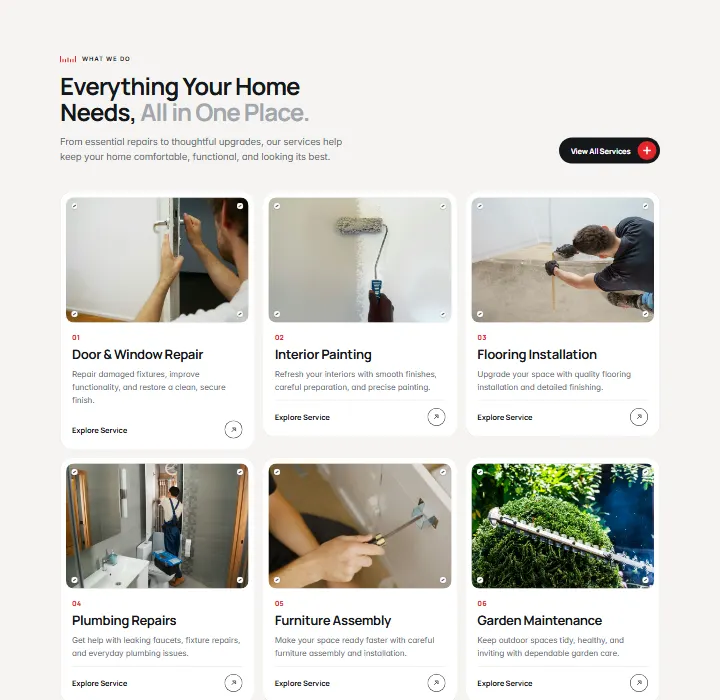
Services Overview, section #1047
Pro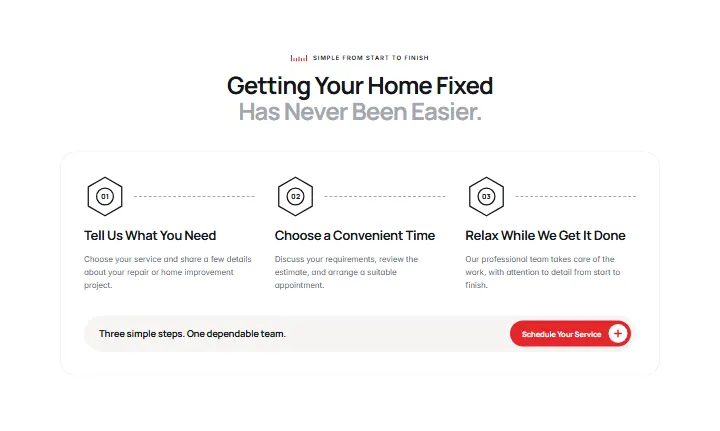
How It Works, section #1046
Pro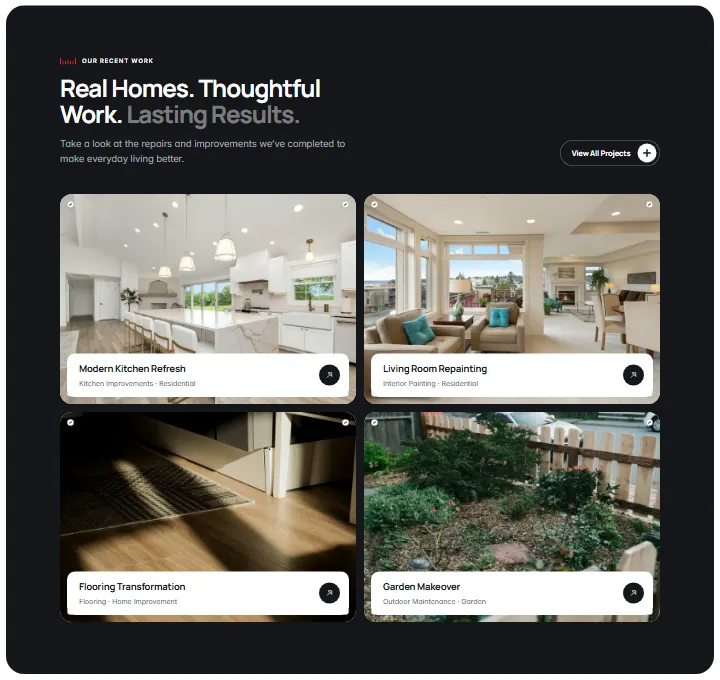
Featured Projects, section #1045
Pro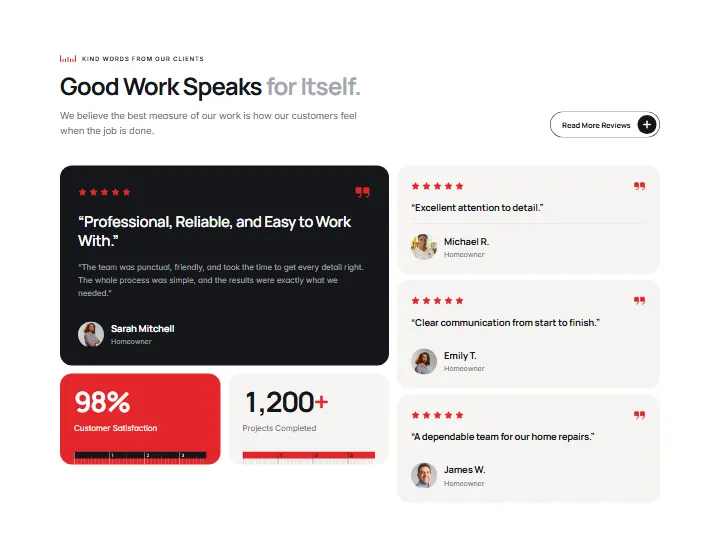
Customer Testimonials, section #1044
Pro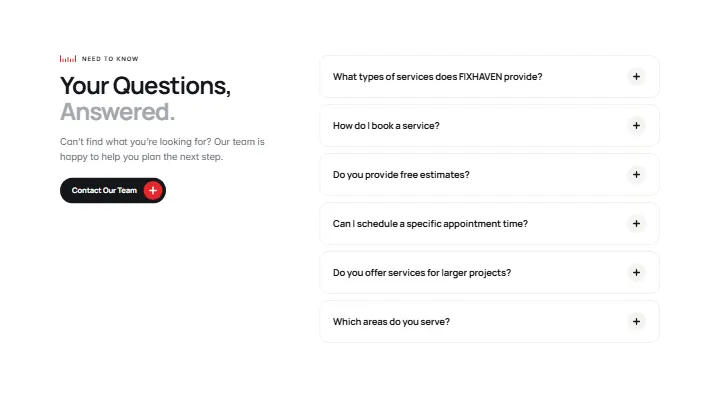
Frequently Asked Questions, section #1043
Pro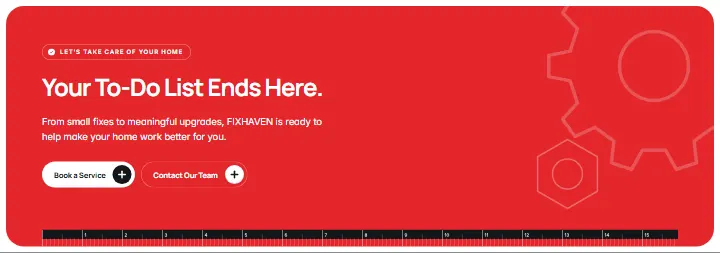
Final CTA, section #1042
Pro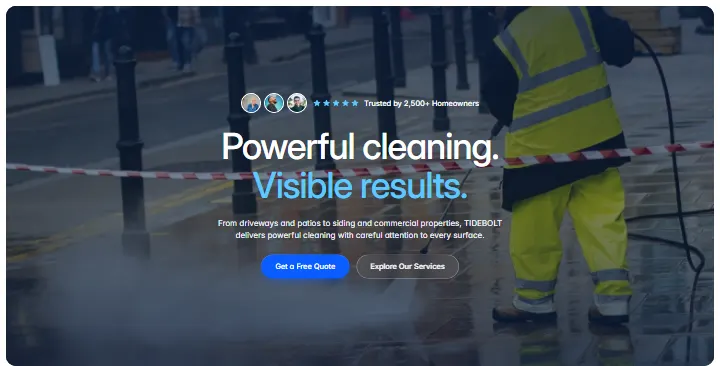
Hero, section #1041
Pro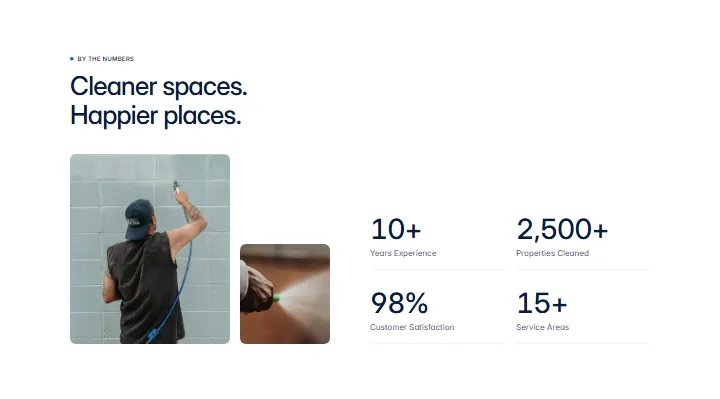
Stats, section #1040
Pro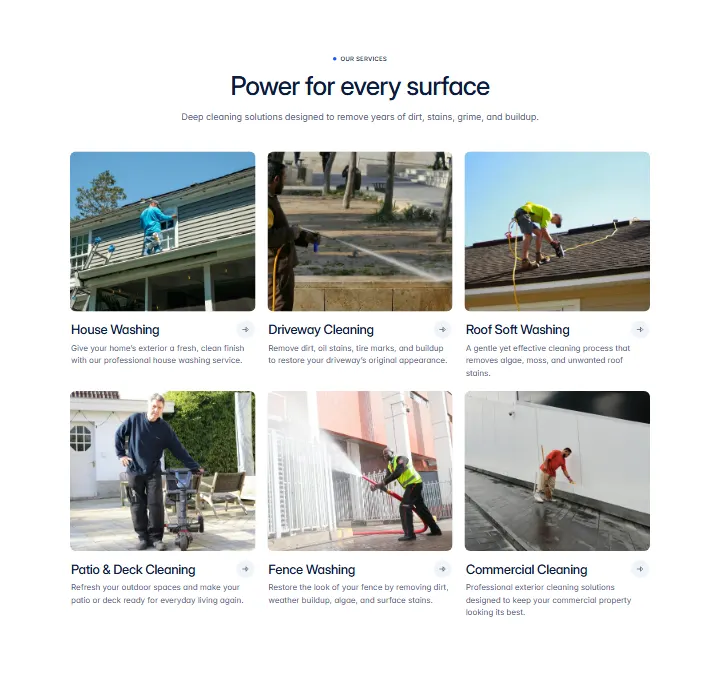
Services, section #1039
Pro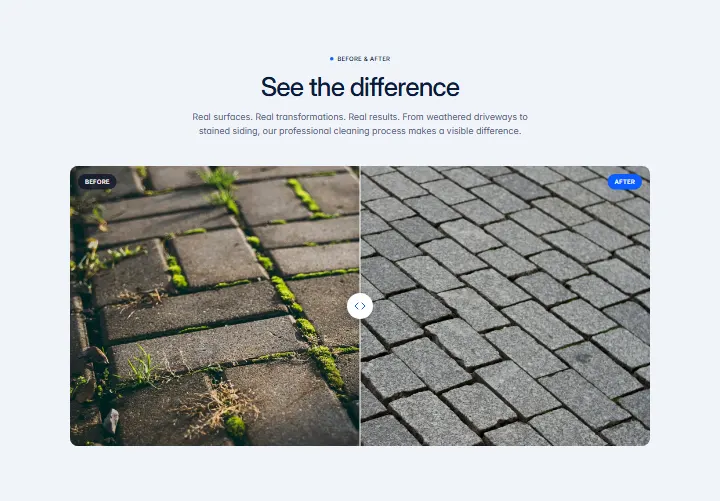
Before & After, section #1038
Pro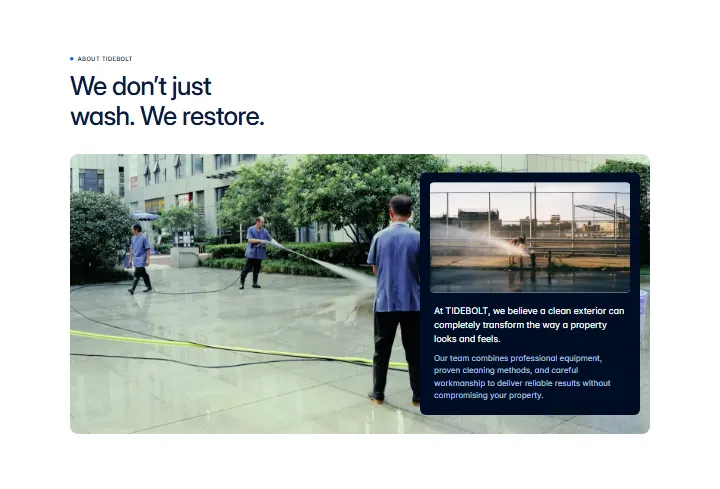
About, section #1037
Pro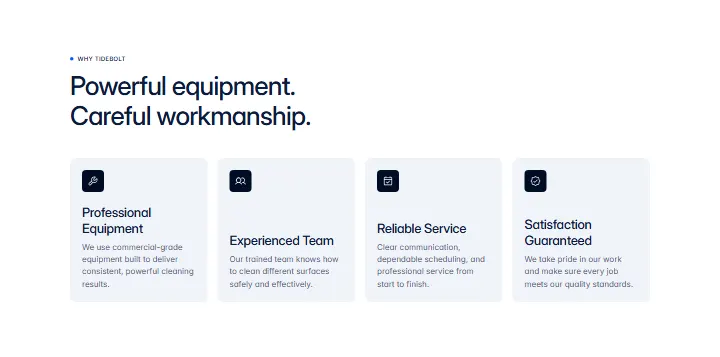
Why TIDEBOLT, section #1036
Pro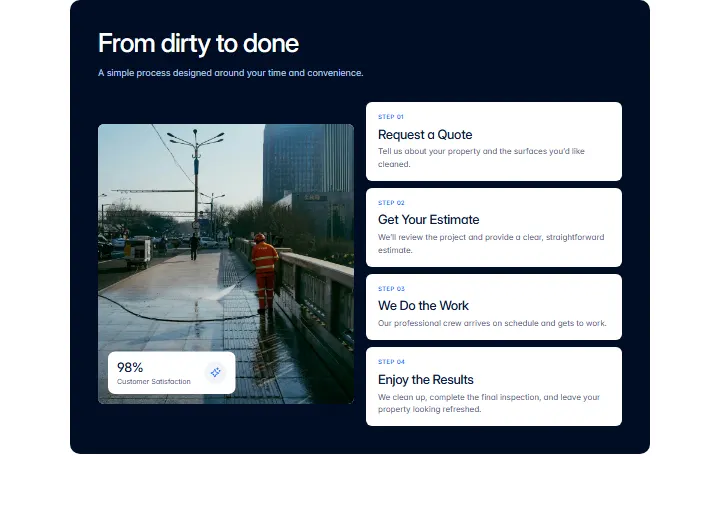
Process, section #1035
Pro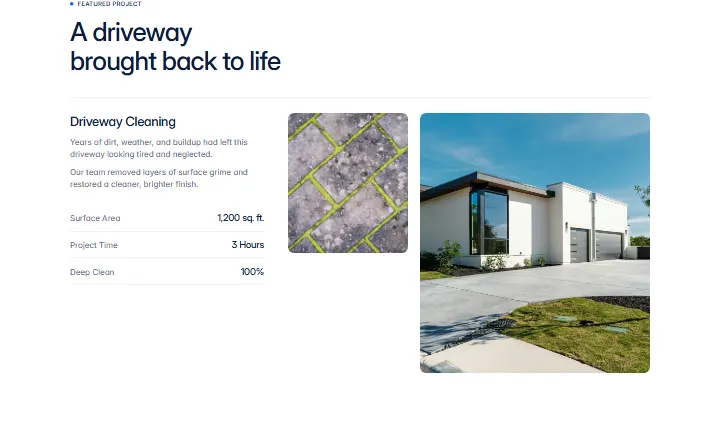
Featured Project, section #1034
Pro
Service Highlight, section #1033
Pro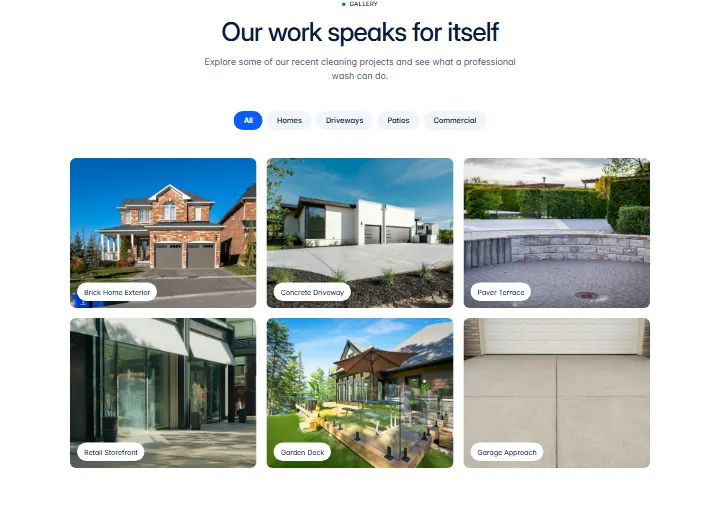
Gallery, section #1032
Pro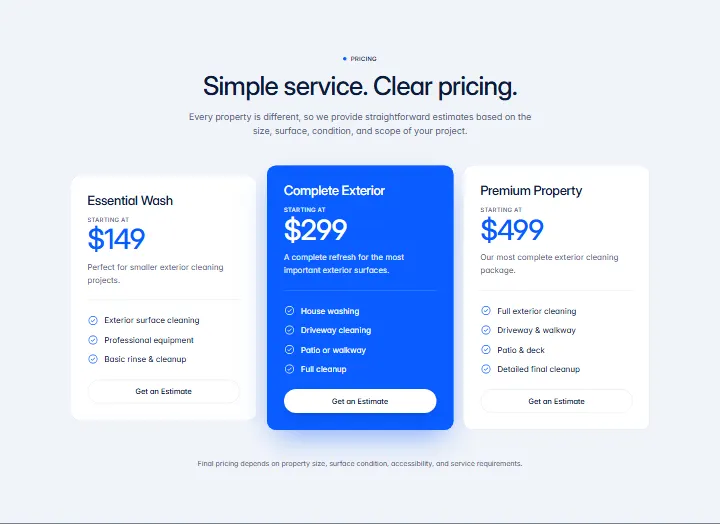
Pricing, section #1031
Pro
Ticker, section #1030
Pro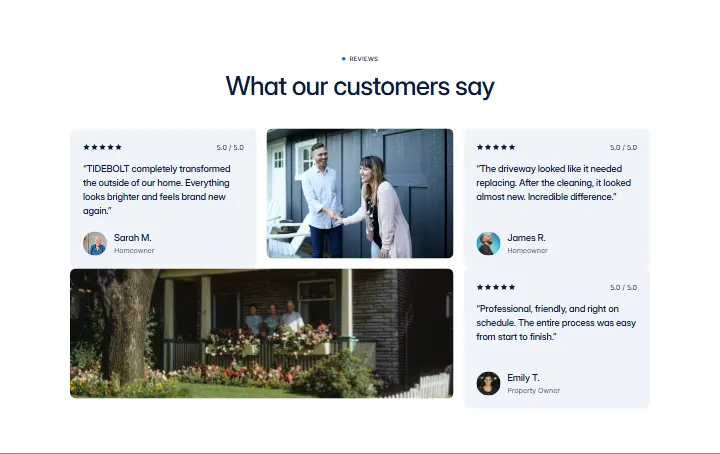
Testimonials, section #1029
Pro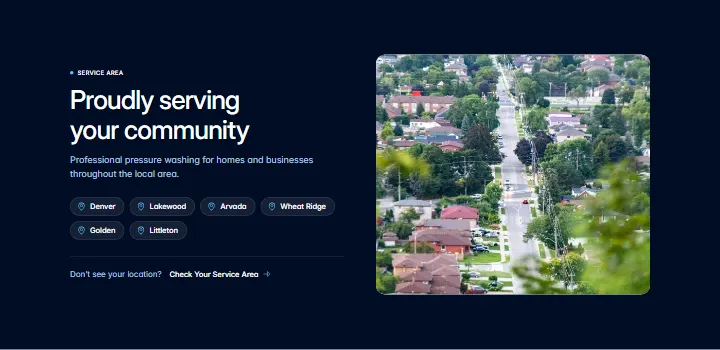
Service Area, section #1028
Pro
Team, section #1027
Pro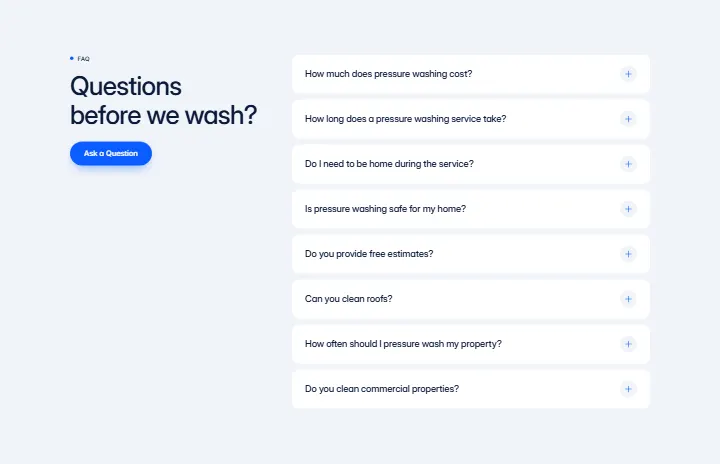
FAQ, section #1026
Pro
Final CTA, section #1025
Pro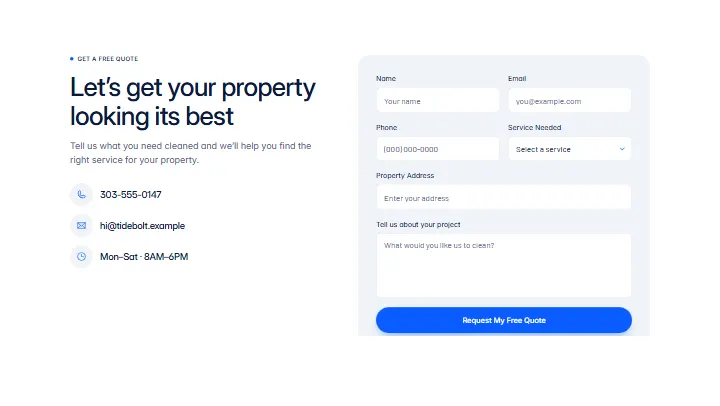
Contact, section #1024
Pro
Newsletter, section #1023
Pro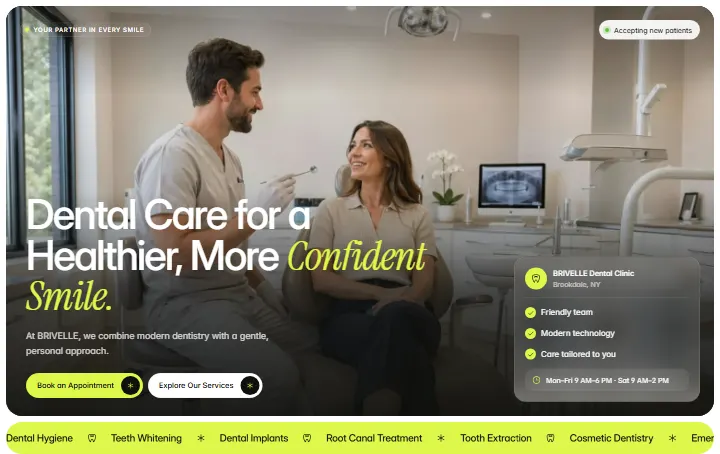
Hero, section #1022
Pro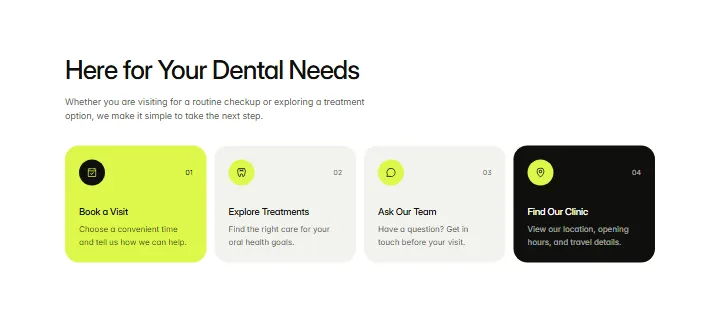
Quick Actions, section #1021
Pro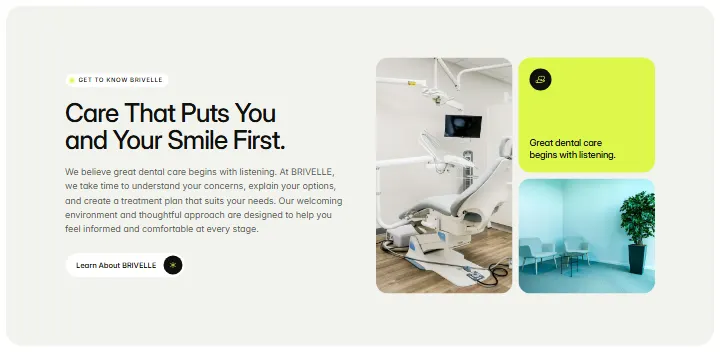
About, section #1020
Pro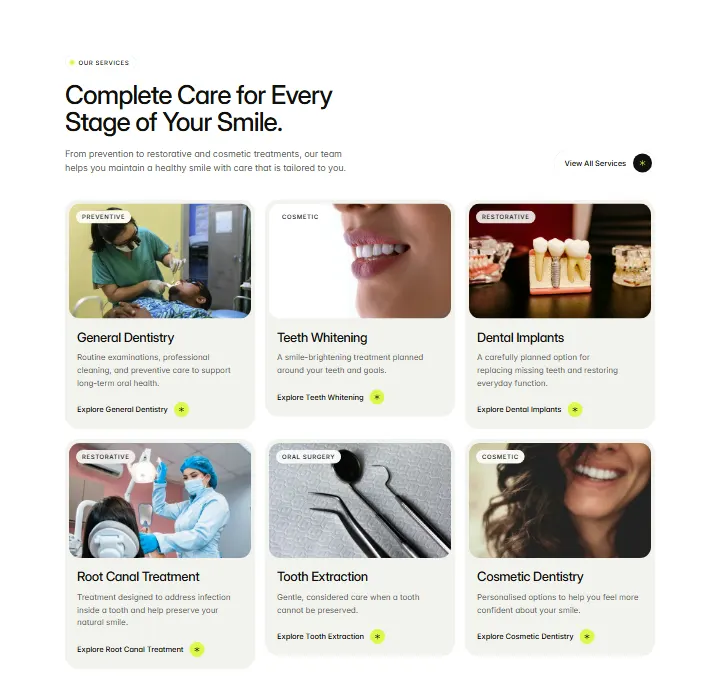
Services, section #1019
Pro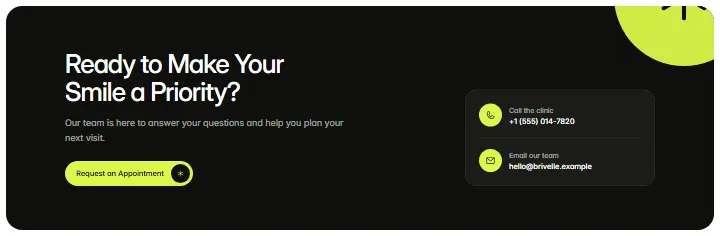
CTA, section #1018
Pro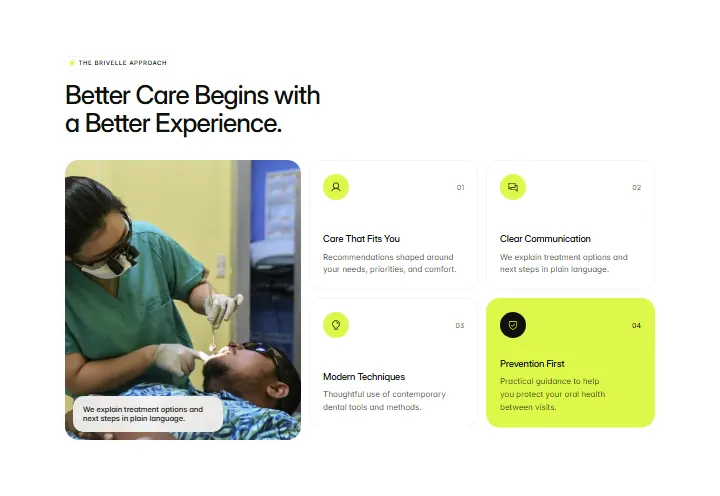
Treatment Benefits, section #1017
Pro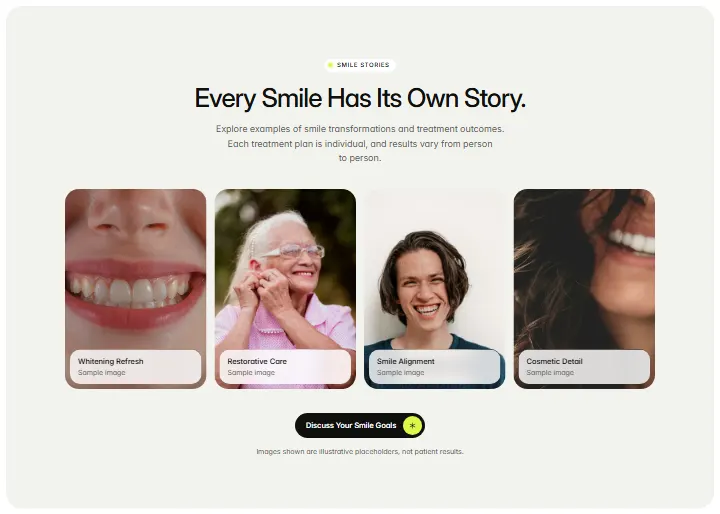
Smile Gallery, section #1016
Pro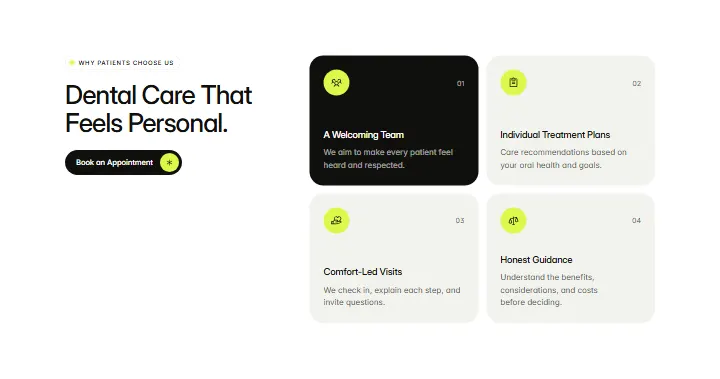
Why Choose BRIVELLE, section #1015
Pro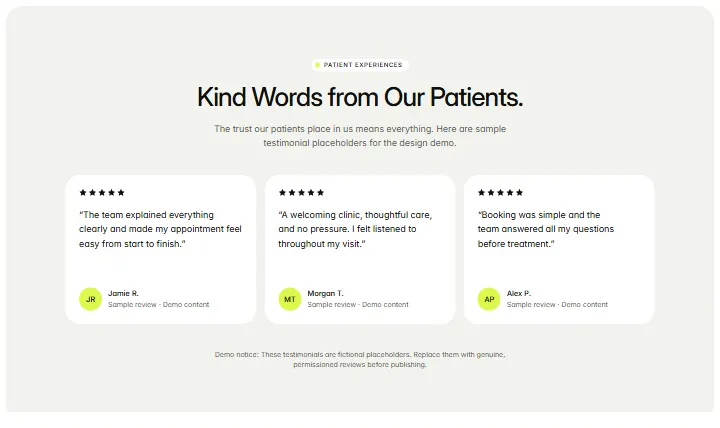
Testimonials, section #1014
Pro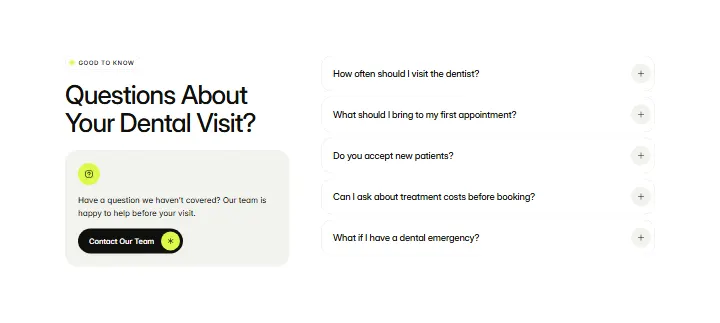
FAQ, section #1013
Pro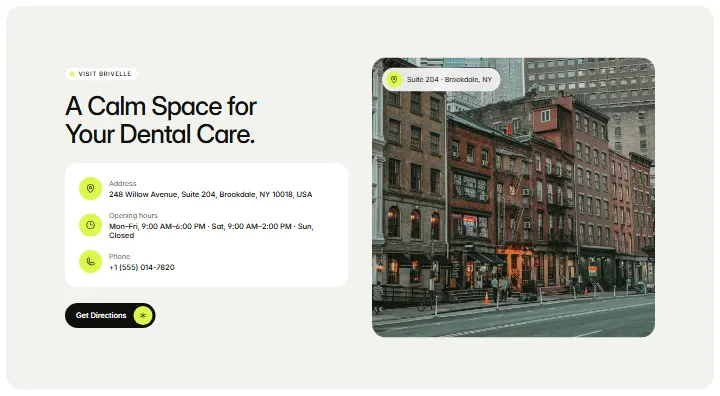
Clinic Location, section #1012
Pro
Hero, section #1011
Pro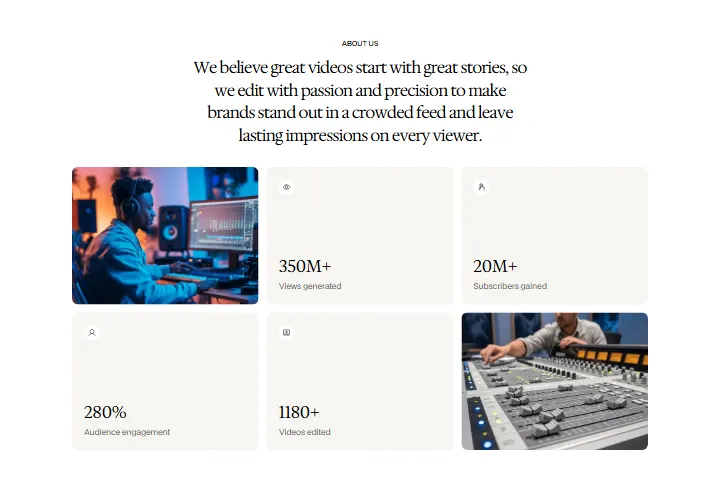
About, section #1010
Pro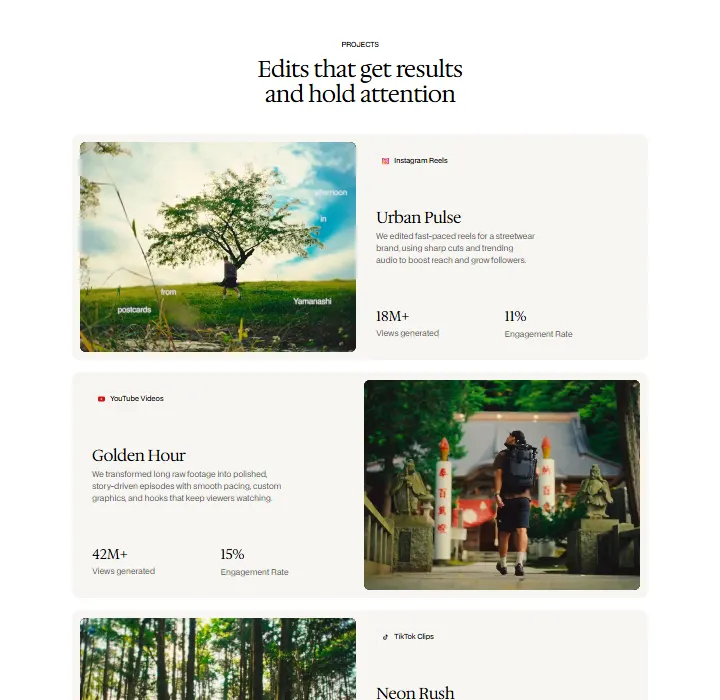
Projects, section #1009
Pro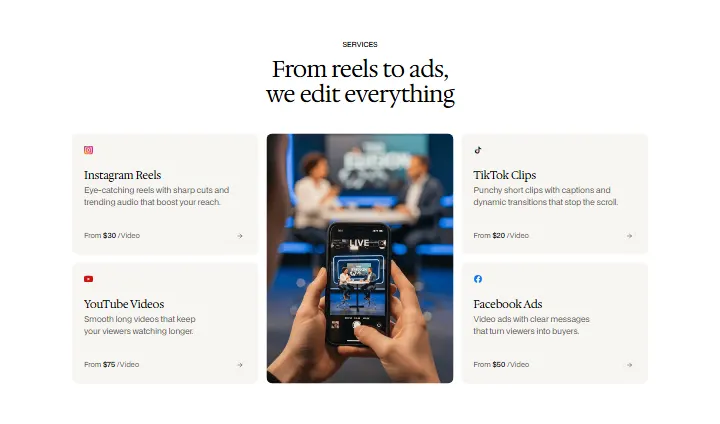
Services, section #1008
Pro
Film, section #1007
Pro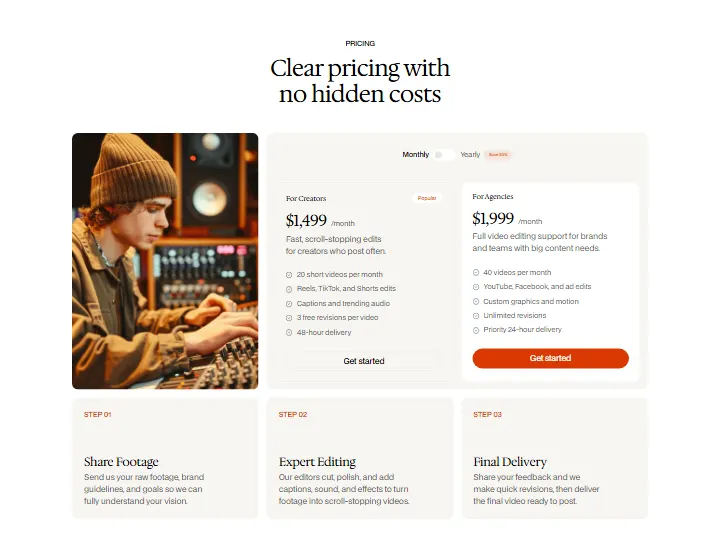
Pricing, section #1006
Pro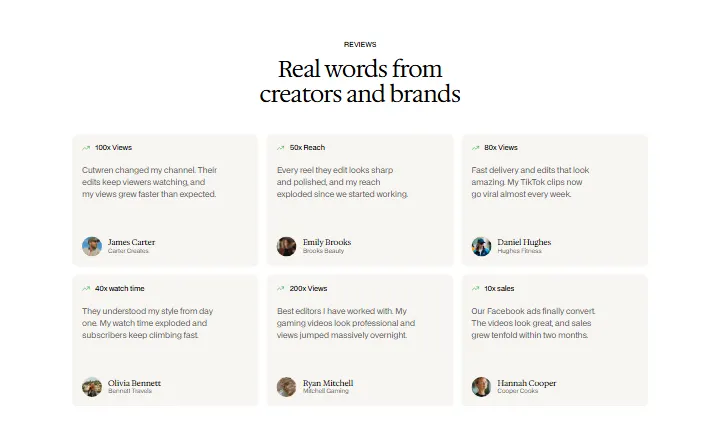
Reviews, section #1005
Pro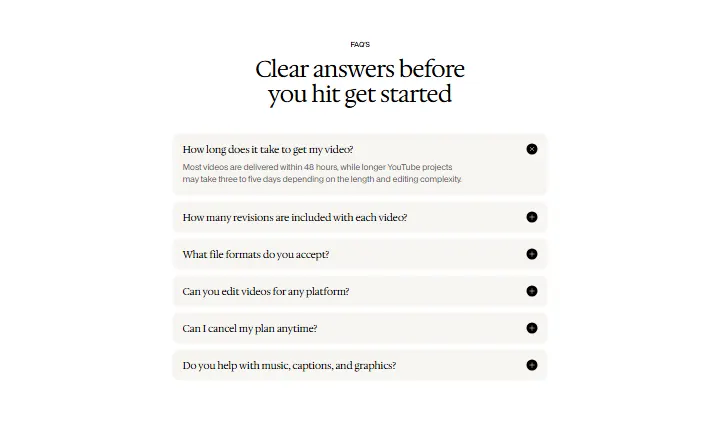
FAQ, section #1004
Pro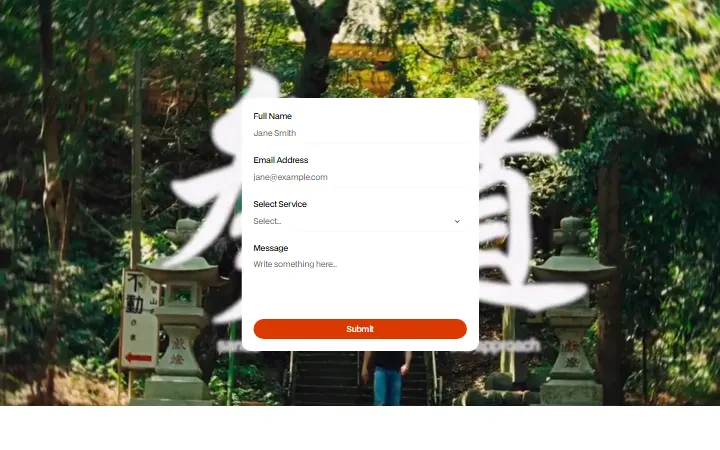
Contact, section #1003
Pro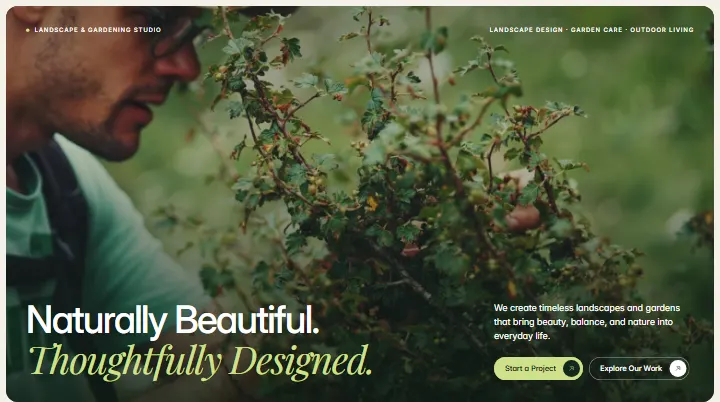
Hero, section #1002
Pro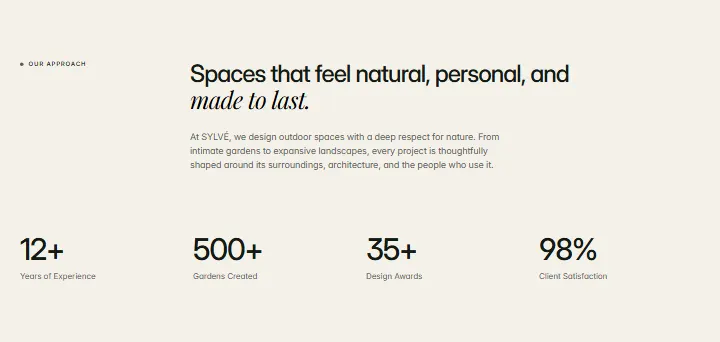
Intro, section #1001
Pro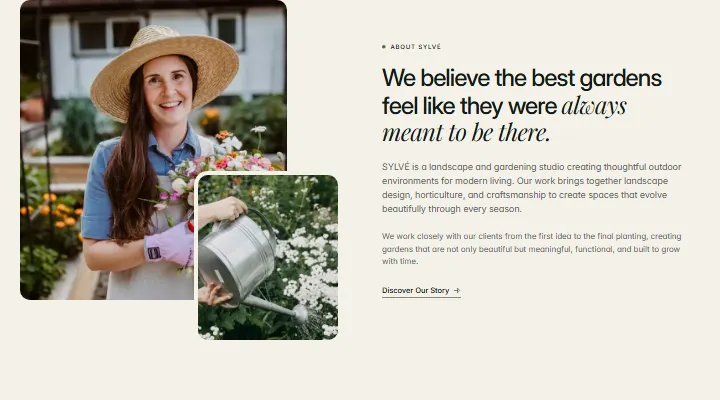
About, section #1000
Pro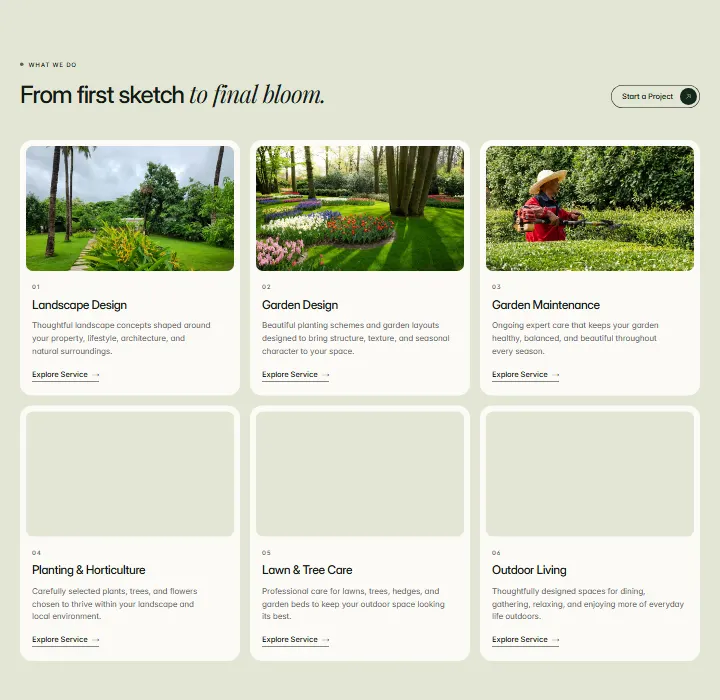
Services, section #999
Pro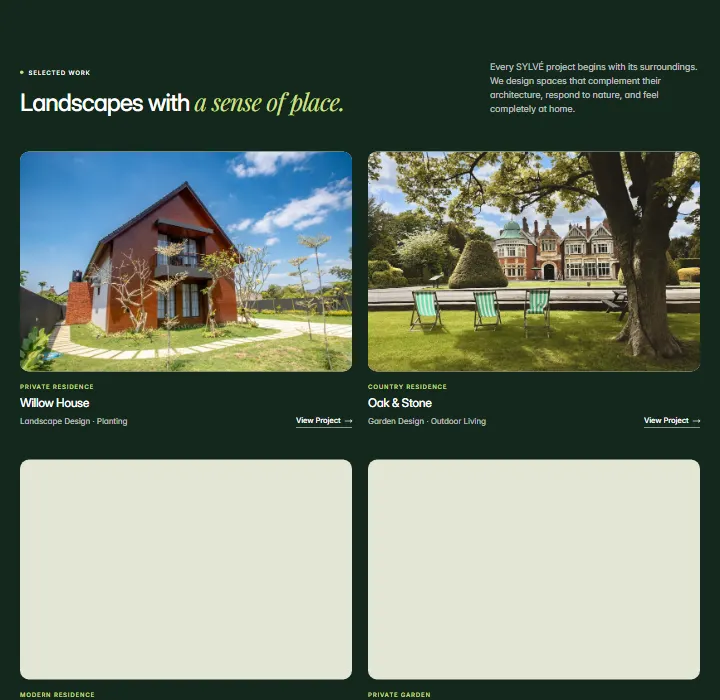
Projects, section #998
Pro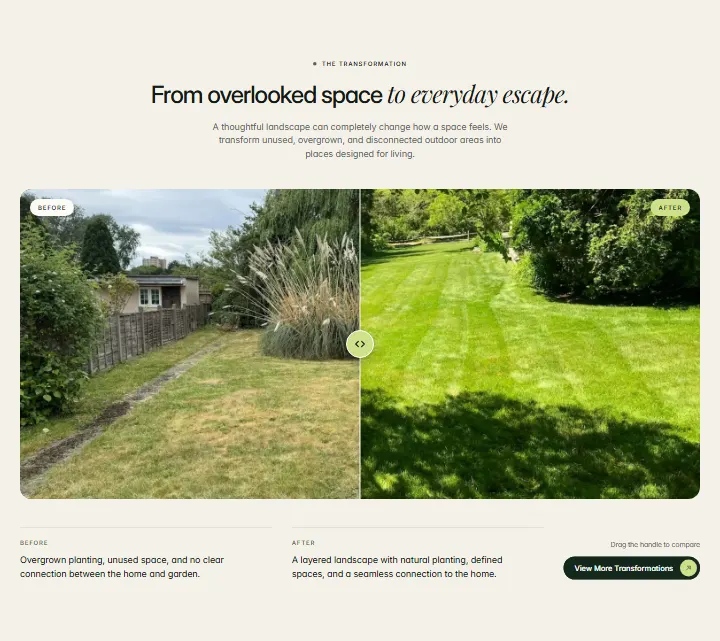
Before & After, section #997
Pro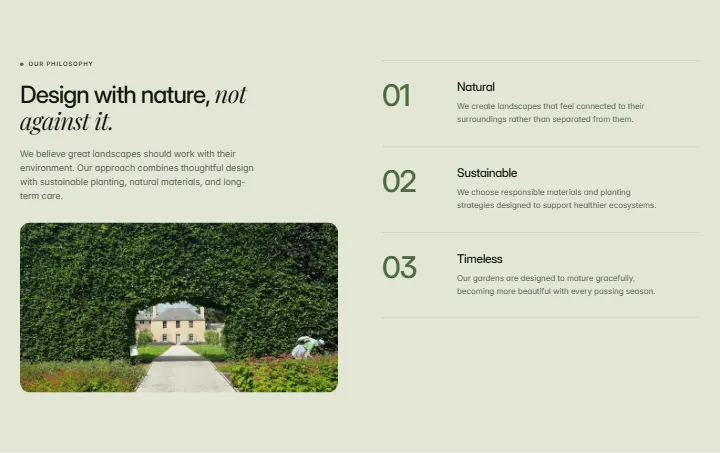
Philosophy, section #996
Pro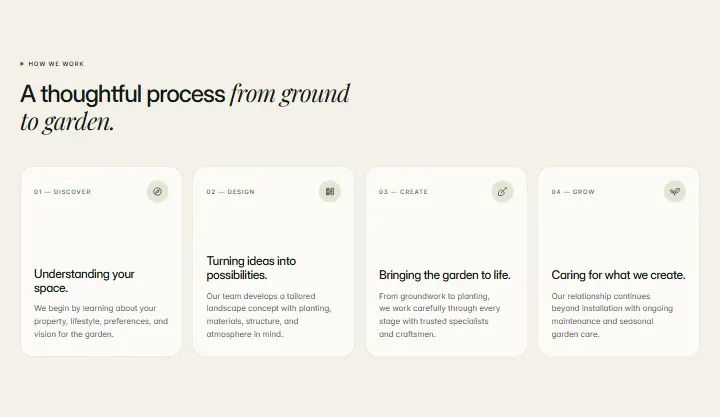
Process, section #995
Pro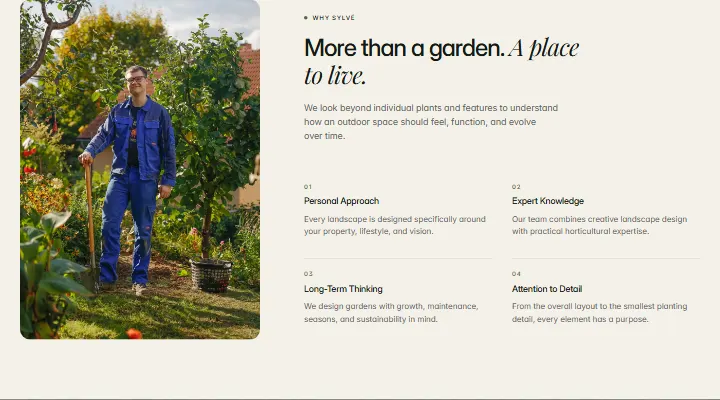
Why Sylvé, section #994
Pro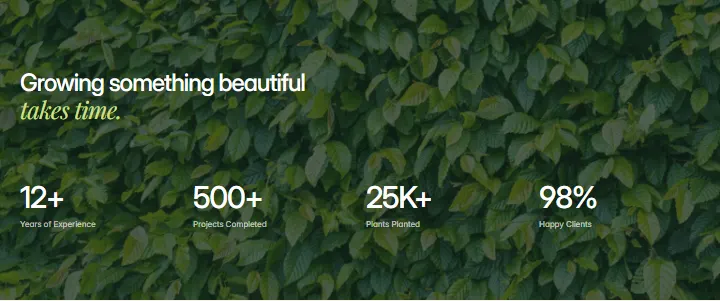
Numbers, section #993
Pro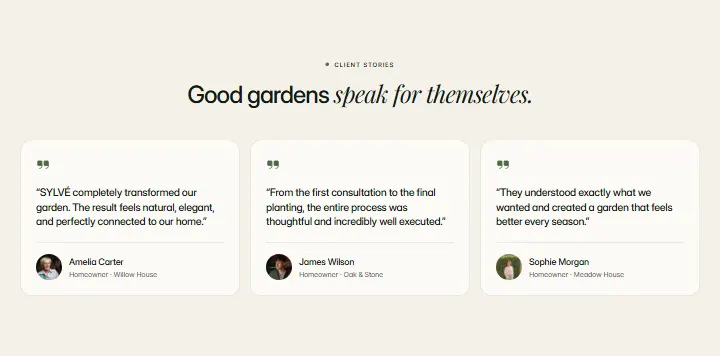
Testimonials, section #992
Pro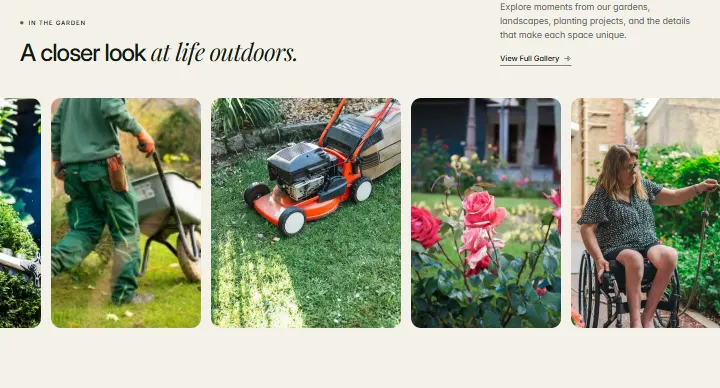
Gallery, section #991
Pro
Seasonal, section #990
Pro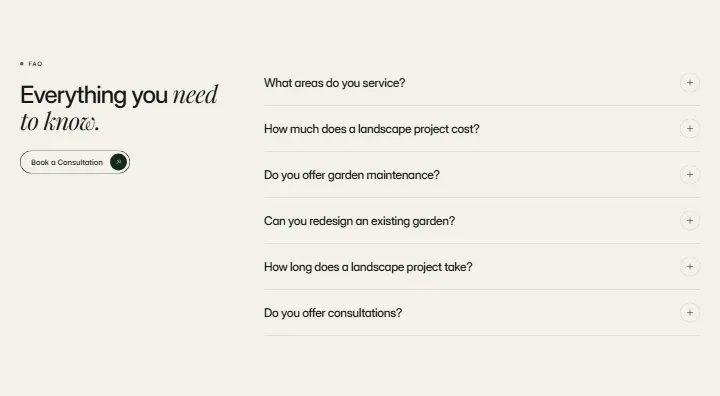
FAQ, section #989
Pro
Newsletter, section #988
Pro
Final CTA, section #987
Pro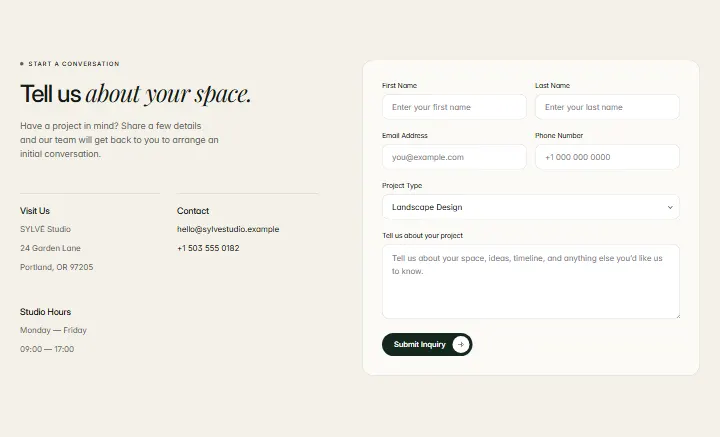
Contact, section #986
Pro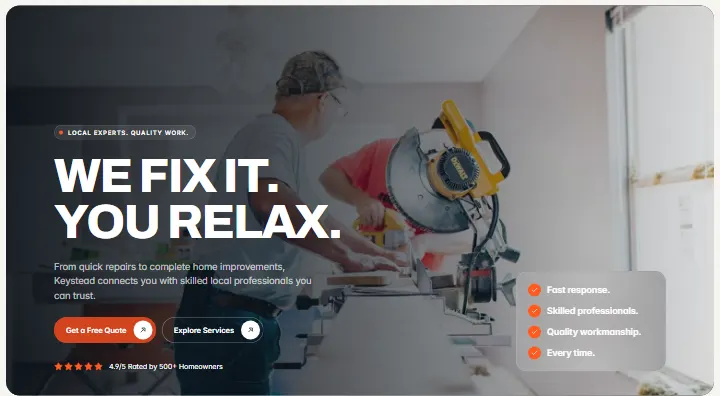
Hero, section #985
Pro
Trust Strip, section #984
Pro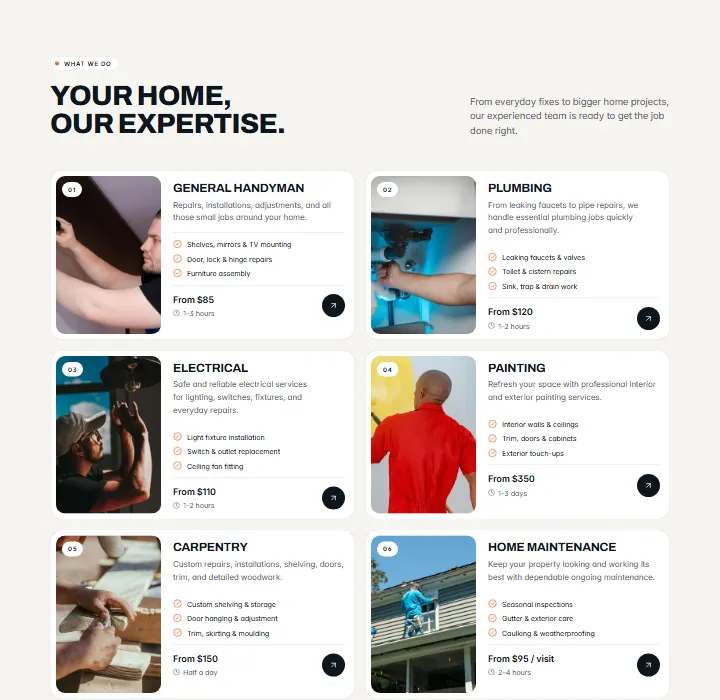
Services, section #983
Pro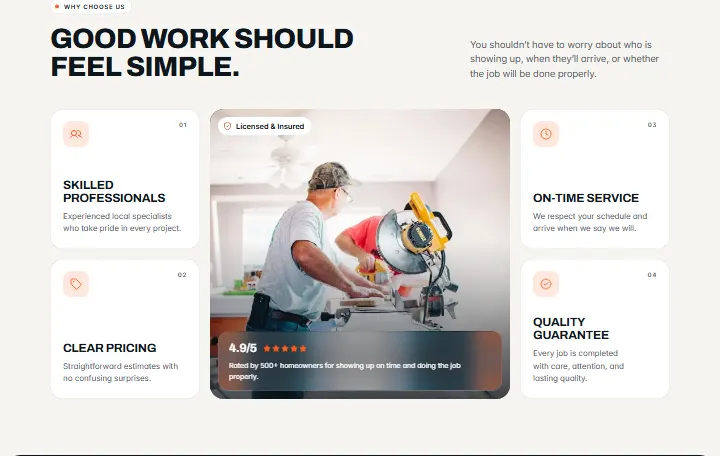
Why Keystead, section #982
Pro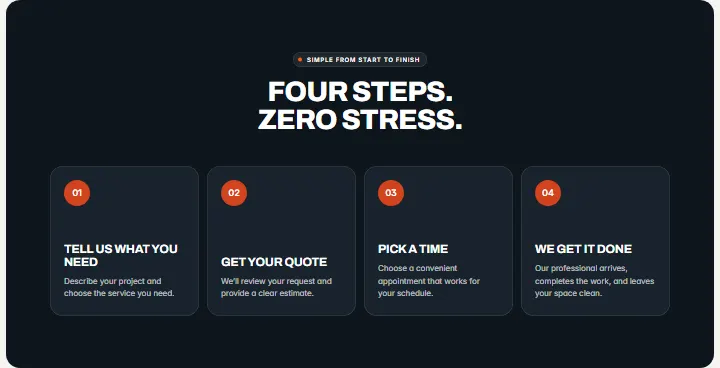
How It Works, section #981
Pro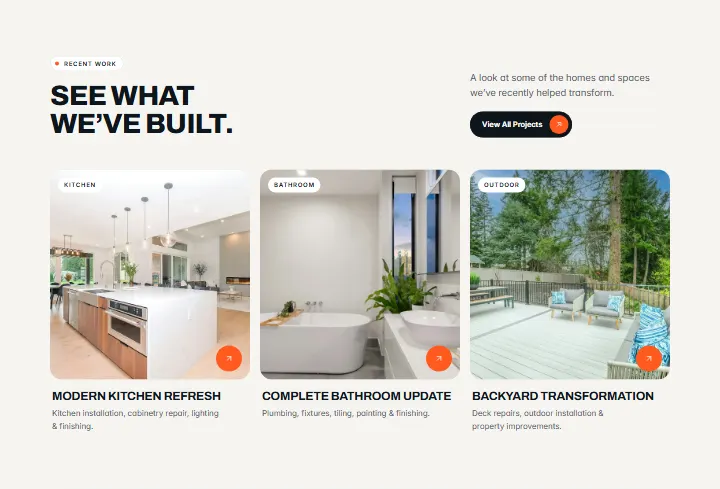
Featured Projects, section #980
Pro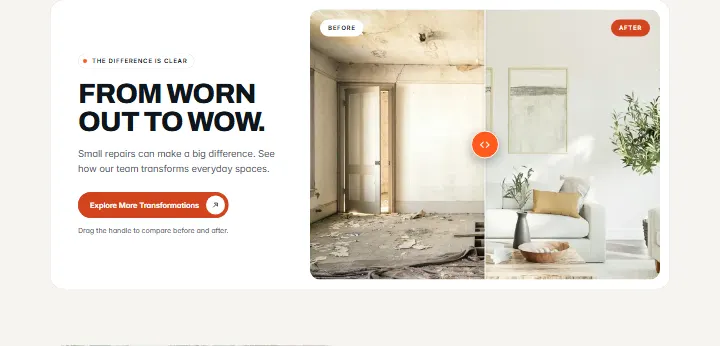
Before & After, section #979
Pro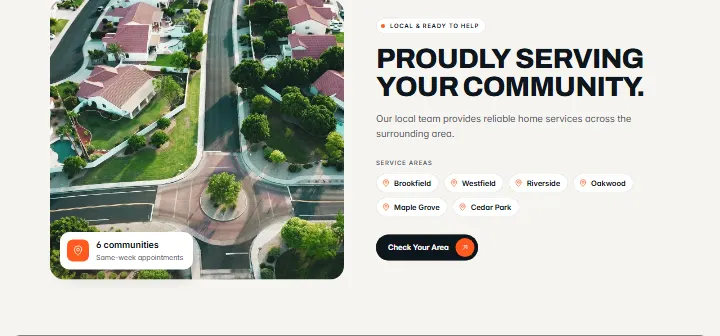
Service Area, section #978
Pro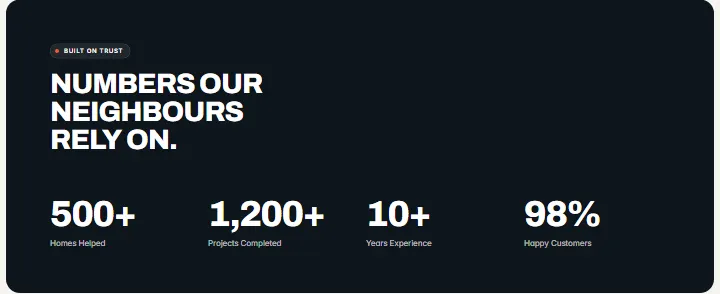
Stats, section #977
Pro
About, section #976
Pro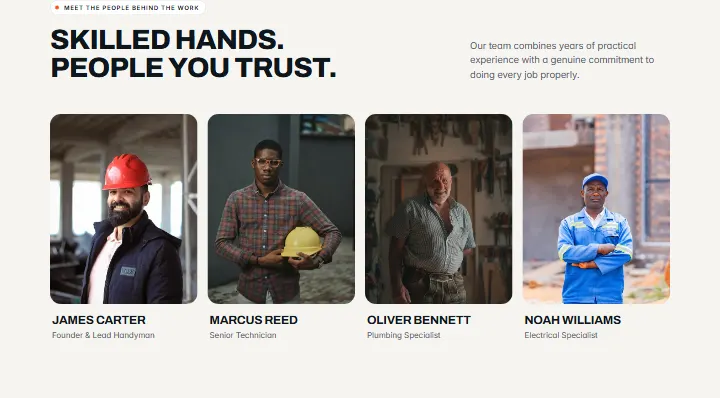
Team, section #975
Pro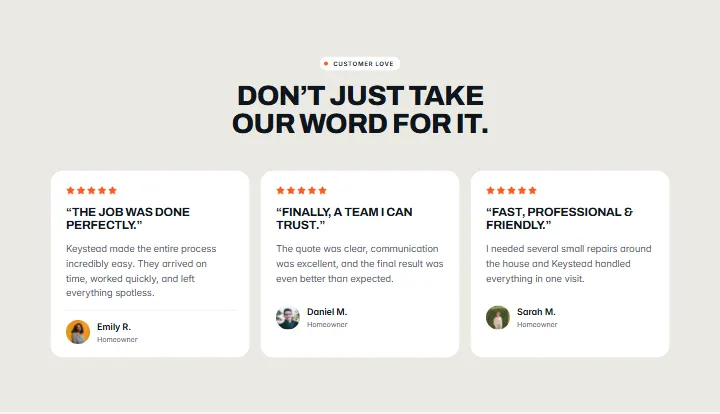
Testimonials, section #974
Pro
Reviews CTA, section #973
Pro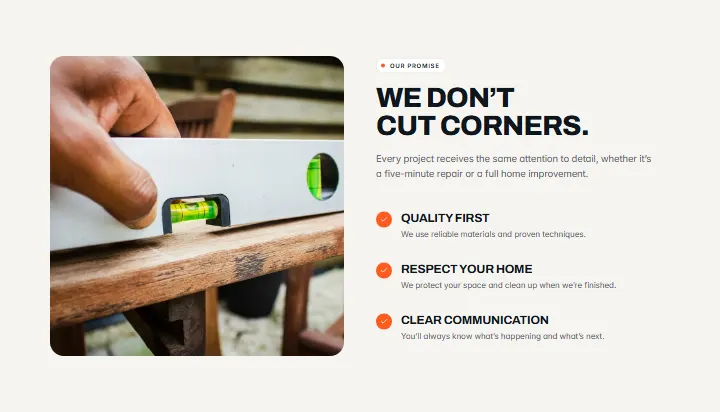
Our Promise, section #972
Pro
FAQ, section #971
Pro
Final CTA, section #970
Pro
Contact, section #969
Pro
Hero, section #968
Pro
The firm, section #967
Pro
Services, section #966
Pro
How we work, section #965
Pro
Ticker, section #964
Pro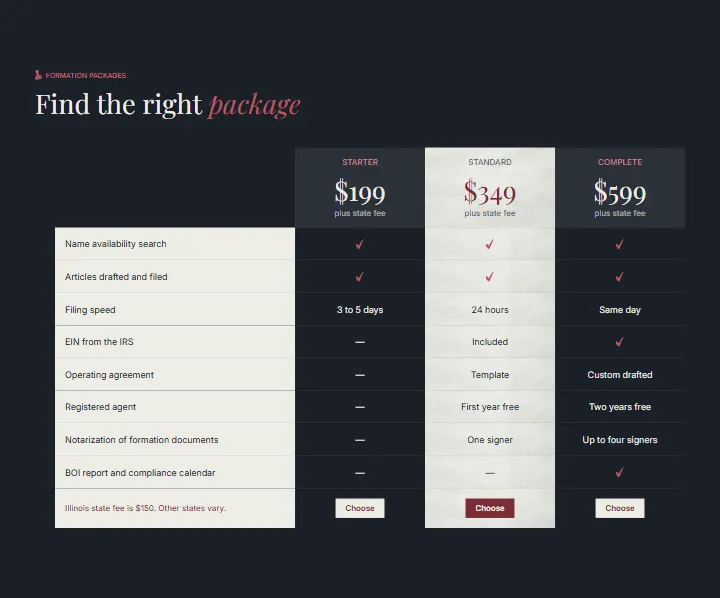
Packages, section #963
Pro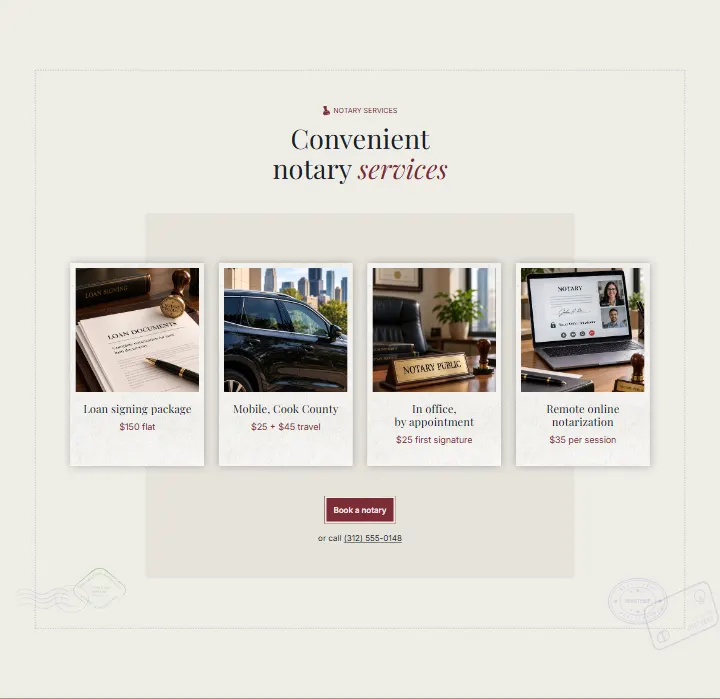
Notary services, section #962
Pro
What you receive, section #961
Pro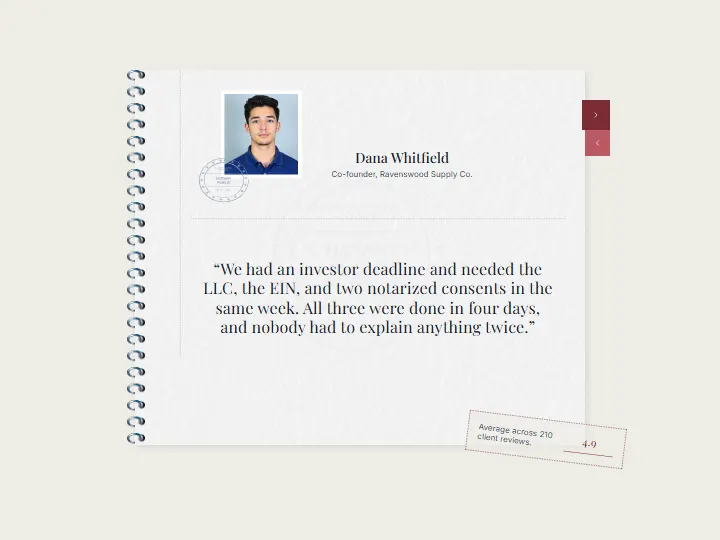
Clients, section #960
Pro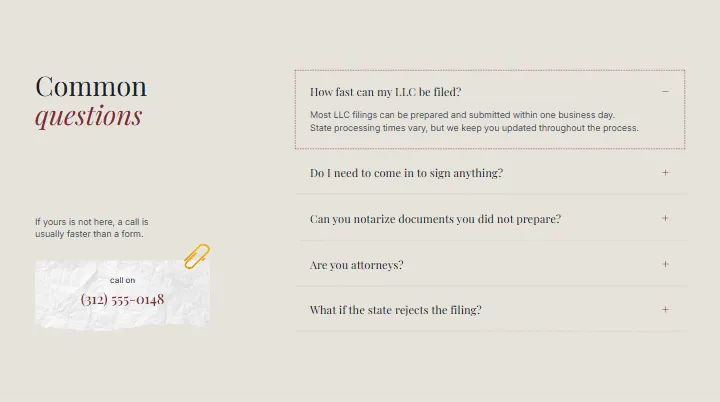
Questions, section #959
Pro
Closing card, section #958
Pro
Hero, section #957
Pro
Logos, section #956
Pro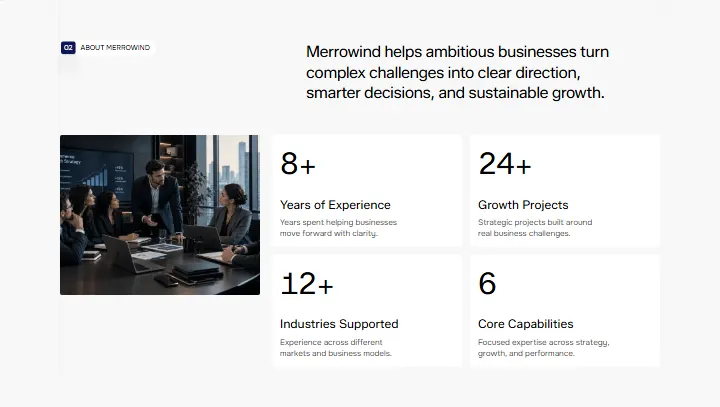
About, section #955
Pro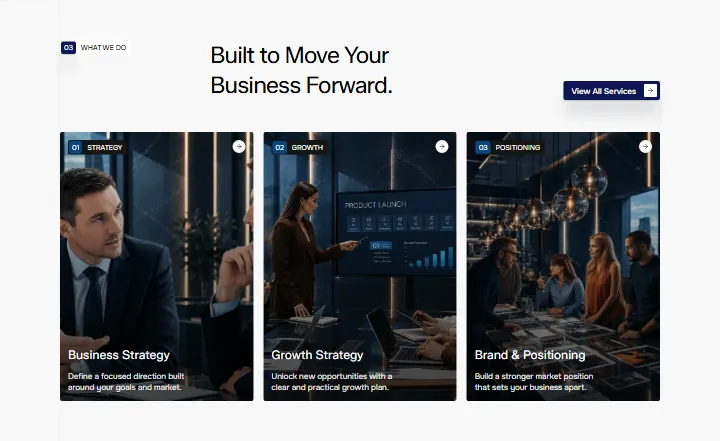
Services, section #954
Pro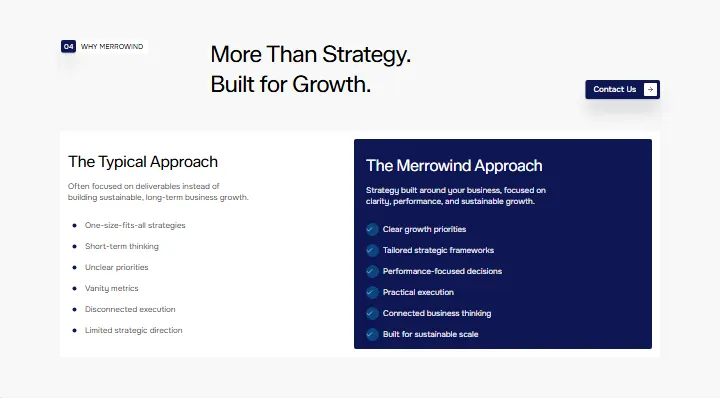
Why us, section #953
Pro
Case studies, section #952
Pro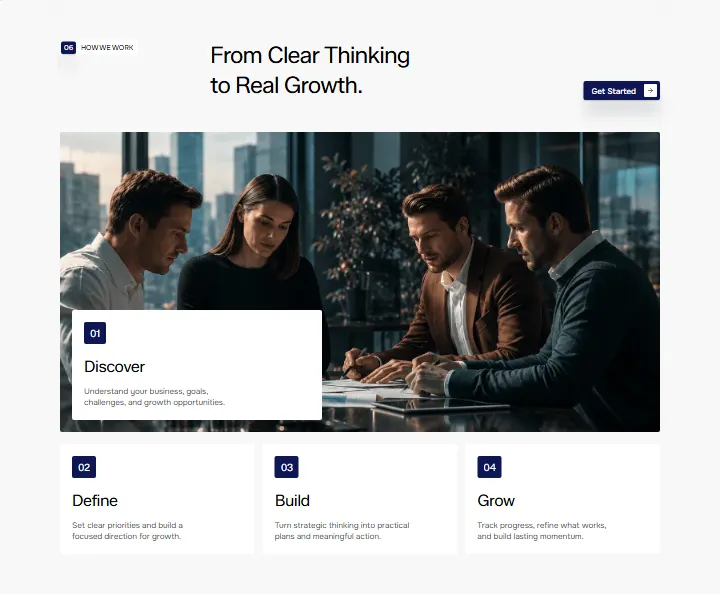
Process, section #951
Pro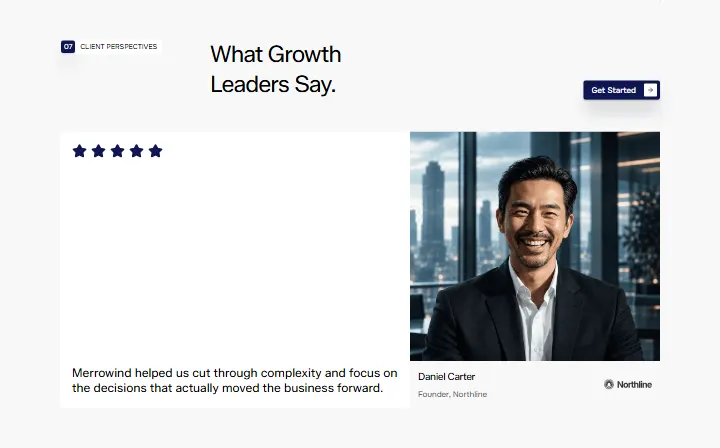
Testimonial, section #950
Pro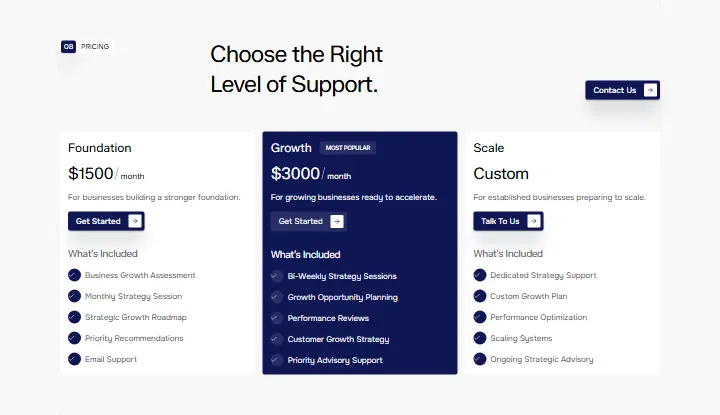
Prices, section #949
Pro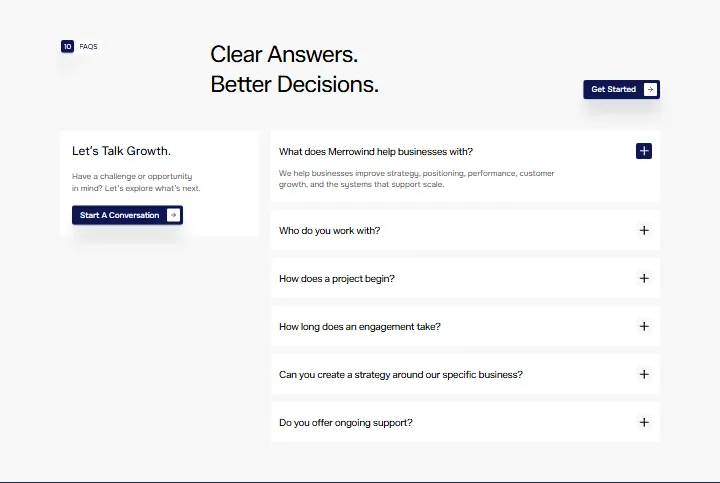
Questions, section #948
Pro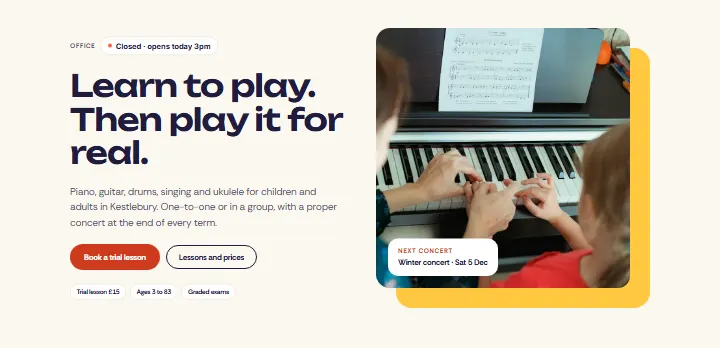
Hero, section #947
Pro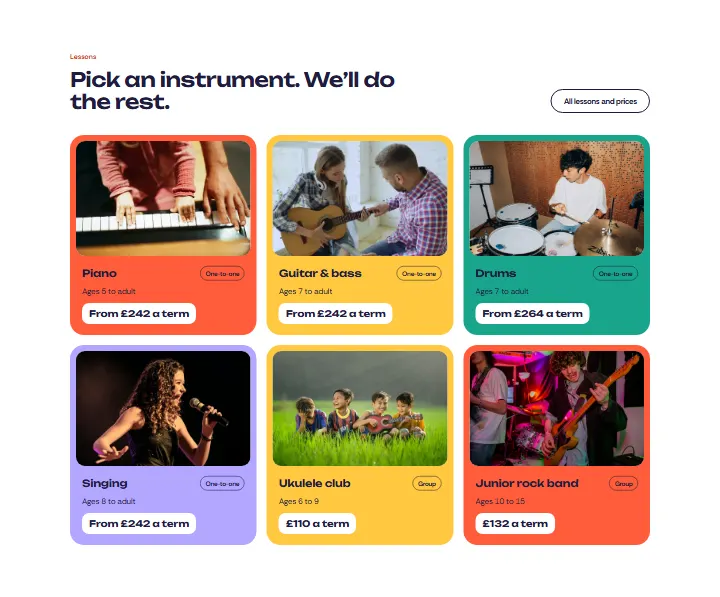
Lessons, section #946
Pro
Numbers, section #945
Pro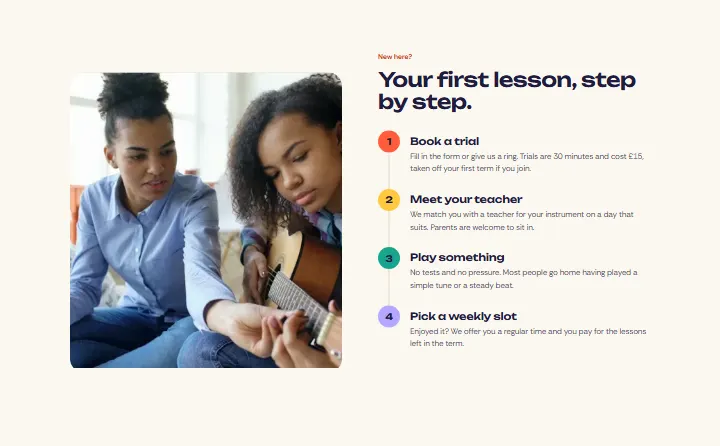
First lesson, section #944
Pro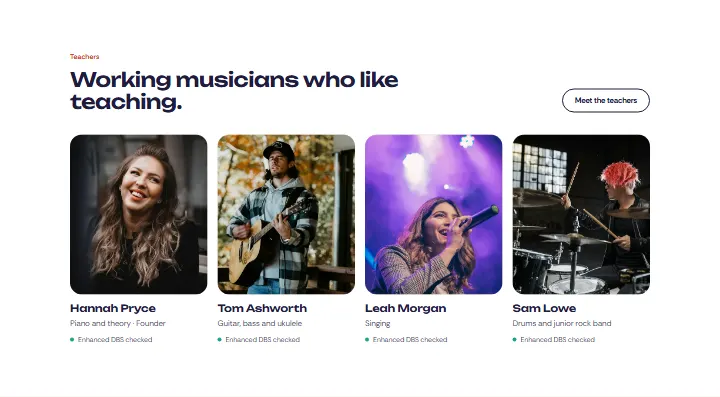
Teachers, section #943
Pro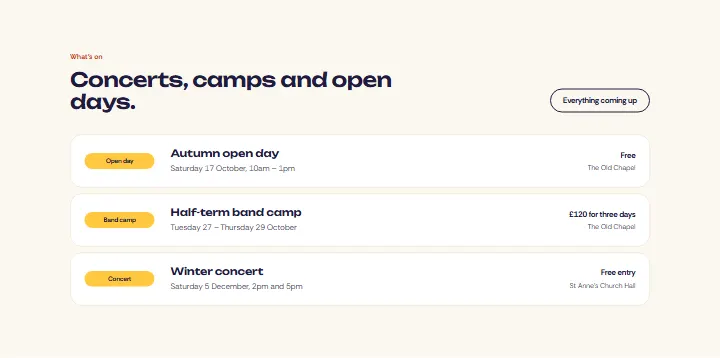
What’s on, section #942
Pro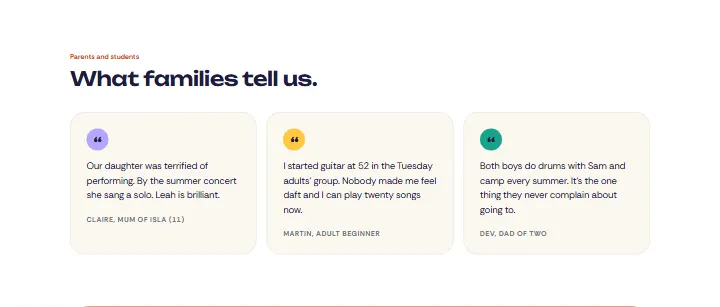
Reviews, section #941
Pro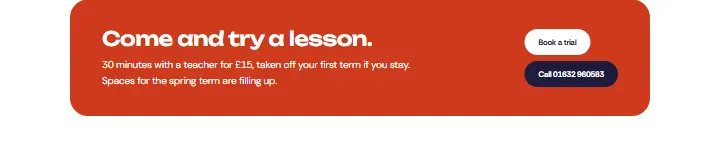
Try a lesson, section #940
Pro
Hero, section #939
Pro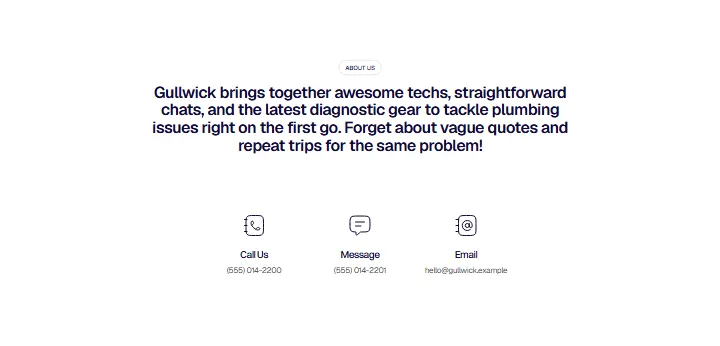
About us, section #938
Pro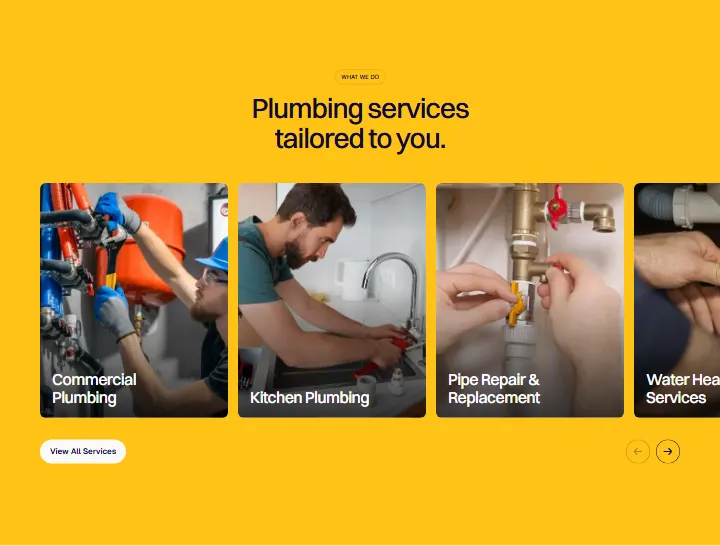
Services, section #937
Pro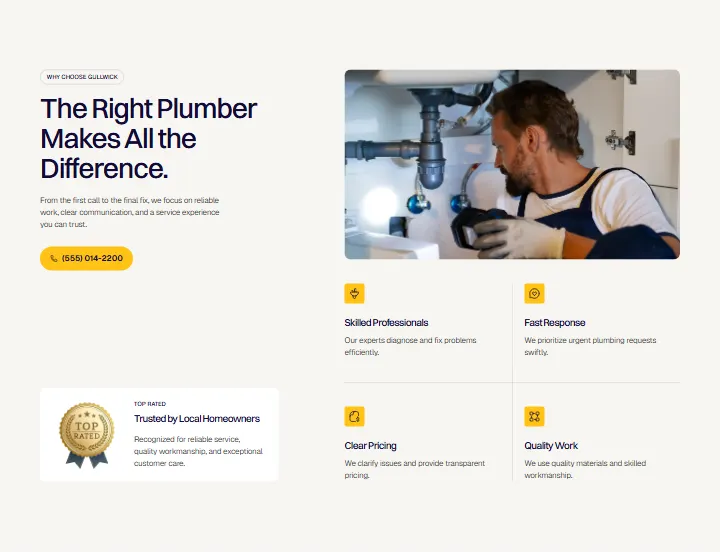
Why choose us, section #936
Pro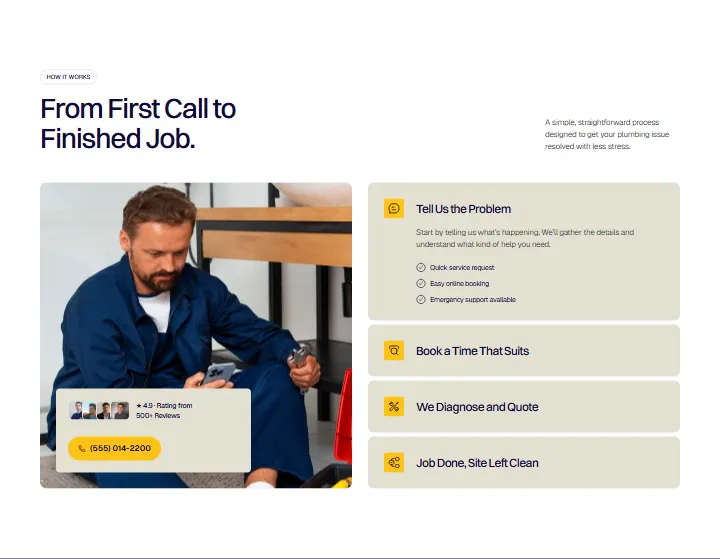
How it works, section #935
Pro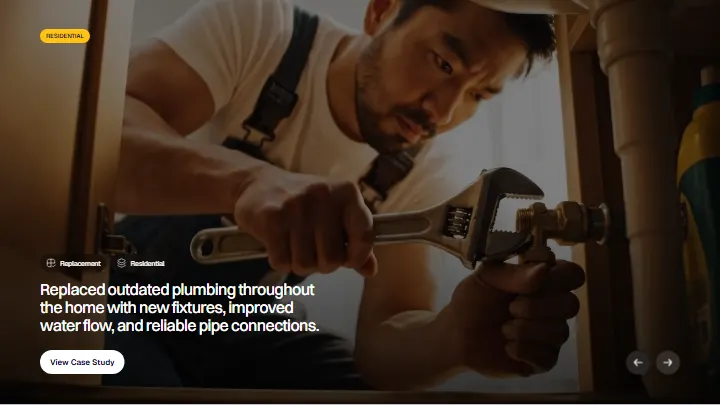
Case studies, section #934
Pro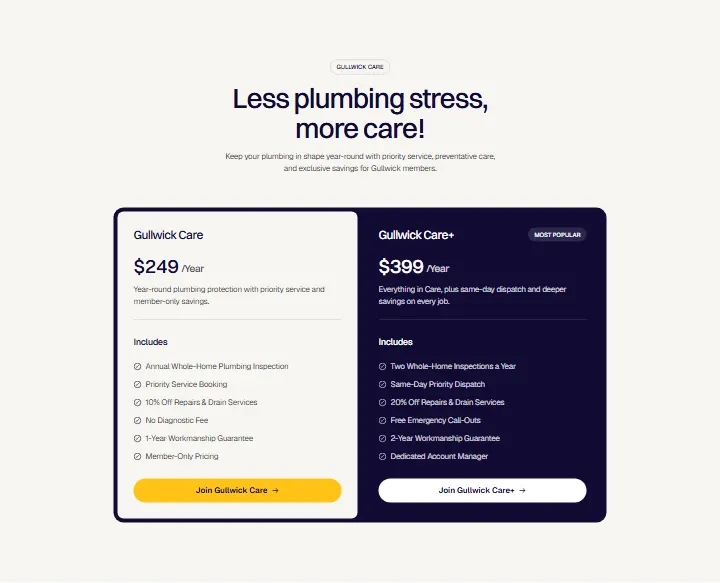
Membership, section #933
Pro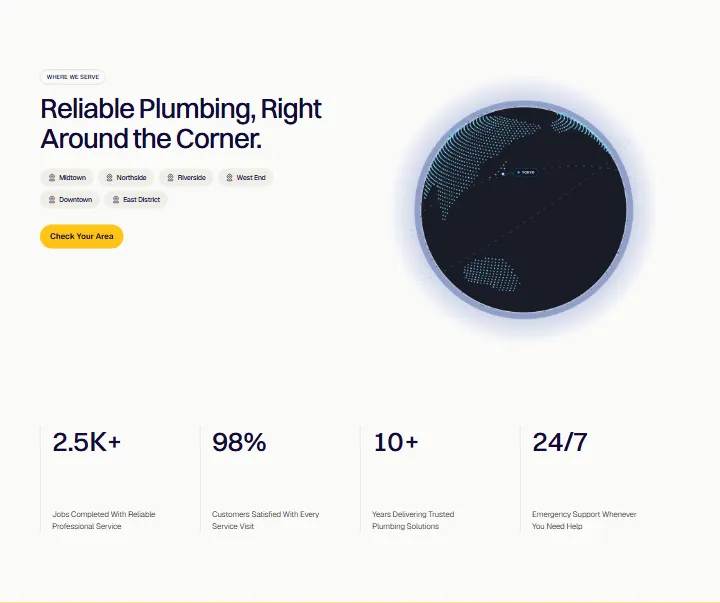
Areas, section #932
Pro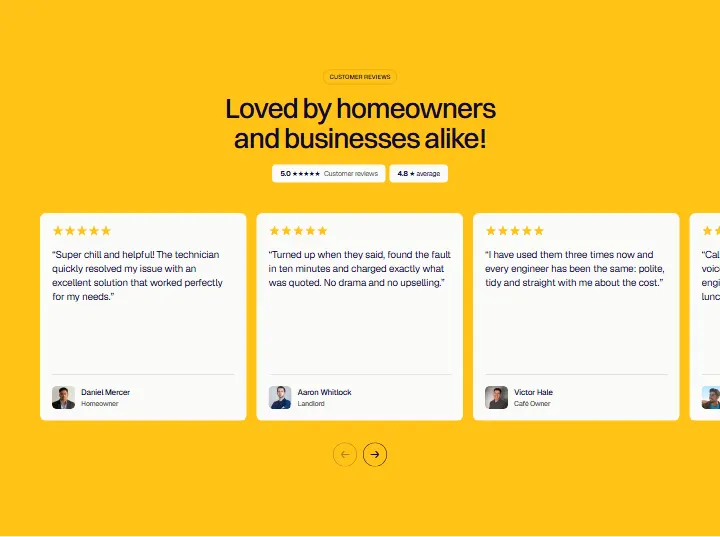
Reviews, section #931
Pro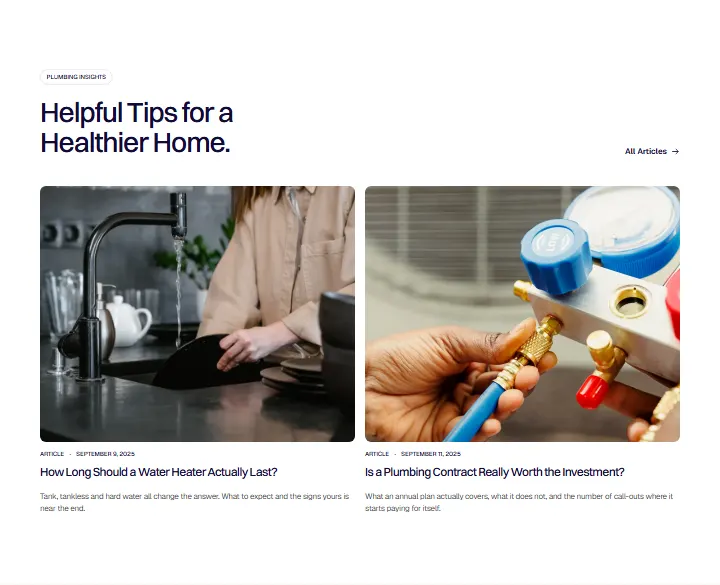
Blog, section #930
Pro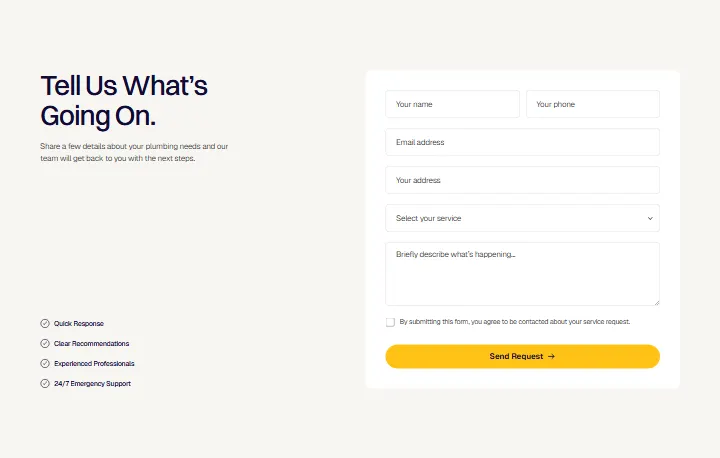
Contact, section #929
Pro
Get in Touch, section #928
Pro
Hero, section #927
Pro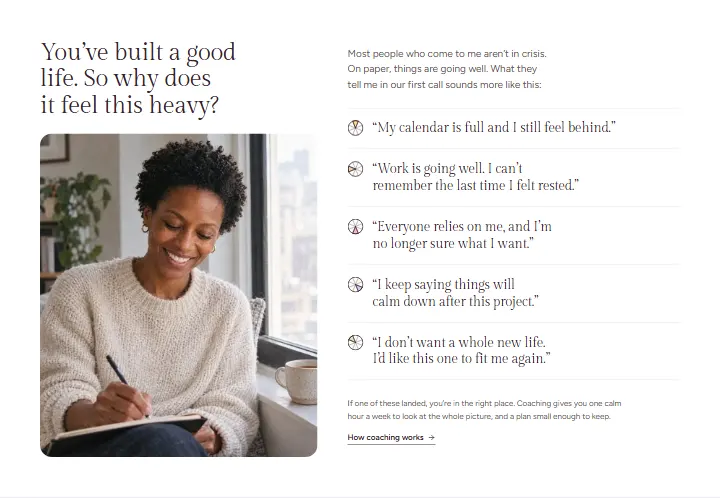
Sound familiar, section #926
Pro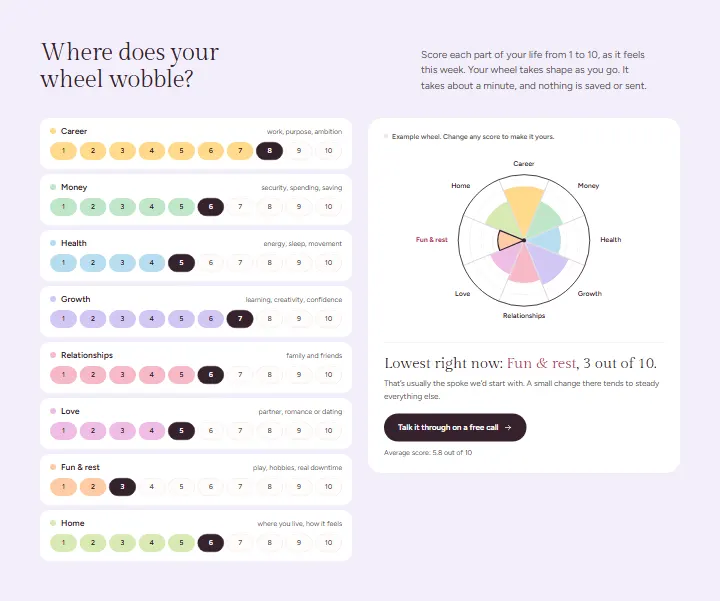
Wheel check-in, section #925
Pro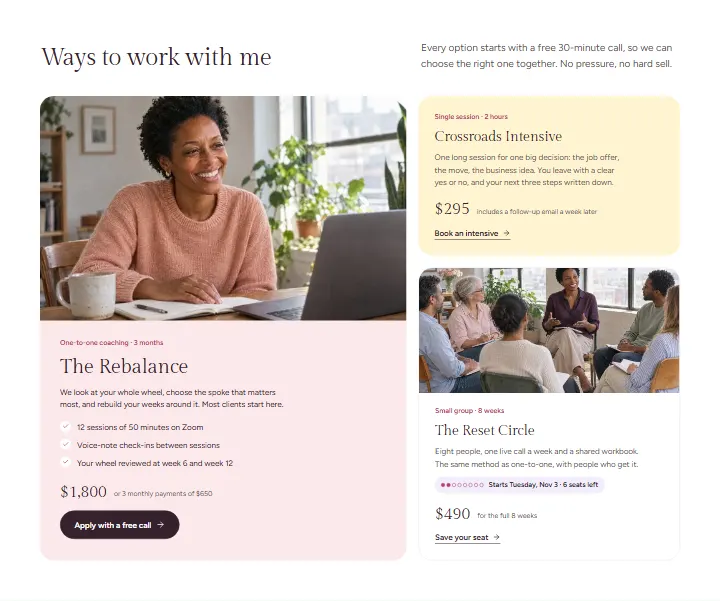
Ways to work together, section #924
Pro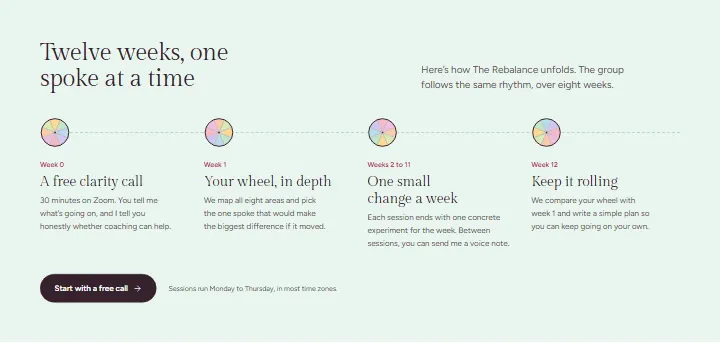
How it works, section #923
Pro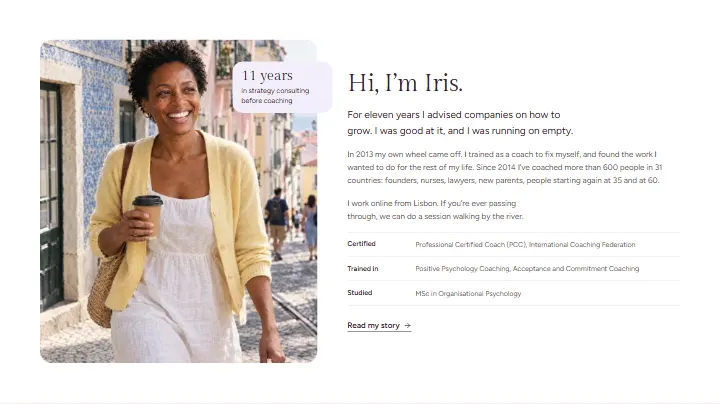
About Iris, section #922
Pro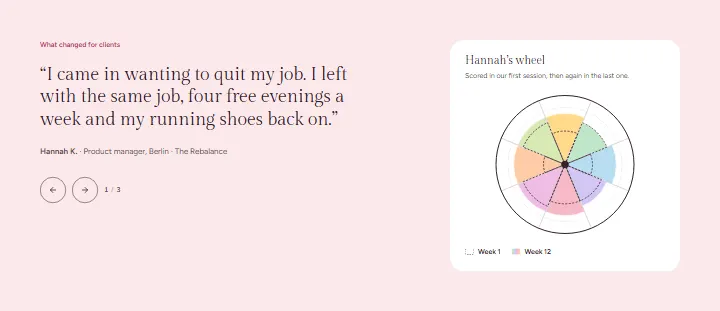
Client stories, section #921
Pro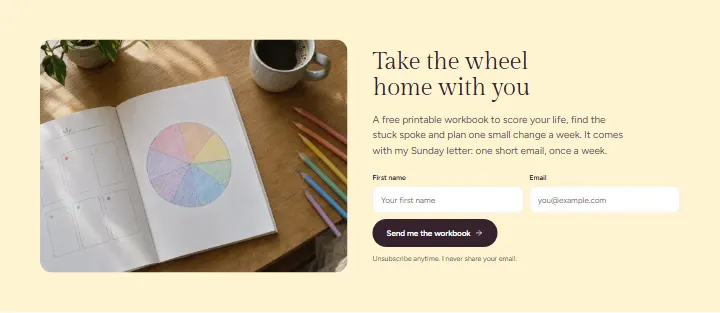
Workbook, section #920
Pro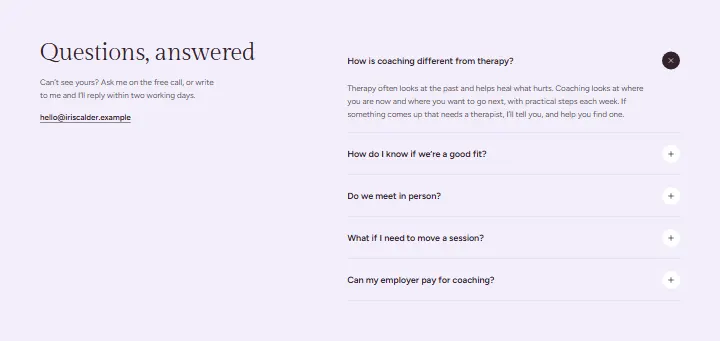
FAQ, section #919
Pro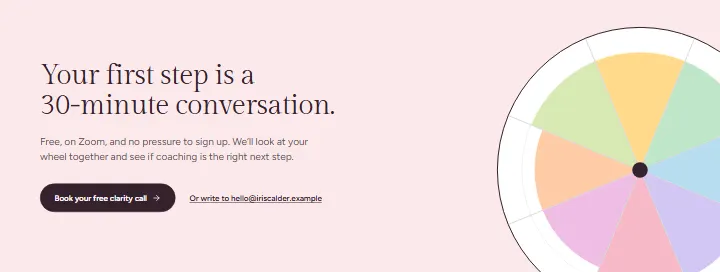
Closing call, section #918
Pro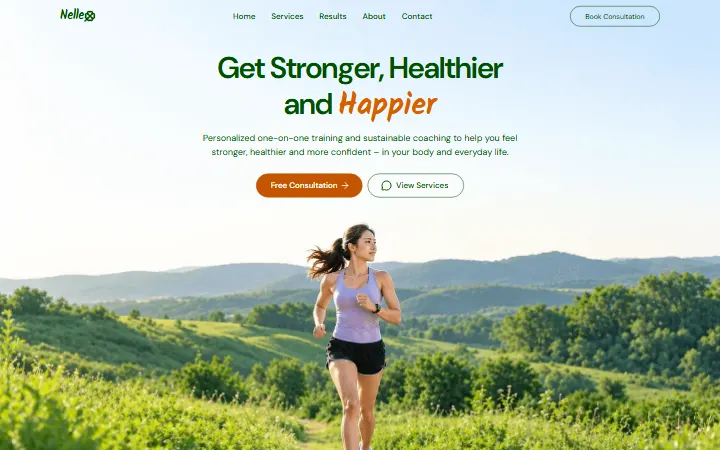
Hero, section #917
Pro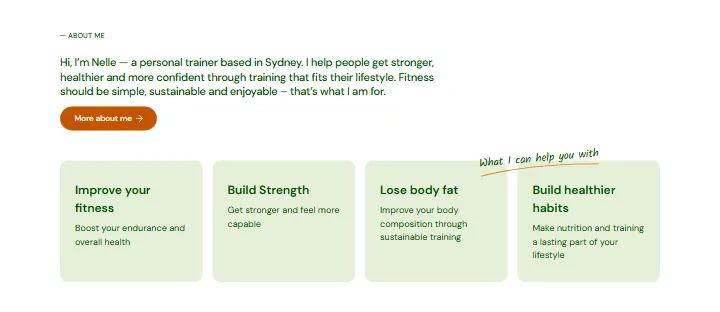
About, section #916
Pro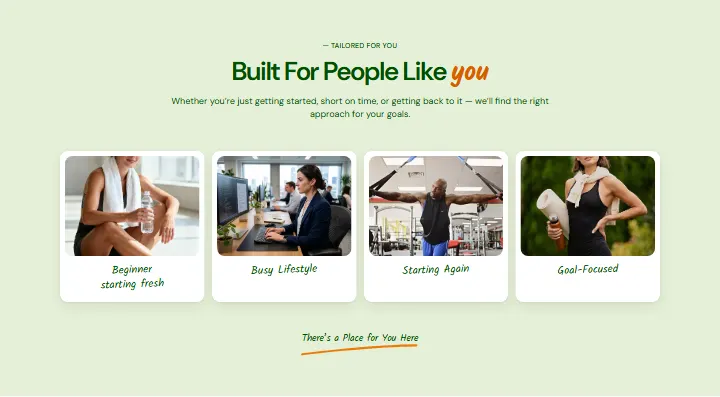
Who trains with me, section #915
Pro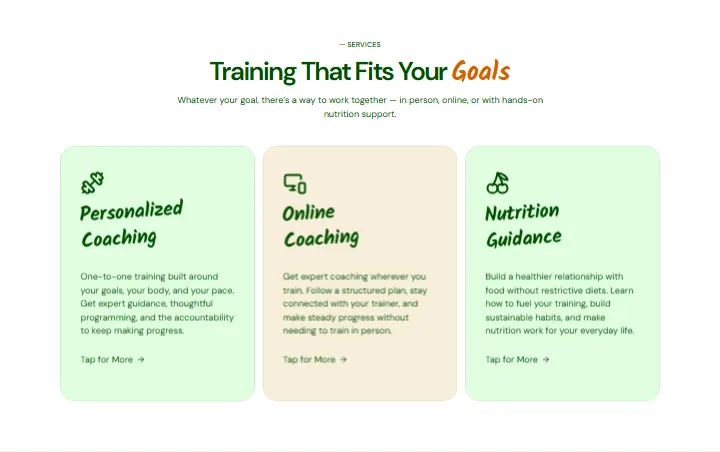
Services, section #914
Pro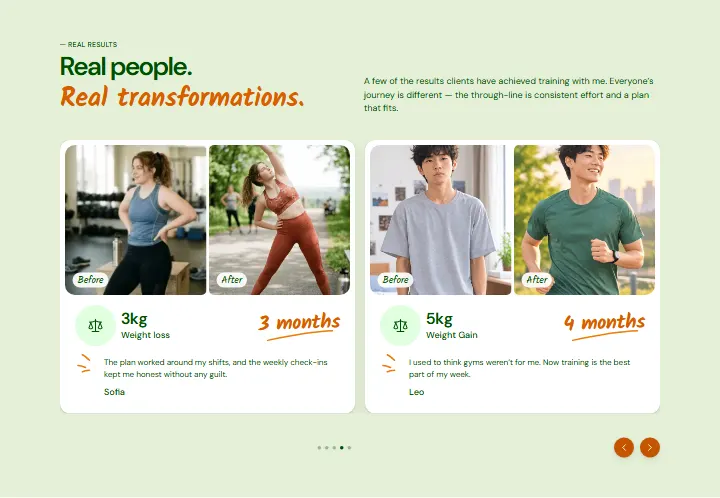
Real results, section #913
Pro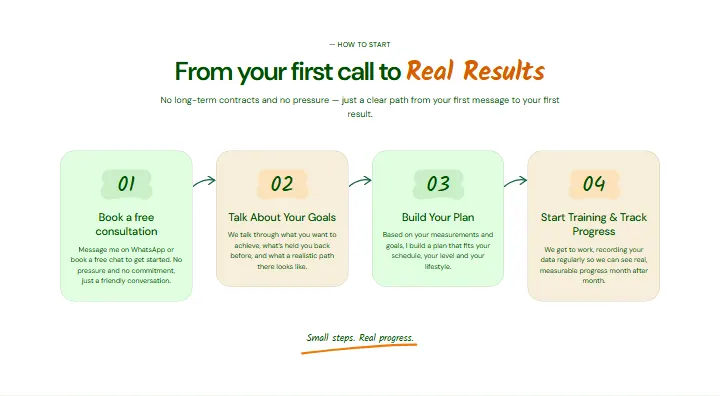
How to start, section #912
Pro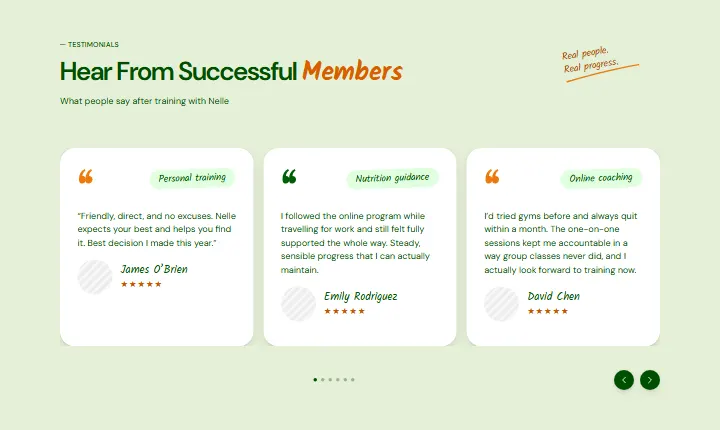
Testimonials, section #911
Pro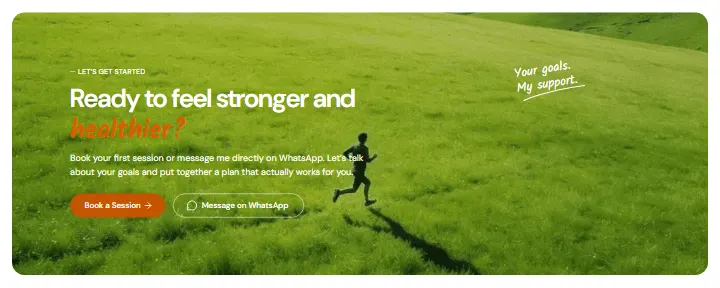
Call to action, section #910
Pro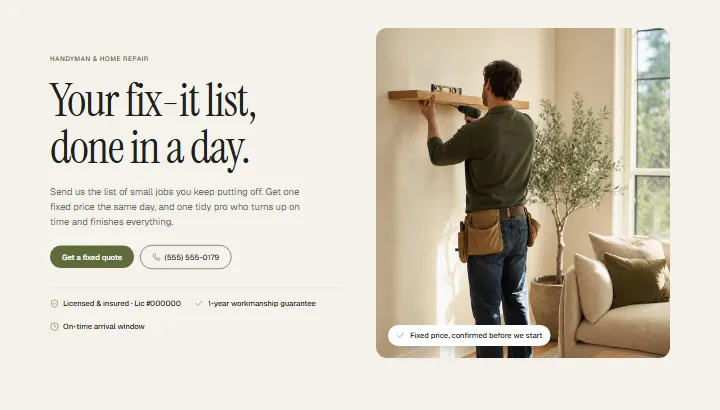
Hero, section #909
Pro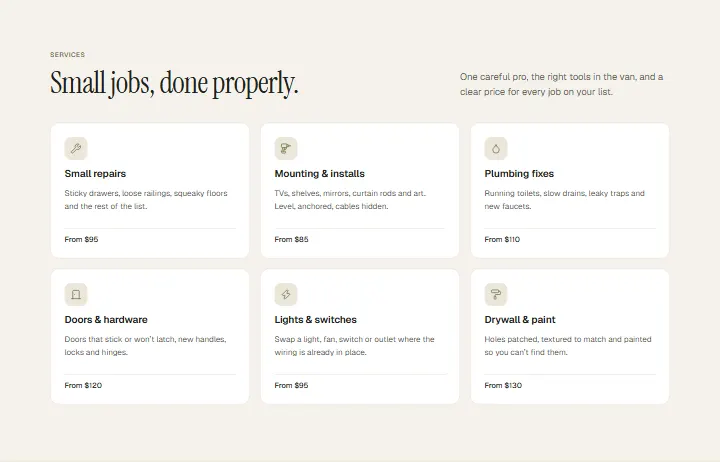
Services, section #908
Pro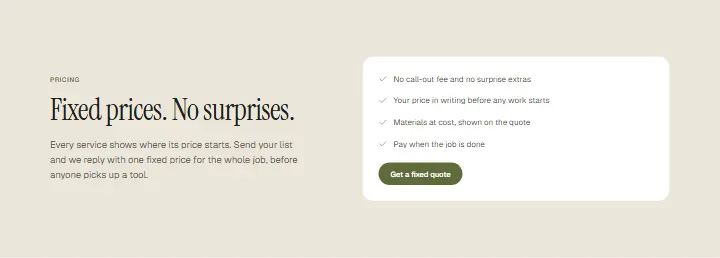
Prices, section #907
Pro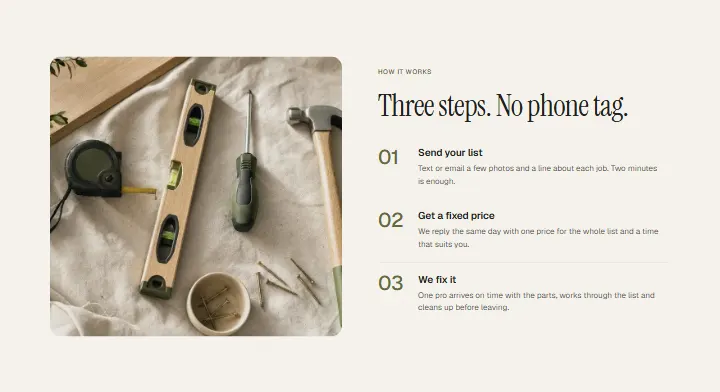
How it works, section #906
Pro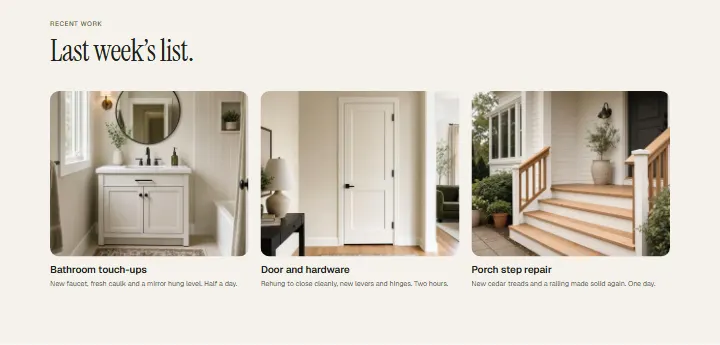
Recent work, section #905
Pro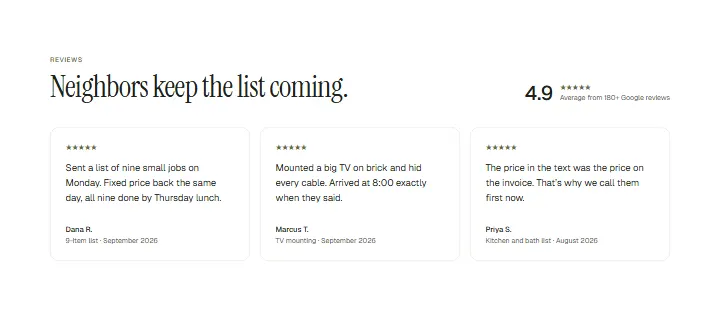
Reviews, section #904
Pro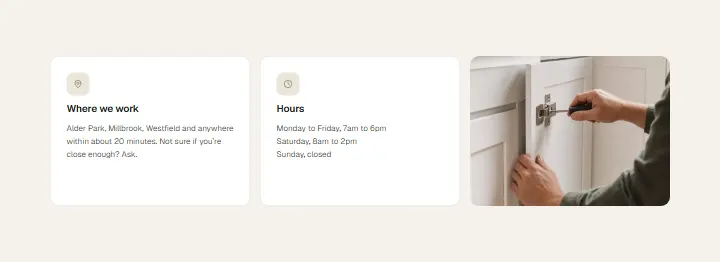
Area, section #903
Pro
FAQ, section #902
Pro
Quote, section #901
Pro
Hero, section #900
Pro
Figures, section #899
Pro
Services, section #898
Pro
How it works, section #897
Pro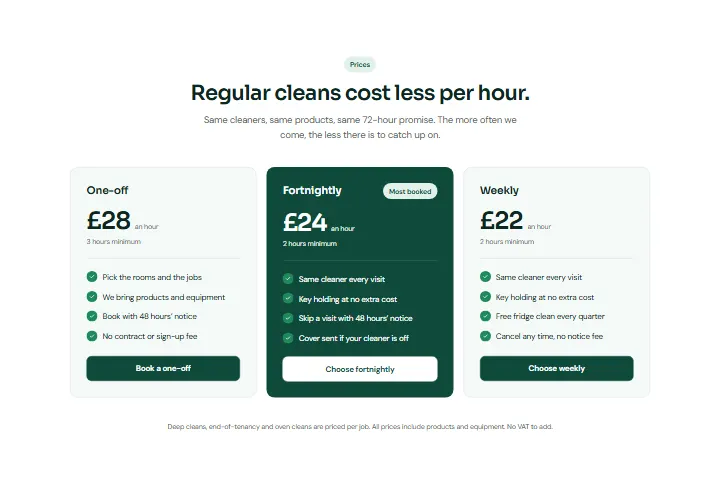
Prices, section #896
Pro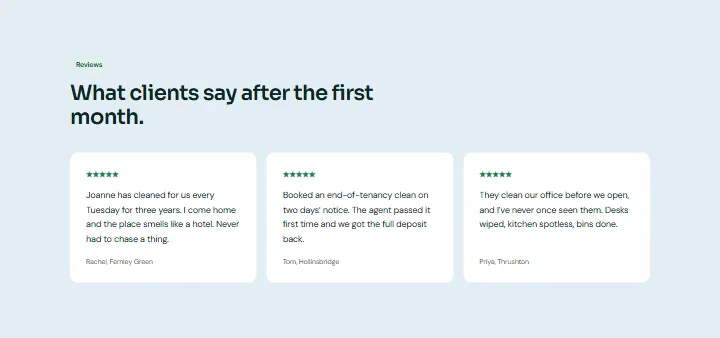
Reviews, section #895
Pro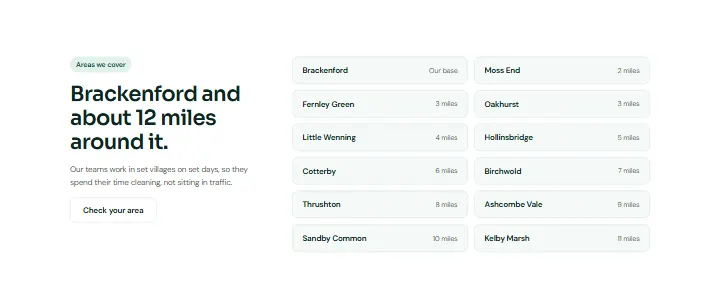
Areas, section #894
Pro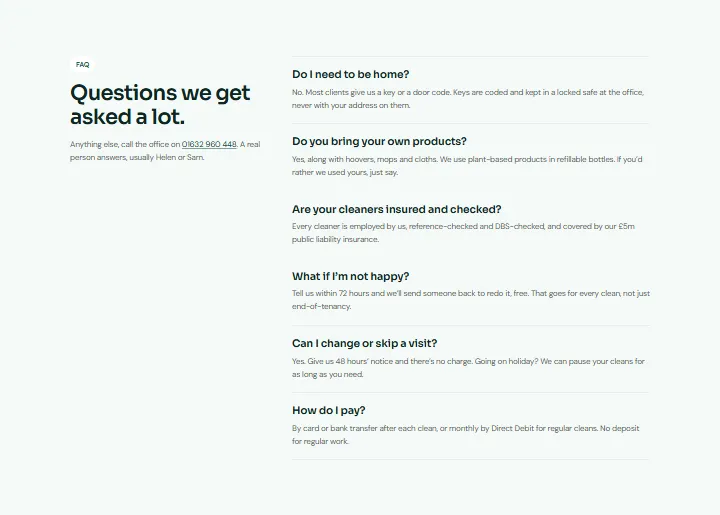
FAQ, section #893
Pro
Call to action, section #892
Pro
Serum introduction, section #891
Pro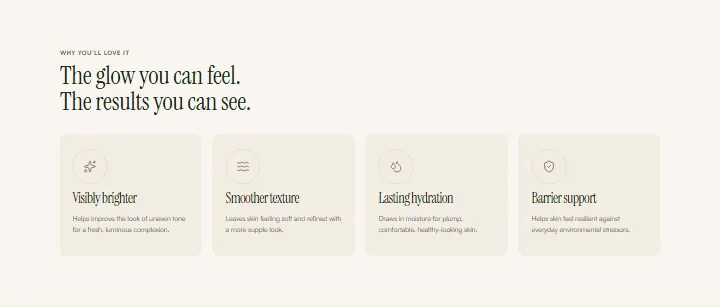
Why you’ll love it, section #890
Pro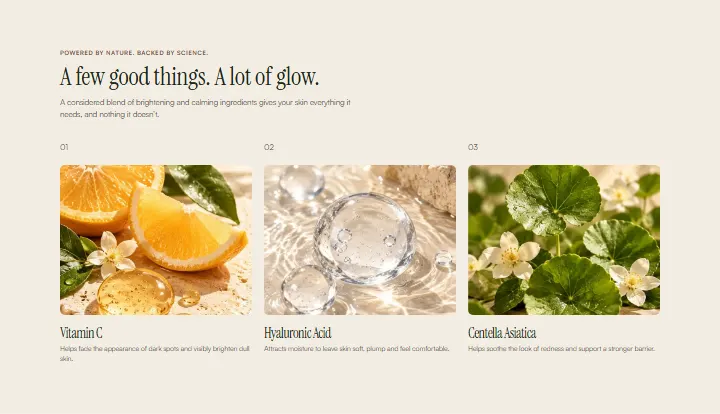
Ingredients, section #889
Pro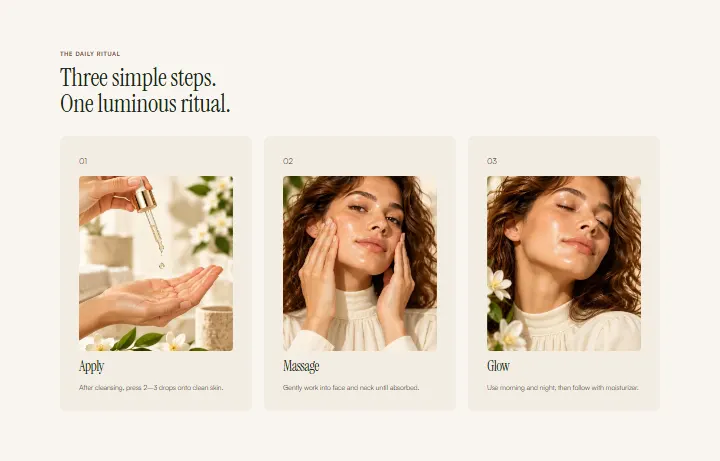
The ritual, section #888
Pro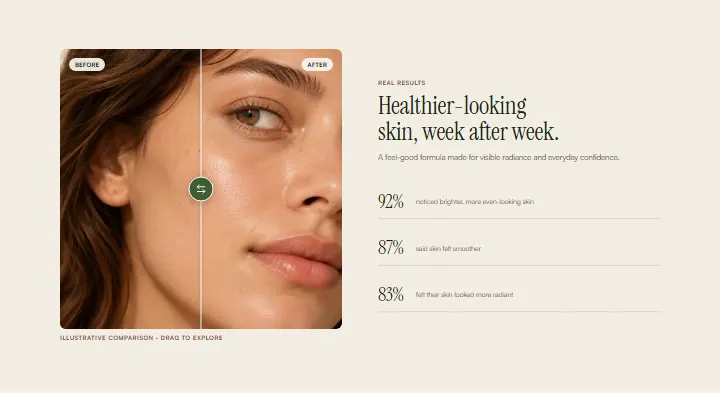
Real results, section #887
Pro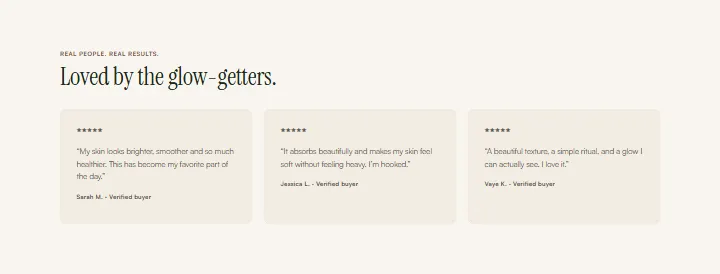
Customer reviews, section #886
Pro
Frequently asked questions, section #885
Pro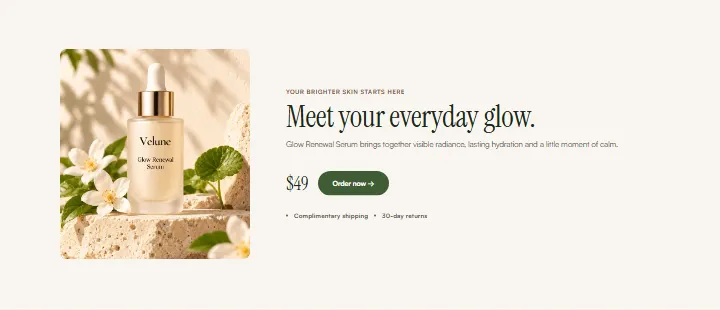
Closing offer, section #884
Pro
Flavours, section #883
Pro
Why, section #882
Pro
Statement, section #881
Pro
Range, section #880
Pro
Questions, section #879
Pro
Newsletter, section #878
Pro
Hero, section #877
Pro
Paths, section #876
Pro
Why Corriden, section #875
Pro
Who we place, section #874
Pro
How we work, section #873
Pro
Stories, section #872
Pro
Team, section #871
Pro
Closing, section #870
Pro
Hero, section #869
Pro
Booking, section #868
Pro
Clients, section #867
Pro
About, section #866
Pro
Services, section #865
Pro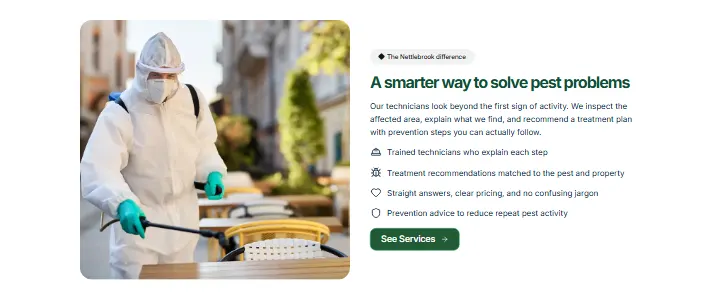
Difference, section #864
Pro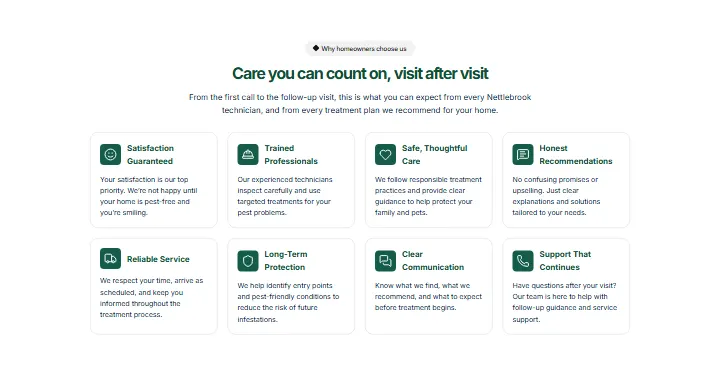
Why us, section #863
Pro
Approach, section #862
Pro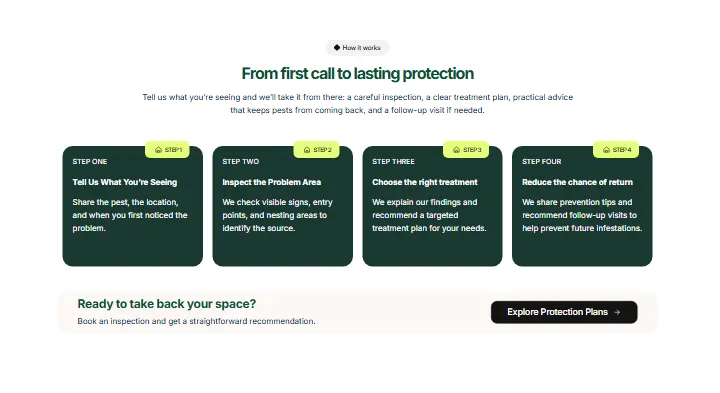
How it works, section #861
Pro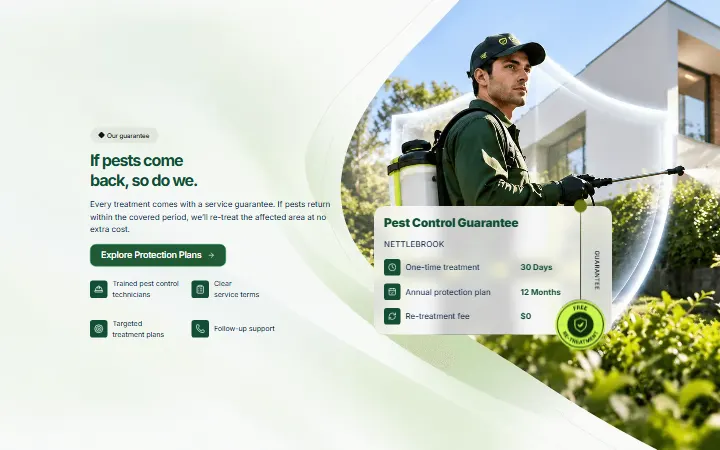
Guarantee, section #860
Pro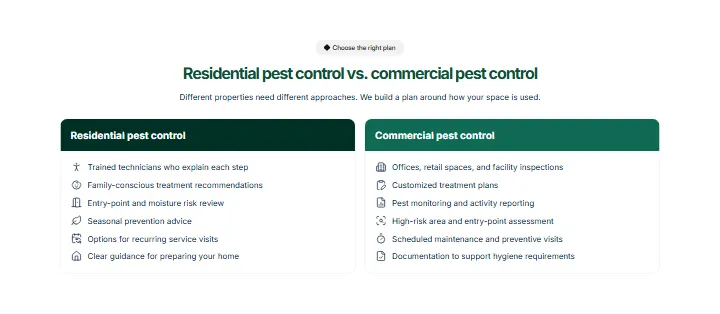
Plans, section #859
Pro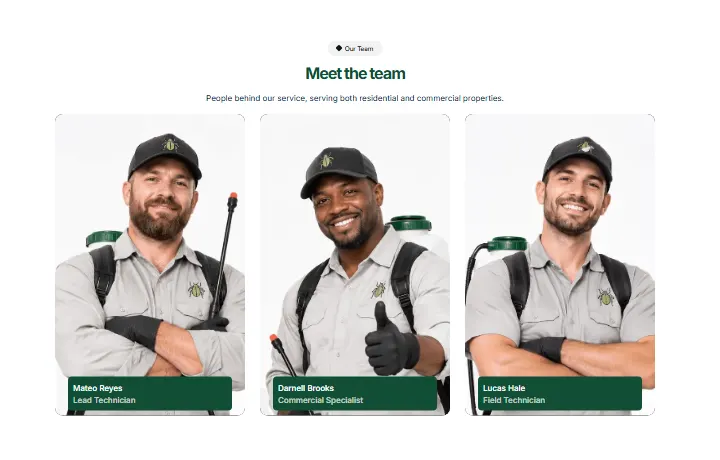
Team, section #858
Pro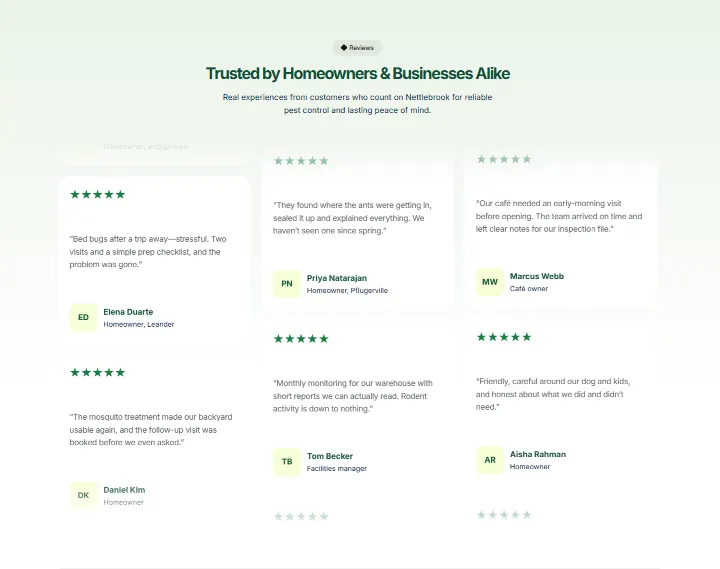
Reviews, section #857
Pro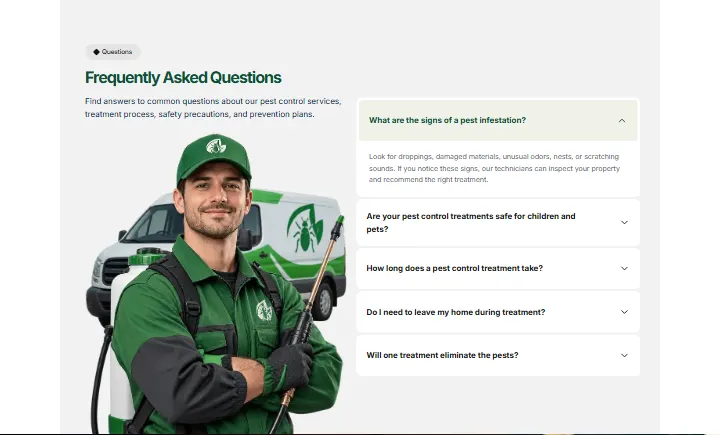
Questions, section #856
Pro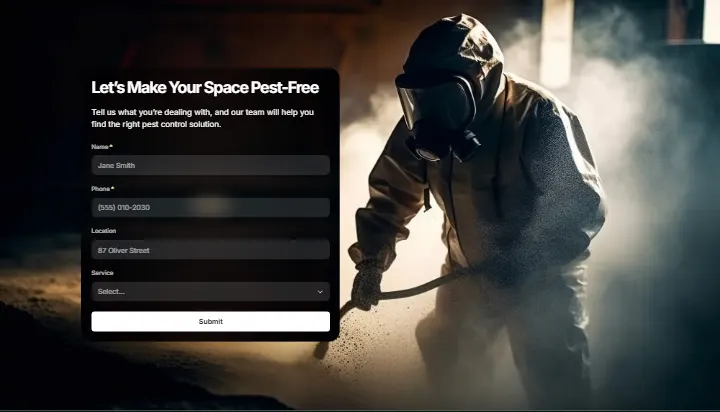
Request, section #855
Pro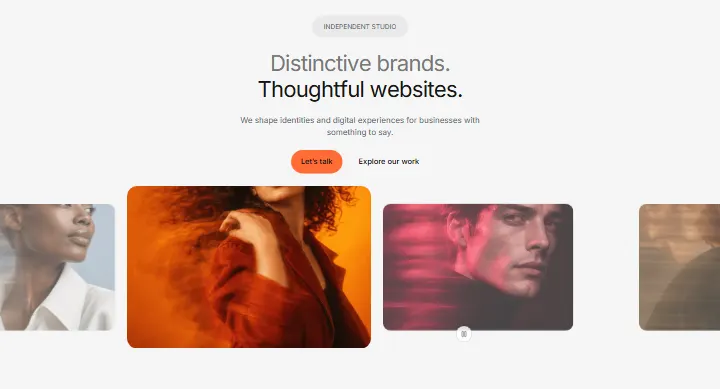
Hero, section #854
Pro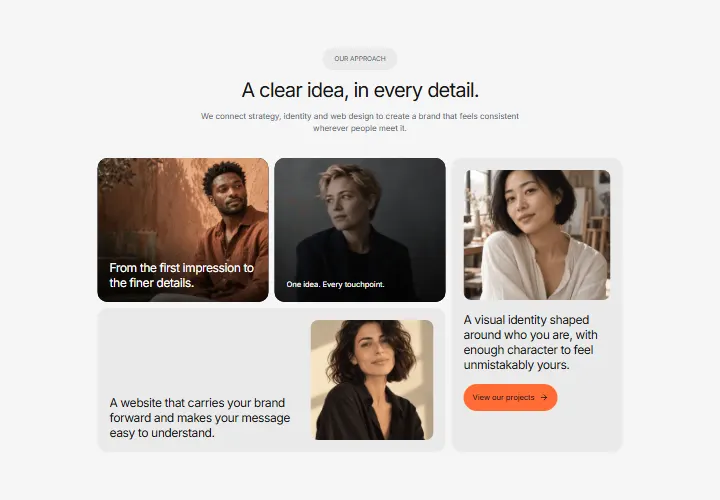
Our approach, section #853
Pro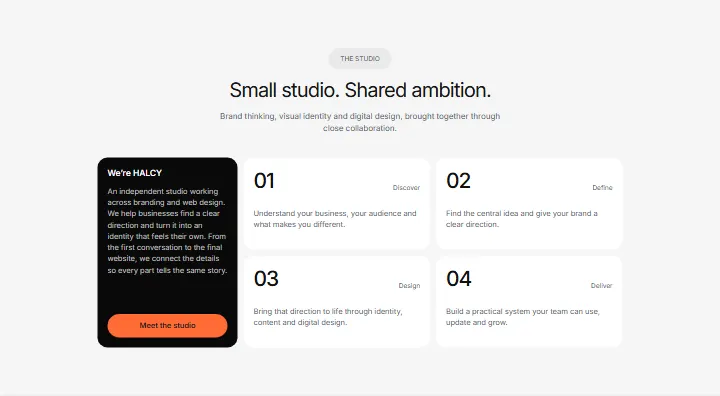
The studio, section #852
Pro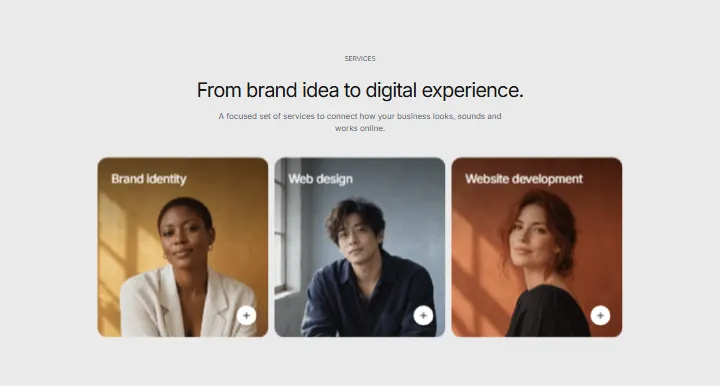
Services, section #851
Pro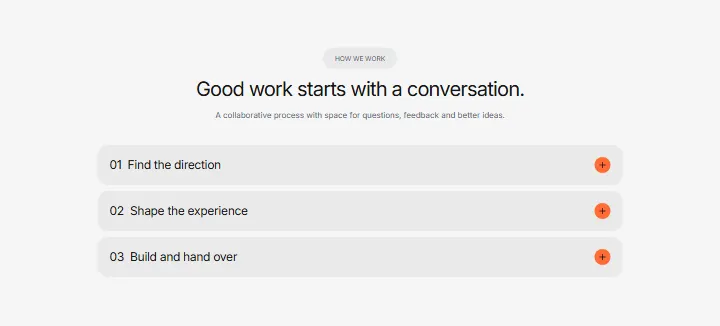
How we work, section #850
Pro
Call to action, section #849
Pro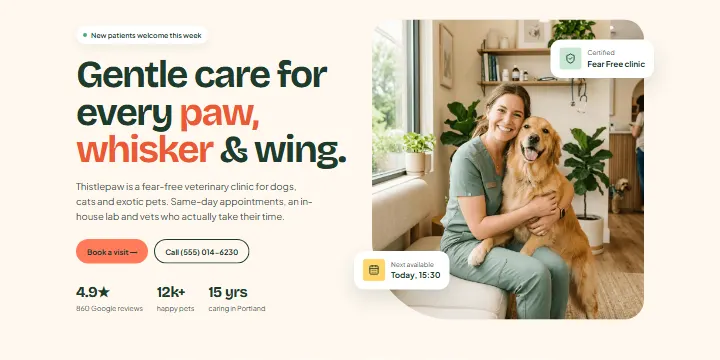
Hero, section #848
Pro
Pets we see, section #847
Pro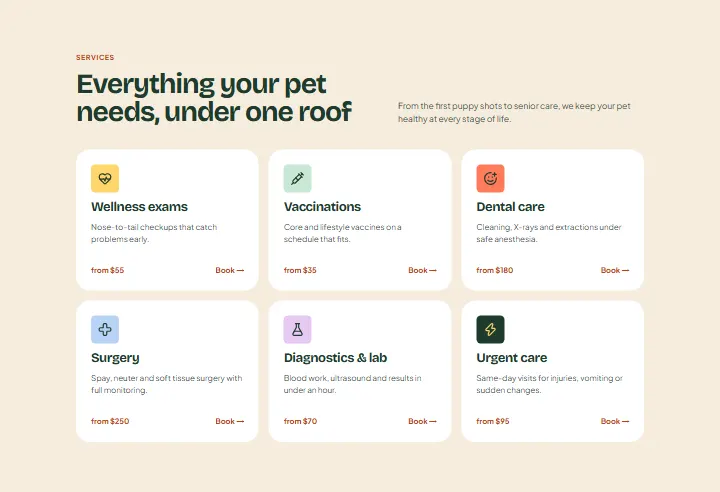
Services, section #846
Pro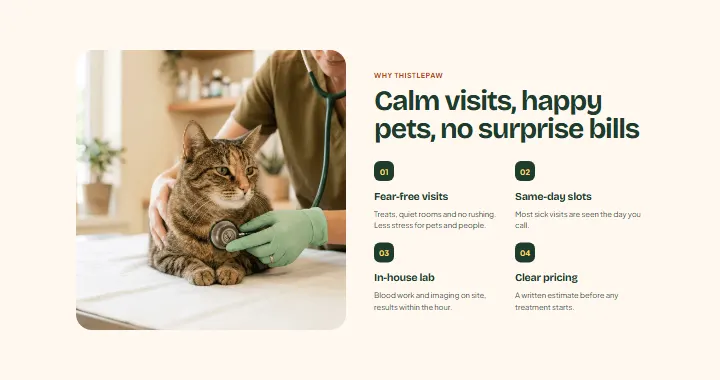
Why us, section #845
Pro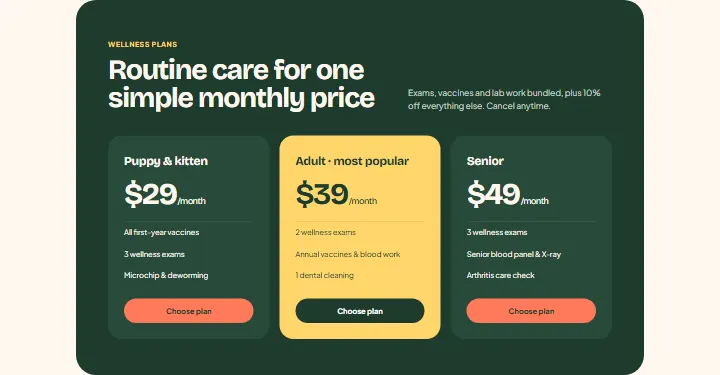
Wellness plans section, section #844
Pro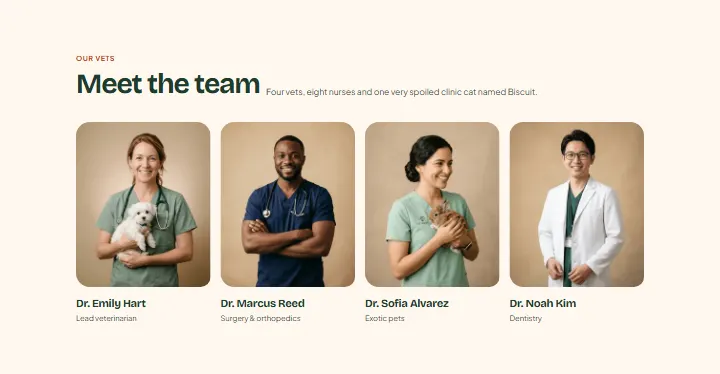
Team, section #843
Pro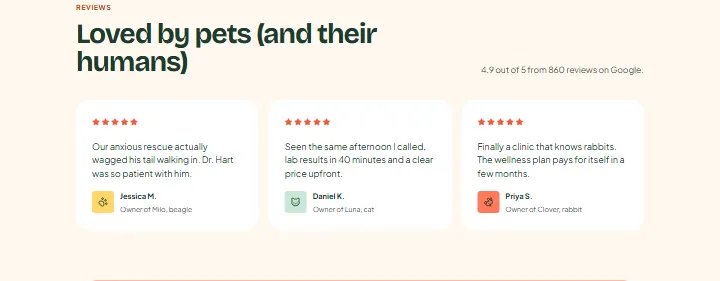
Reviews, section #842
Pro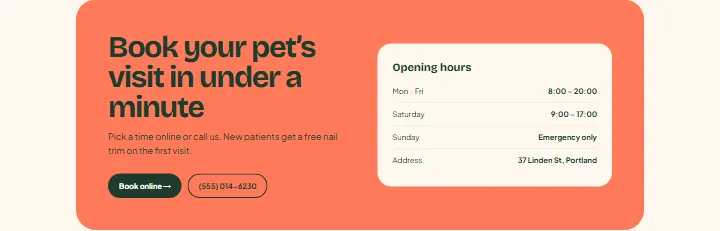
Booking section, section #841
Pro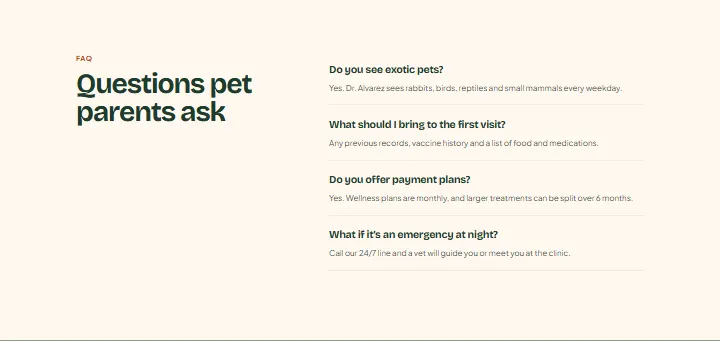
Questions, section #840
Pro
Hero, section #839
Pro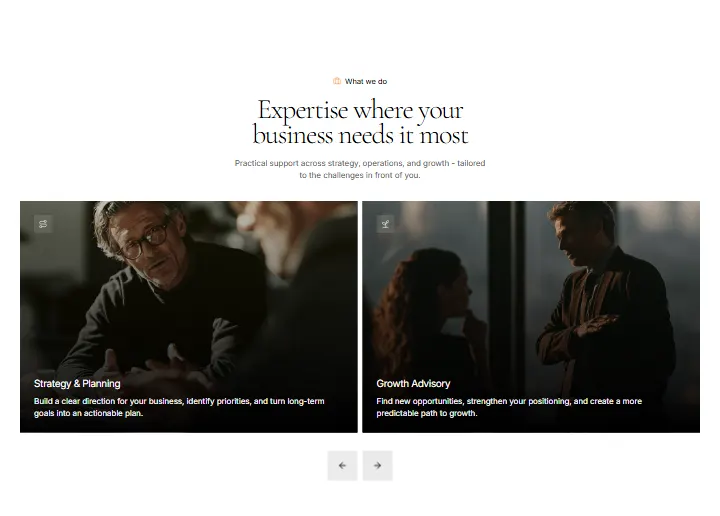
Services, section #838
Pro
Why us, section #837
Pro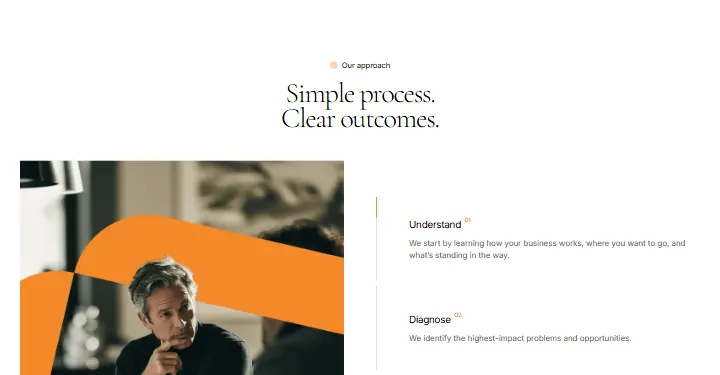
Approach, section #836
Pro
Case study, section #835
Pro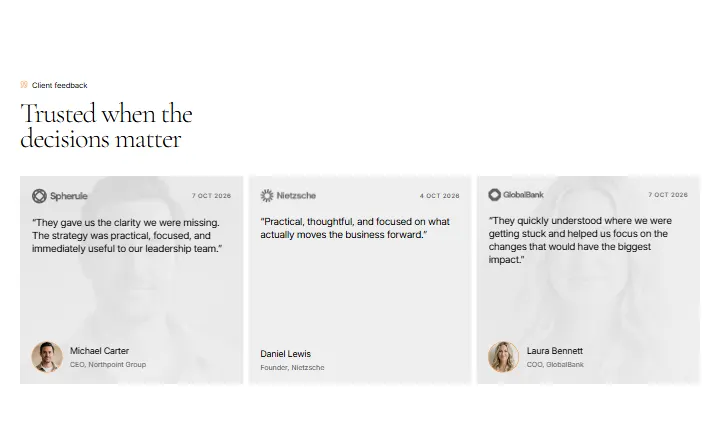
Reviews, section #834
Pro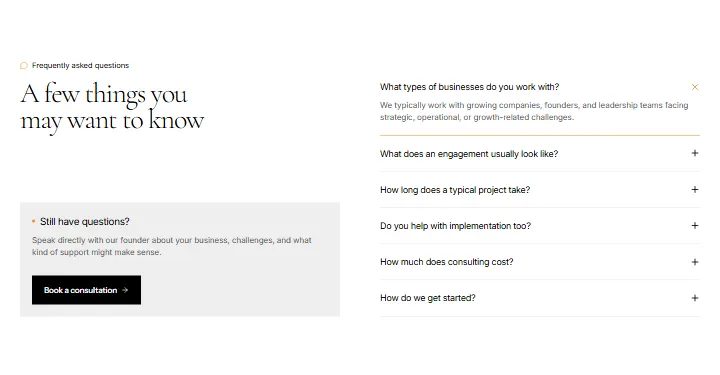
Questions, section #833
Pro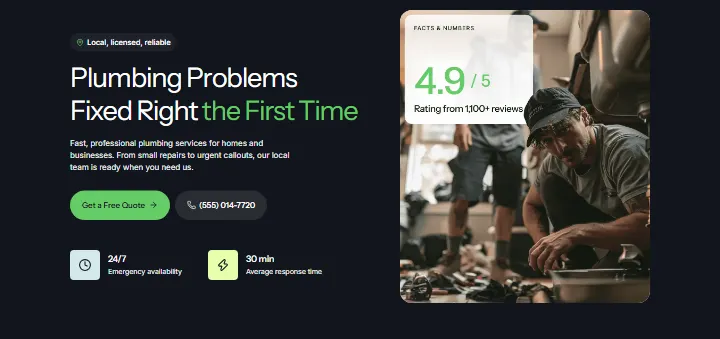
Hero, section #832
Pro
Promises, section #831
Pro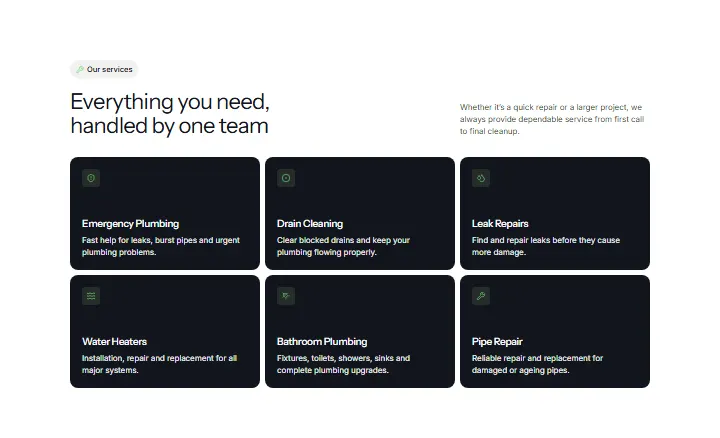
Services, section #830
Pro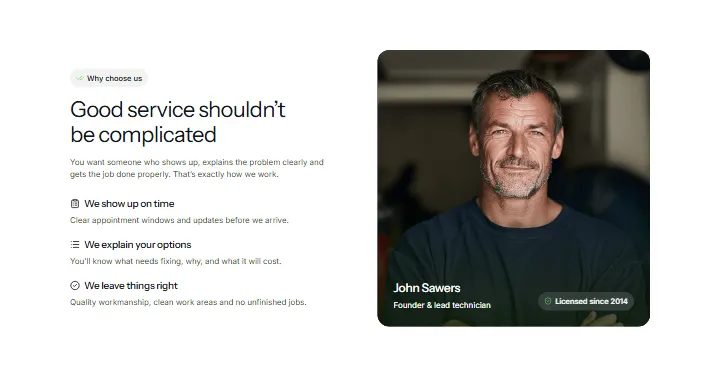
Why us, section #829
Pro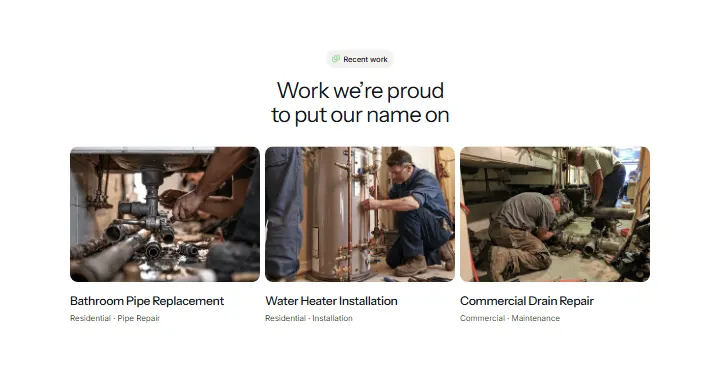
Recent work, section #828
Pro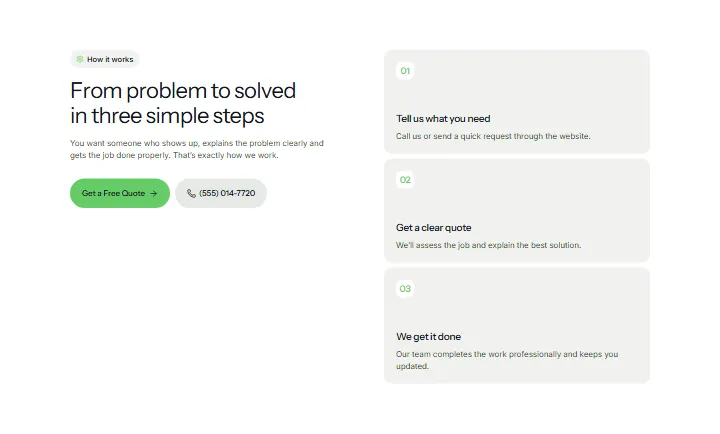
How it works, section #827
Pro
Service area, section #826
Pro
Reviews, section #825
Pro
Questions, section #824
Pro
Hero, section #823
Pro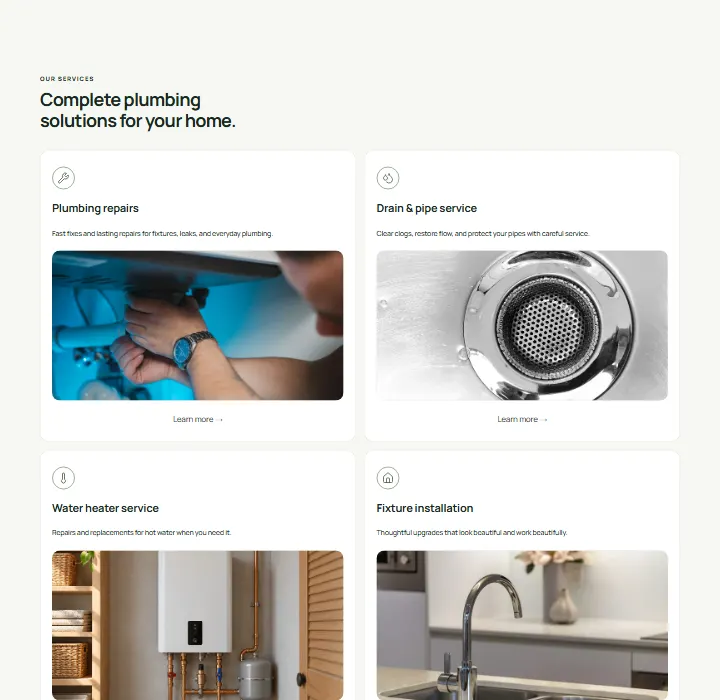
Services, section #822
Pro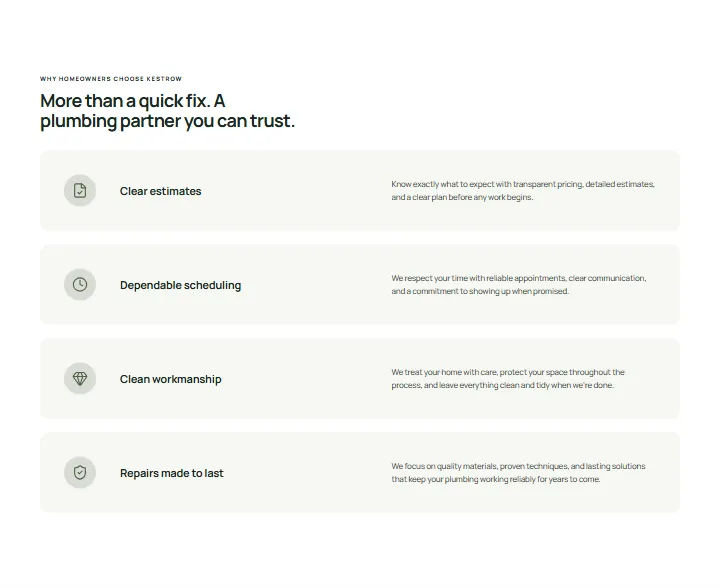
Why us, section #821
Pro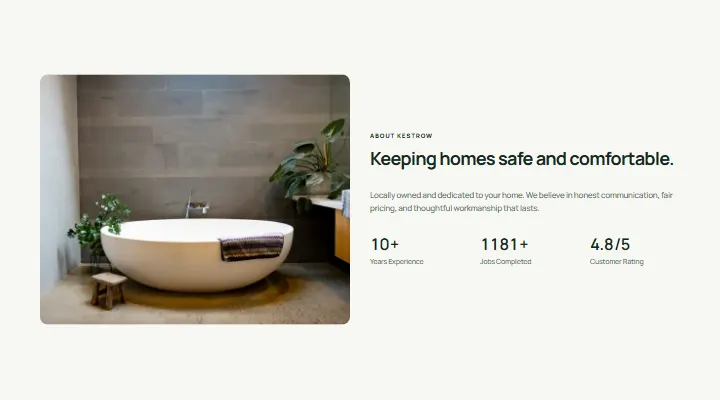
About, section #820
Pro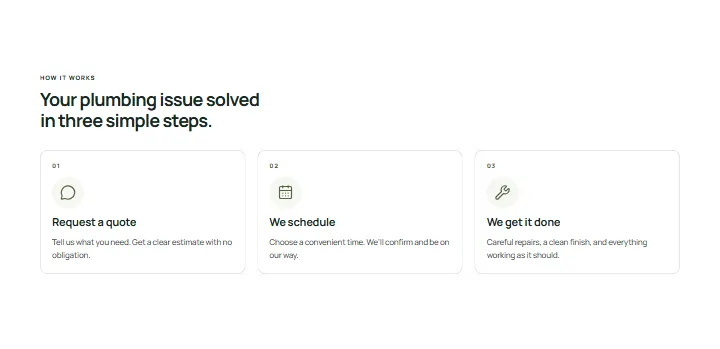
How it works, section #819
Pro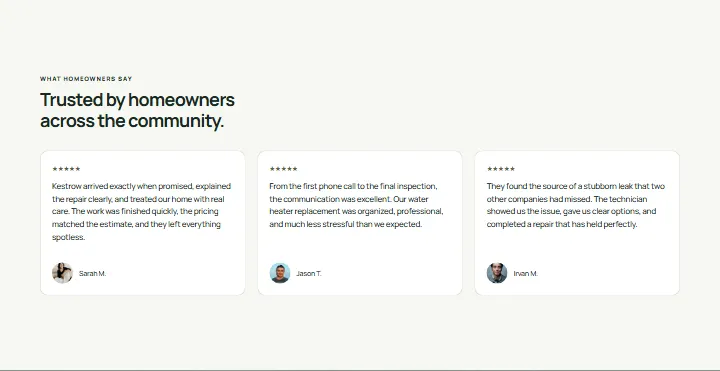
Reviews, section #818
Pro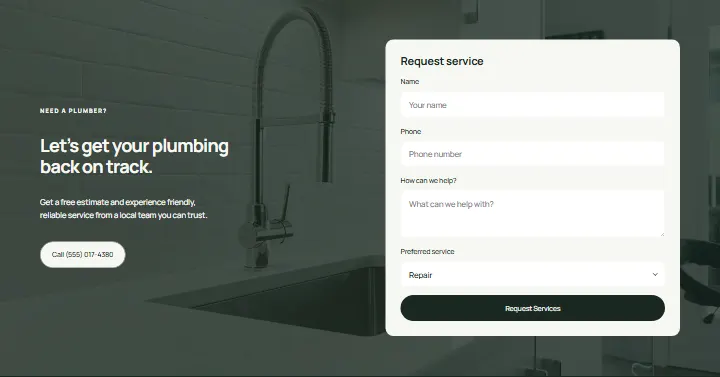
Request service, section #817
Pro
Hero, section #816
Pro
Numbers, section #815
Pro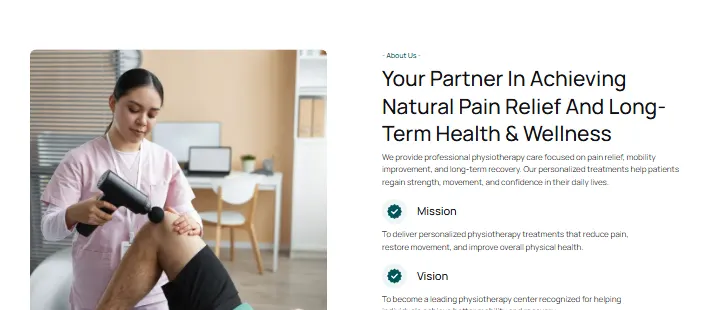
About, section #814
Pro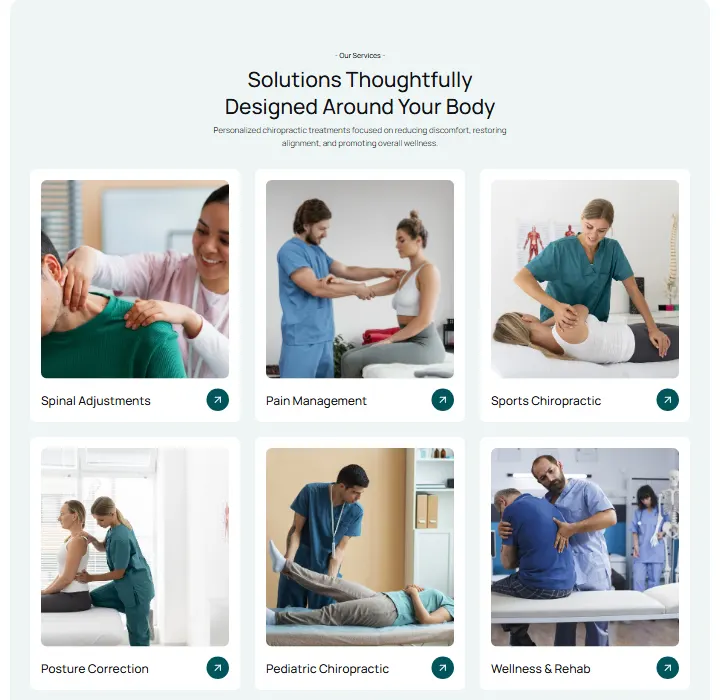
Services, section #813
Pro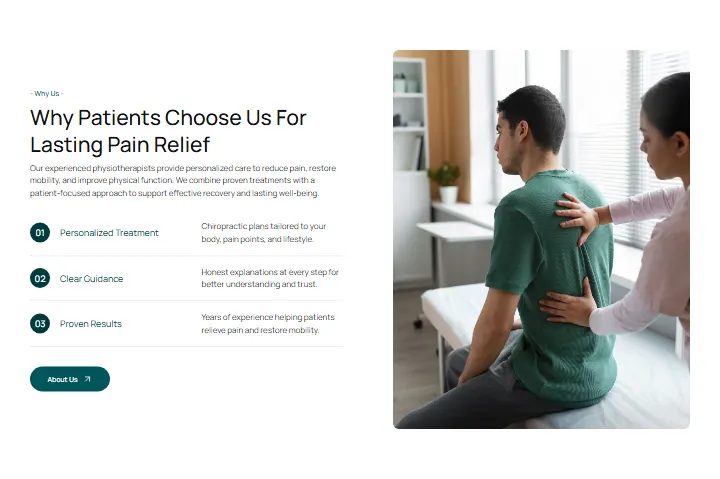
Why us, section #812
Pro
Get started, section #811
Pro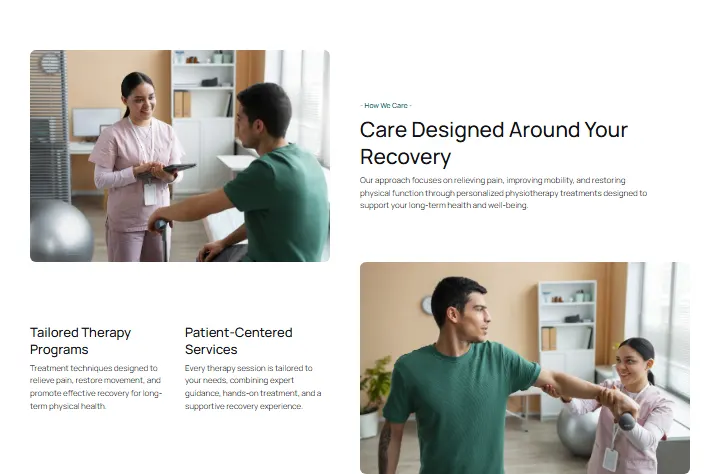
How we care, section #810
Pro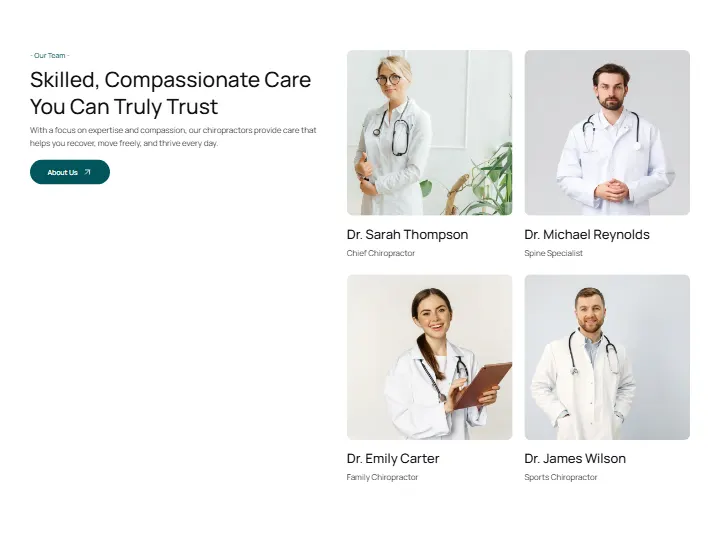
Team, section #809
Pro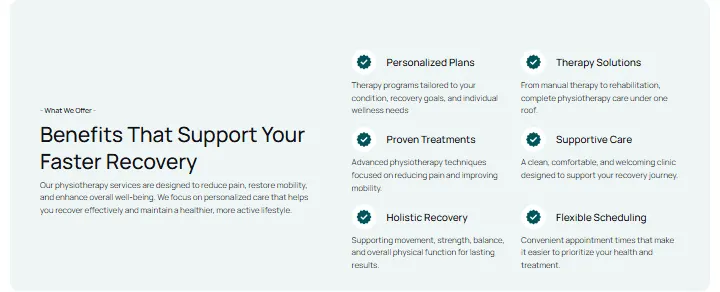
What we offer, section #808
Pro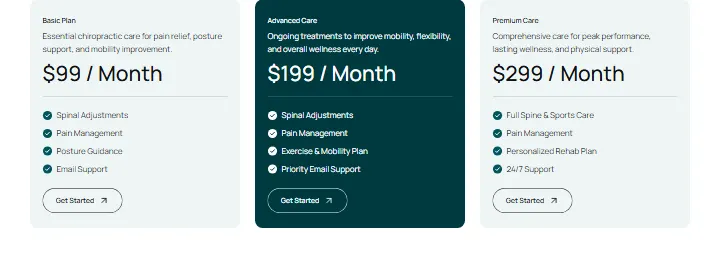
Plans, section #807
Pro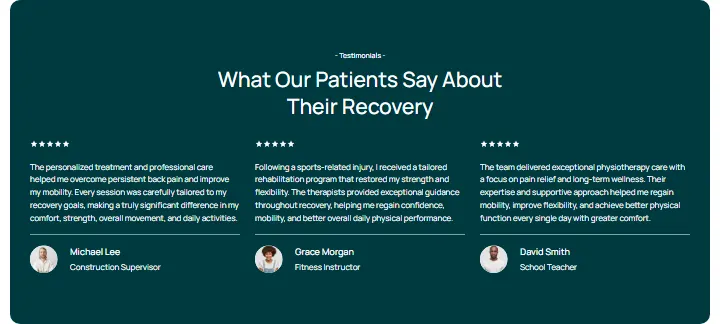
Testimonials, section #806
Pro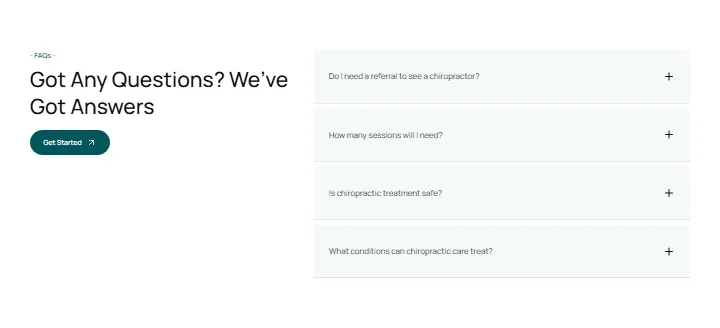
Questions, section #805
Pro
Contact cards, section #804
Pro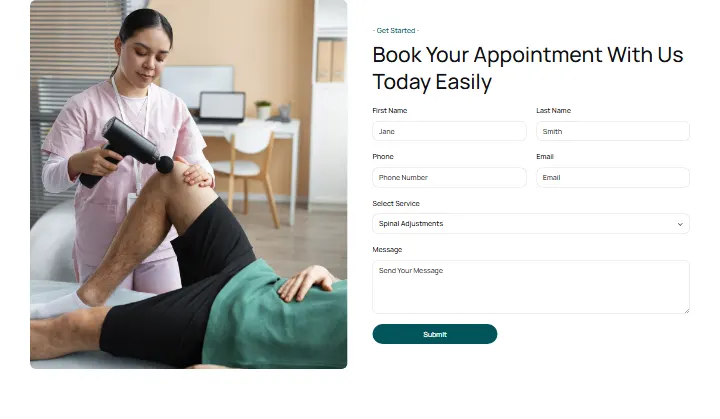
Book, section #803
Pro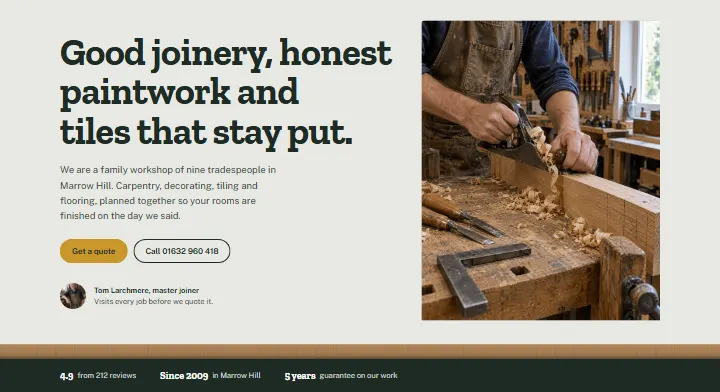
Introduction, section #802
Pro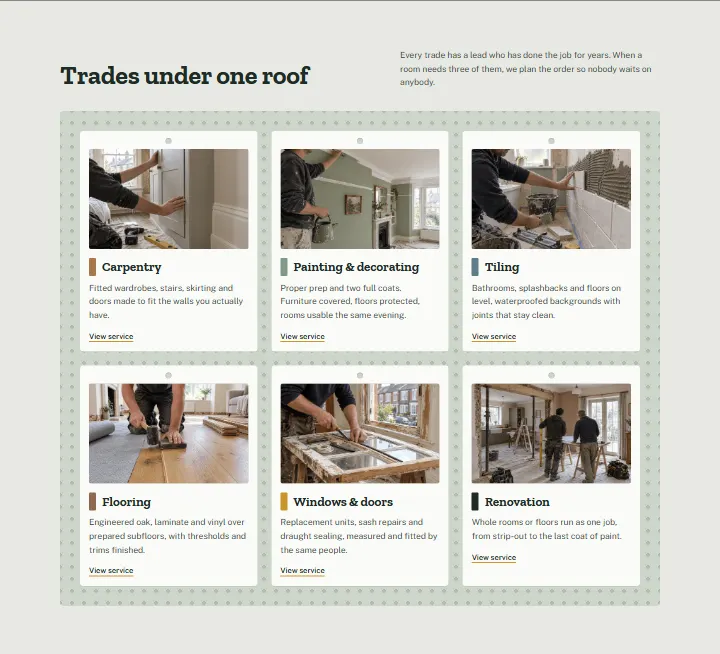
Services, section #801
Pro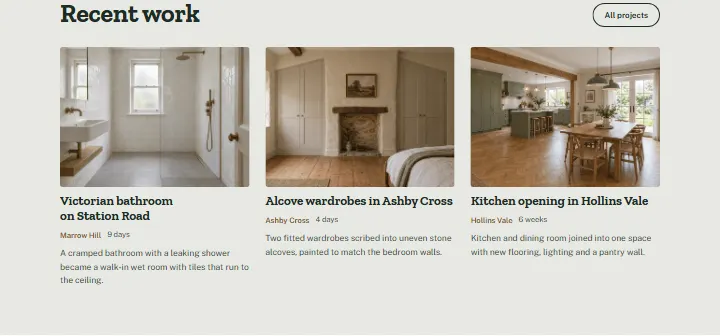
Recent work, section #800
Pro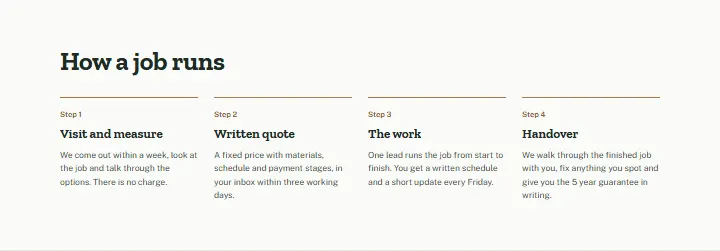
How a job runs, section #799
Pro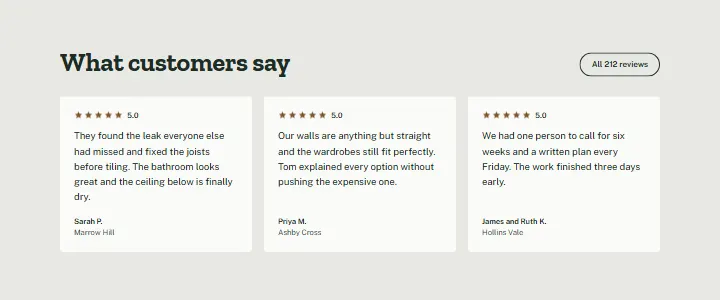
Reviews, section #798
Pro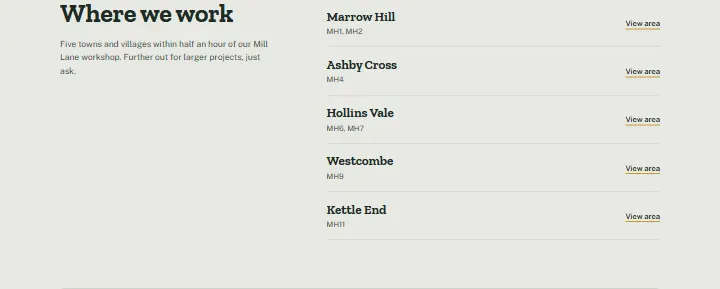
Where we work, section #797
Pro
Quote, section #796
Pro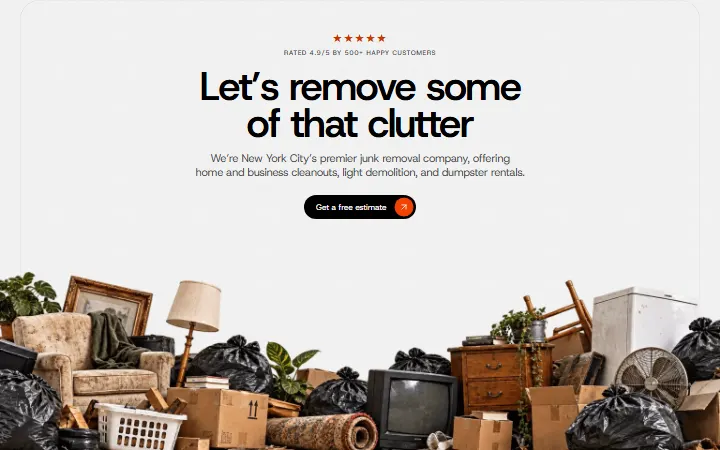
Hero, section #795
ProNo section matches. Try another word or category.
Clear the filtersShowing 336 of 1130
Load more sectionsHow it works
From this page to yours in three steps
1. Copy a free section
Click “Copy section” on any free section. It goes to your clipboard, ready for Uncoder.
2. Paste it in Uncoder
Open a page in the Uncoder editor, select the section it should follow and press Ctrl+V (⌘V on a Mac).
3. It takes your style
Free sections use your Design System, so they arrive in your colours and fonts. Change the words and photos, or ask your AI app to.
FAQ