Your contact form goes live on Monday. By Wednesday the inbox holds three real inquiries and a pile of messages selling links and “SEO packages”. The reflex is to add a puzzle that makes every visitor pick out traffic lights, real customers included.
Before you do that, look at what your form already does. Every Uncoder form is protected against spam bots out of the box, and most of that protection is invisible to people.
What every form already does
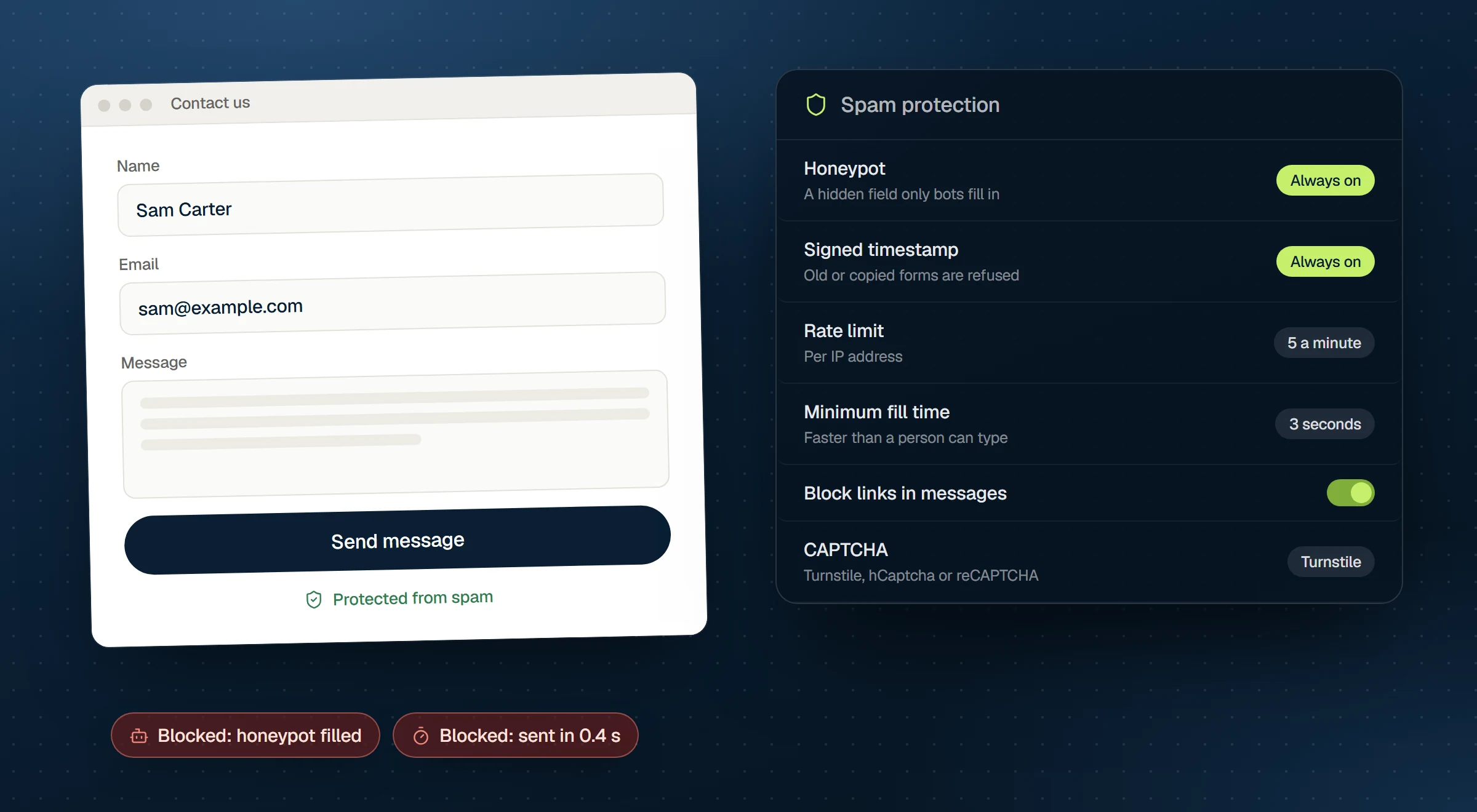
These checks run on every Uncoder form, with nothing to set up:
- Honeypot. A hidden field that people never see but bots fill in. A filled-in honeypot marks the submission as spam.
- Signed timestamp. Each form carries a signed time stamp. A submission without a valid one, or older than a day, is refused, and the visitor is asked to reload the page.
- Rate limit. At most 5 submissions per minute from the same IP address.
- Same-site check. Browsers cannot send your form from another website.
If your site sits behind Cloudflare or another proxy, every visitor can reach WordPress from the proxy’s address, and the rate limit would count them all as one. Tell Uncoder which header carries the real address by adding a line to wp-config.php, for example define( 'UNCODER_WB_CLIENT_IP_HEADER', 'CF-Connecting-IP' ); for Cloudflare. Only add it when the proxy always sets that header.
Two settings worth a look on each form
Select the Form widget and open Content → Spam protection:
- Minimum fill time (seconds): submissions sent faster than this after the form loaded are treated as spam. It is 3 seconds by default and goes up to 60. 0 turns the check off.
- Block links in messages: rejects answers in Text and Textarea fields that contain links, with the message “Links are not allowed in this field.” It suits contact forms that attract link spam. Leave it off on forms where people genuinely need to send a link, such as a portfolio submission.
What happens to the spam you catch
When the honeypot or the minimum fill time catches a submission, the bot sees the normal success message, so it learns nothing. The submission goes to the Spam tab of Submissions, no email is sent and no other action runs, so nothing reaches your mailing list or Slack. Spam is deleted automatically after 30 days. If a real message ends up there, open it and click Not spam.
That is why it is worth checking the Spam tab once in a while after you tighten a setting: you see what was caught, and you can rescue anything that shouldn’t have been.
When to add a CAPTCHA
If a form still gets spam with the built-in checks, add a CAPTCHA to that form. The providers Uncoder supports differ mainly in how much they ask of visitors:
- Cloudflare Turnstile: free and usually invisible to visitors.
- hCaptcha: may ask visitors to tick a box or solve a puzzle.
- Google reCAPTCHA v2 (checkbox): may also ask for a tick or a puzzle.
- Google reCAPTCHA v3 (invisible): always invisible. It scores each visit instead of asking a question, and visits below your Minimum score are rejected. The scale runs from 0.1 (lets almost everyone through) to 0.9 (strict); Google suggests 0.5.
A failed CAPTCHA works differently from the silent checks. People can fail it too, so the visitor sees “Please complete the security check and try again.” and can retry.
Set it up
- Get keys from the provider. Create a site for your domain in the provider’s dashboard and copy the site key and the secret key.
- Save them in Uncoder. Go to Uncoder → Settings → Forms. In Form CAPTCHA, choose the Provider, paste the Site key and Secret key, and click Save changes. The secret key stays on your server and is never shown again after saving.
- Turn it on per form. In each form that needs it, turn on CAPTCHA in Spam protection, then update the page. The switch works with every provider.
The provider’s script loads only on pages with a form that has CAPTCHA turned on, so the rest of your site stays as light as before.
Mind the privacy side
Without a CAPTCHA, submissions are stored in your WordPress database and nothing is sent to Uncoder or any other company, unless you turn on an action that passes answers on. A CAPTCHA changes that: the CAPTCHA service receives the visitor’s IP address and browser details. Mention it in your privacy policy.
Ask your AI
Form settings live on the page, so a connected AI app can change them for you:
On the Contact page, turn on Block links in messages in the form and raise the minimum fill time to 5 seconds.
The CAPTCHA keys are yours to enter. An AI app cannot change Uncoder’s settings screens or see API keys.
A sensible order
- Leave the built-in checks to do their work.
- Turn on Block links in messages for contact forms that collect link spam.
- Add a CAPTCHA only to the forms that still get spam, starting with an invisible one.
Try it
Open any form on your site and check its Spam protection section. The spam protection docs explain each check, and Form settings covers the CAPTCHA providers. For everything else forms can do, see Forms and popups.